Plume_Launcher
Plume Launcher
Light as a feather. A minimal, ad-free home screen for Android TV and Google TV.




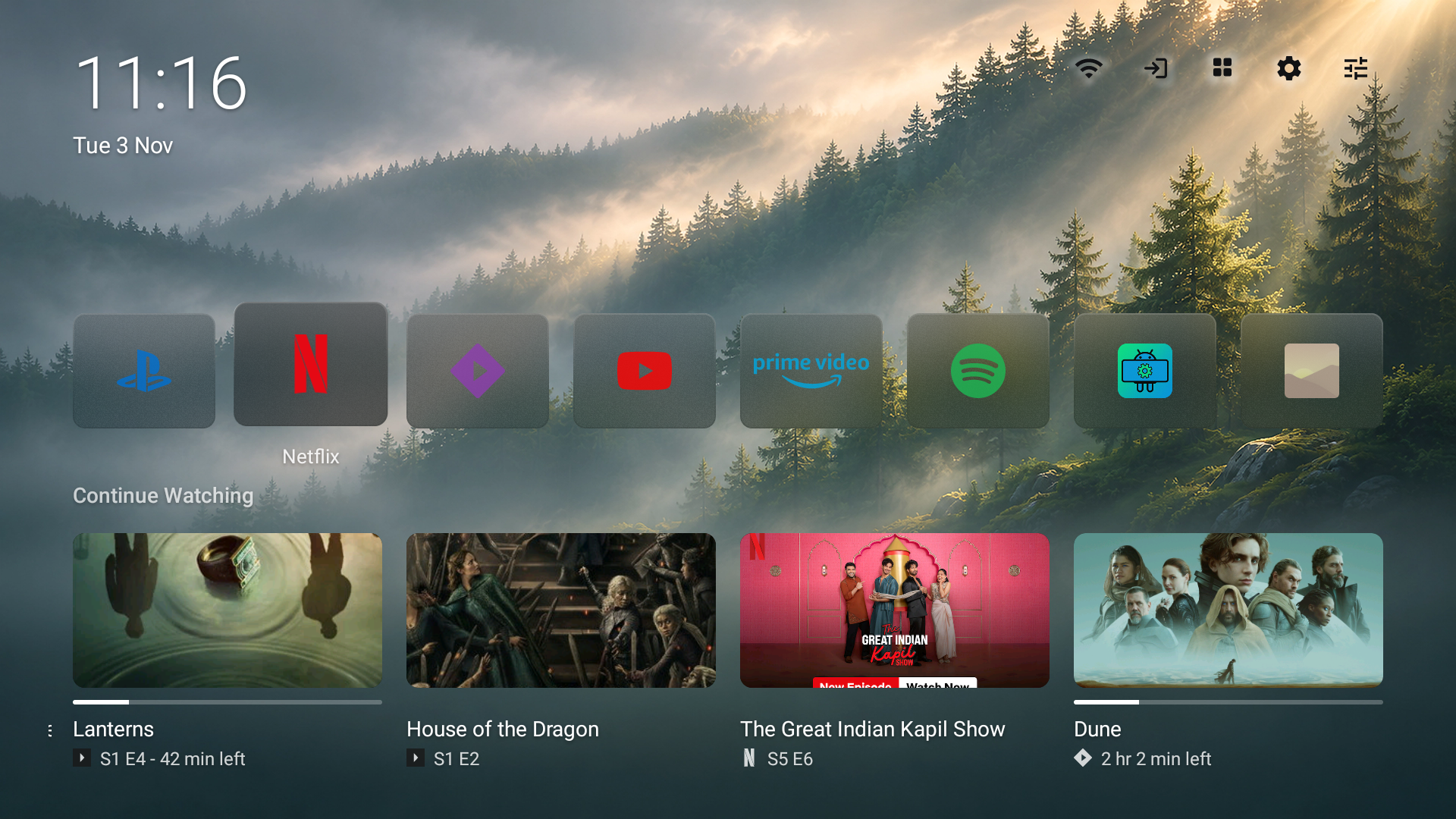
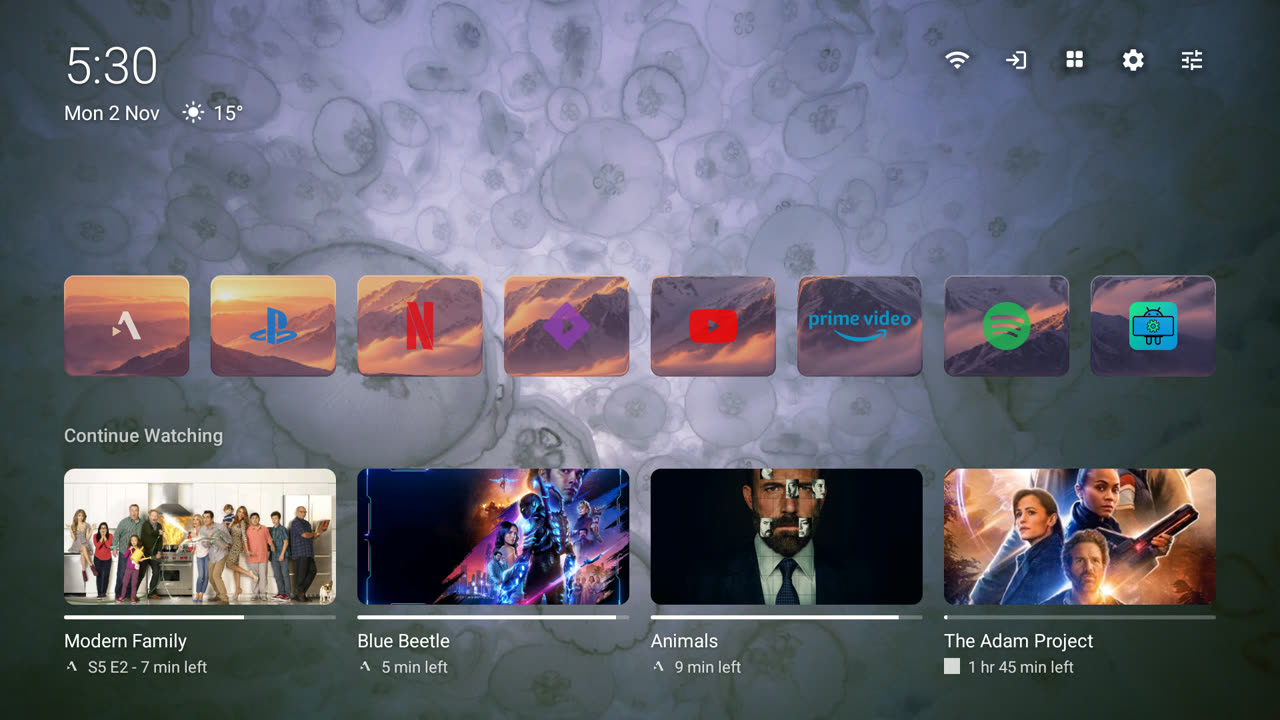
Forest Mist · Dark theme · Frosted glass
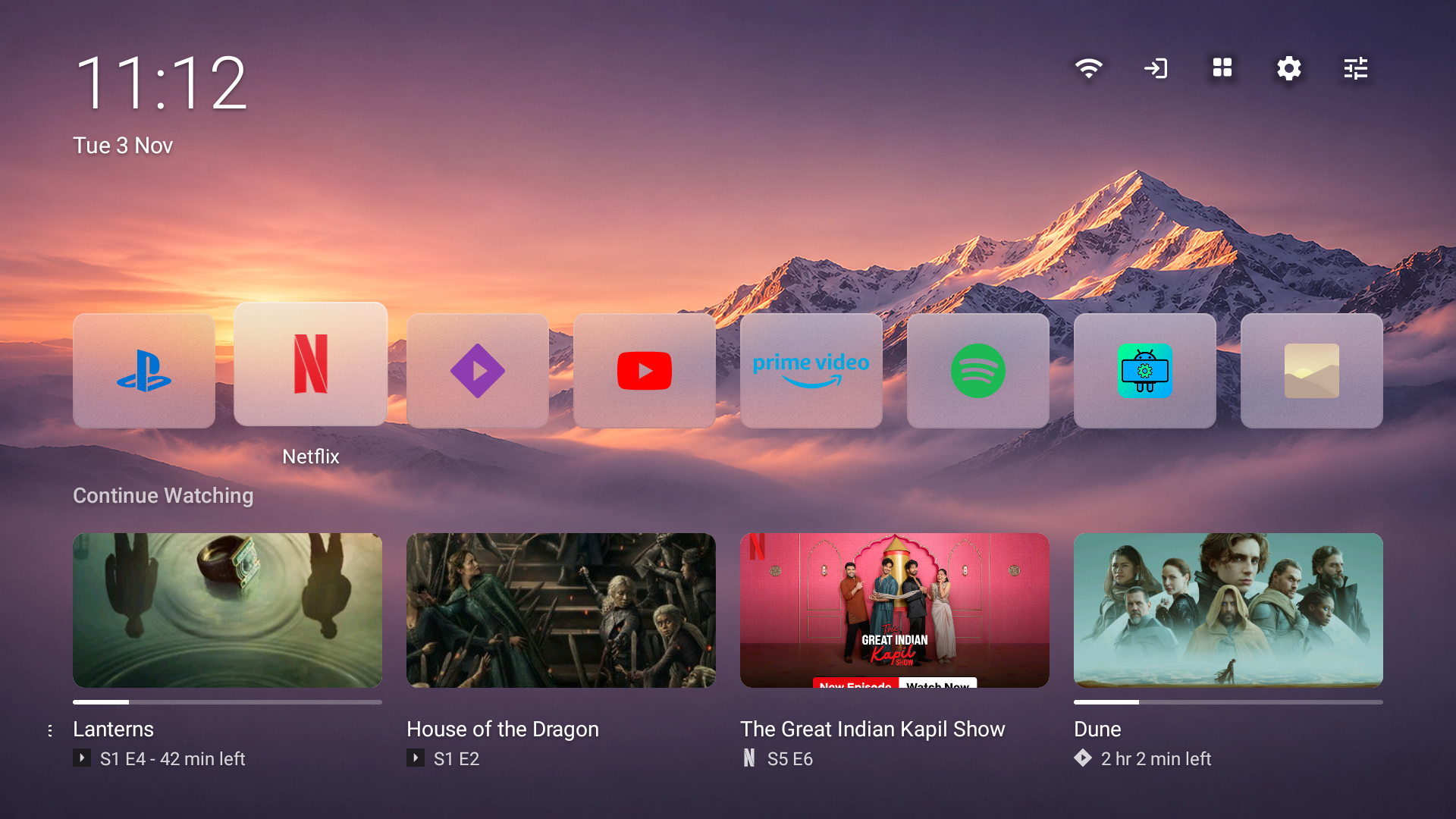
Alpine Dawn · Light theme · Frosted glass |
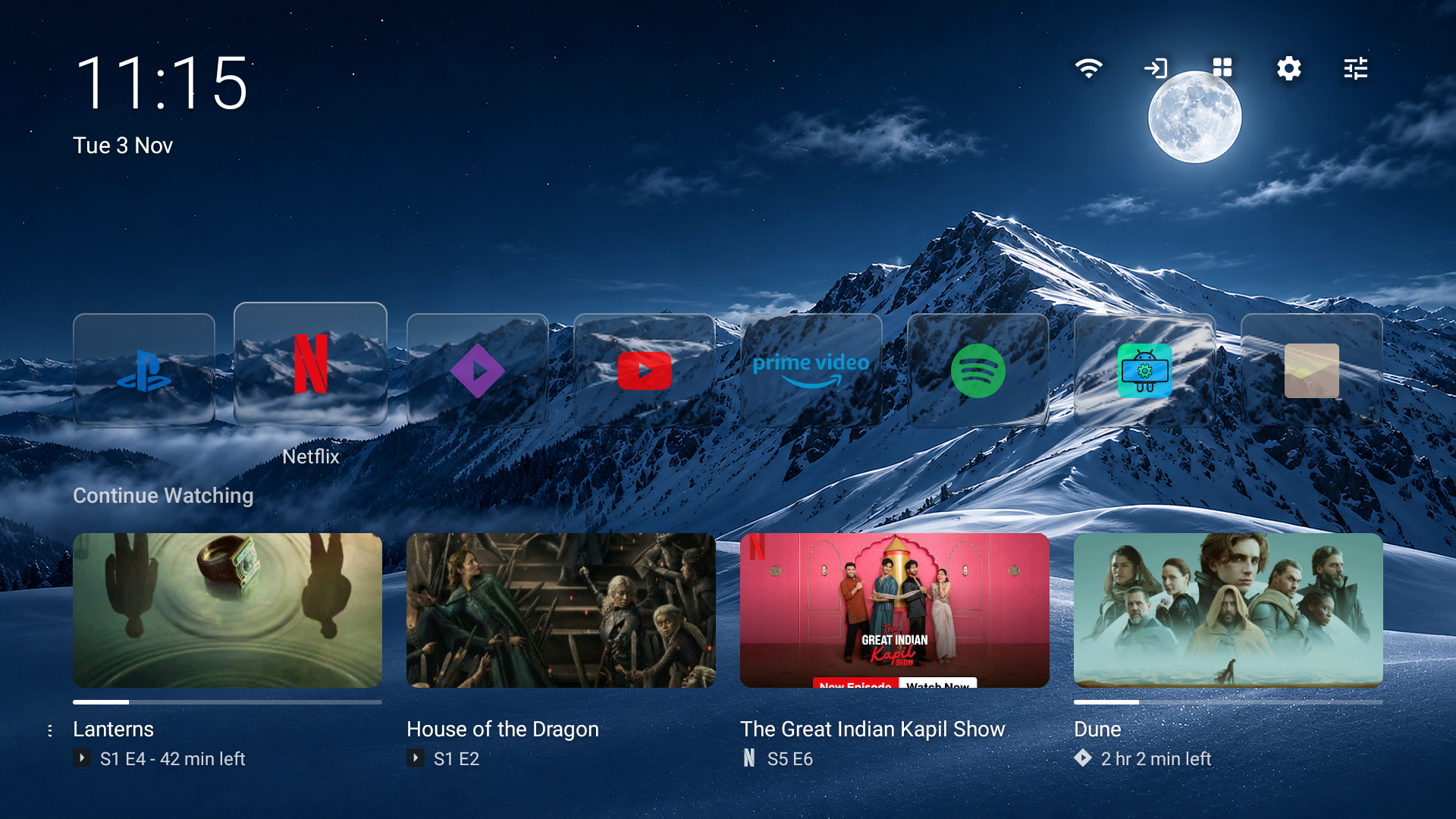
Moonlit Ridge · Dark theme · Clear glass |
Plume replaces the cluttered stock home screen with the two things you actually use: your apps and what you were watching. No ads, no sponsored rows, no account and no tracking.
Glass design. Tiles, cards and settings in Clear or Frosted glass, or solid. The selected tile rises out of its row and its edge catches the light. Text and icons change colour to stay readable on any wallpaper.
Live wallpapers and Aerial Views, built in. 250+ Apple, Amazon and NASA scenes as your wallpaper or screensaver, or your own MP4. Each scene downloads once, only when you pick it.
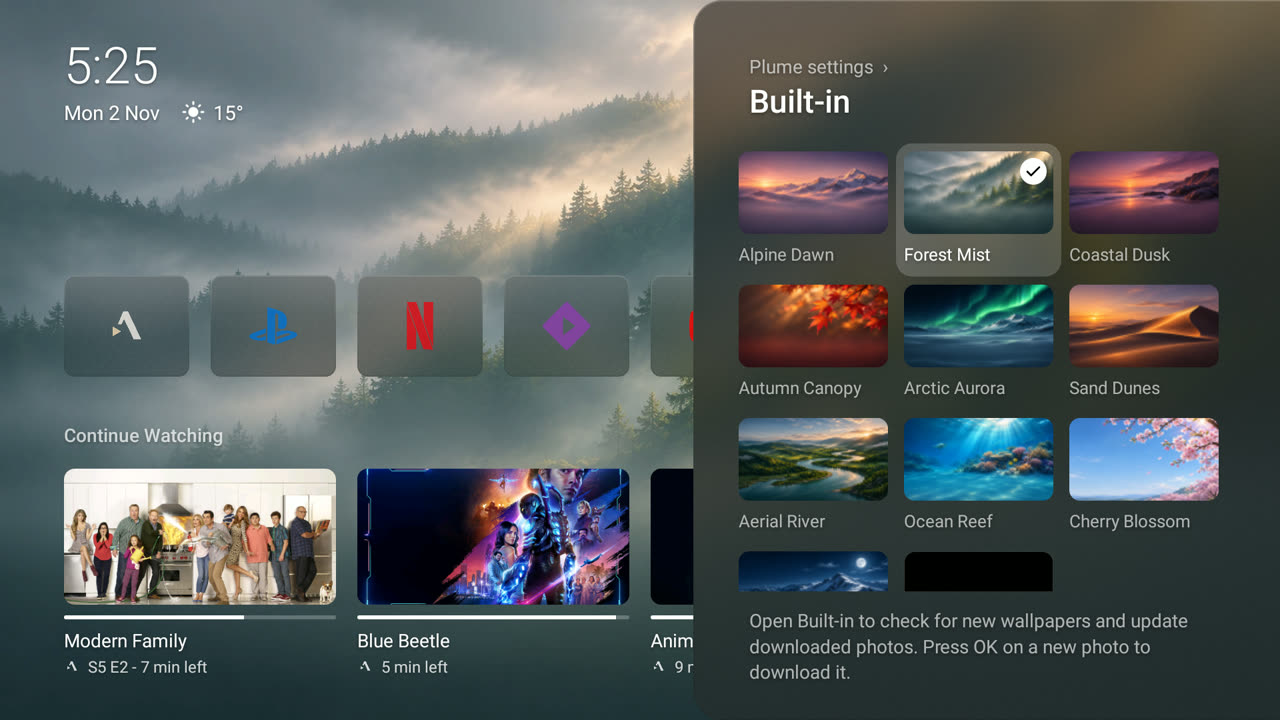
Wallpapers your way. Built-in photos, an optional 4K pack, Bing's photo of the day, pictures of your shows, a photo folder or USB drive, or photos sent from your phone by QR code. The Wallpaper theme picks light or dark from the picture.
Continue Watching from Android TV's Watch Next list and from apps with their own channel, such as Stremio and Nuvio.
Clean apps row. Monochrome logos, colour logos or banners in three sizes. Rearrange, hide, or sort by most used. A PIN keeps the layout safe from small hands.
Home button on Google TV, even where the stock launcher can't be replaced. Holding Home still opens the Google TV dashboard.
Remote keys and Sources. Remap the TV, Netflix or Settings button, with a separate action on hold. Switch HDMI inputs from the top bar.
Tiny and fast. A small APK with no third-party libraries. It updates itself from GitHub.
How it compares
Measured on a Hisense Google TV (Android 12, 1.8 GB RAM):
| Plume | Projectivy Launcher | Google TV launcher | |
|---|---|---|---|
| APK size | 0.4 MB | ~10–14 MB | ~25 MB |
| RAM while running | ~50–70 MB | ~65–70 MB | ~93 MB, plus a ~22 MB helper process |
| Extra background services | Optional notification listener | 2 | 1 always-on helper |
| Return to home from an app | ~95 ms | – | – |
Install
You need Android TV or Google TV on Android 8.0 or newer.
- Install the latest APK from Releases:
- Downloader app: enter code
2125356. It always points to the latest release. - USB drive: copy the APK over and open it with a file manager.
- adb:
adb install Plume-<version>.apk
- Downloader app: enter code
- Open Plume from your apps. Plume settings opens and shows a Finish setup card.
- Allow the TV listings permission when asked. Continue Watching needs it.
- Make the Home button open Plume. Find your TV below.
Make Home open Plume
| Your TV | What to do |
|---|---|
| Google TV / Android TV | Plume settings → Home & remote → Home opens Plume, then turn on Plume: Home button in Accessibility. Or choose Plume as the Home app. |
| Android 13+, switch greyed out | Unlock it once over adb. See Android 13 and newer. |
| Fire TV | The Home button service covers Amazon's home with Plume. See Fire TV. |
| Xiaomi TV | The Home button service needs an adb grant and two HyperOS settings. See Xiaomi TV. |
| Any TV, from a computer | Run tools/plume-install.sh. See Set up over adb. |
| Other tools | A launcher app such as Launcher Manager, or adb shell pm disable-user on the stock launcher. |
[!WARNING] Do not disable the stock launcher. On many TVs this breaks setup screens, input switching or the boot itself, and some TVs then need a factory reset. Use the Home button service instead.
plume-install.sh --disable-stock-launcheris the only safe path, works on Fire TV only, and can undo itself.
Android 13 and newer
Android 13 and newer
Android 13+ greys out the Accessibility switch for sideloaded apps, and most Google TV builds hide Allow restricted settings. If your TV shows that menu, use it: Settings → Apps → Plume → ⋮ → Allow restricted settings. If not, unlock it once from a computer or a phone adb app on the same network:
Settings → System → About: press Android TV OS build seven times.
Settings → System → Developer options: turn on Network debugging (USB debugging on some TVs).
Run, with the address Plume shows:
adb connect <tv-address>:5555
adb shell pm grant dev.plume android.permission.WRITE_SECURE_SETTINGS
Accept the prompt on the TV, then choose Try again in Plume. Plume turns the service on by itself.
The same grant also lets Plume set the Gallery screensaver and turn its Home service back on after a force-stop. Everything else works without it.
Fire TV
Fire TV
Fire OS never gives the Home key to apps. The Home button service watches for Amazon's home and covers it with Plume. Limits:
- On Fire OS 7, Plume shows about 5 seconds after Home. Android holds back app starts for 5 seconds after Home. See #153.
- Amazon's Network status screen opens with no highlighted button while the service is on. Press Down until Advanced is highlighted, or turn the service off for a moment.
- Remote keys can't be set. Fire OS doesn't pass the keys to Plume.
If Home doesn't reach Plume, run tools/plume-firetv-probe.sh and post the result in #153.
Xiaomi TV
Xiaomi TV
HyperOS 3 opens Xiaomi's home even with Plume as the Home app, and hides Allow restricted settings. Set it up once from a computer:
Settings → About: press Product model seven times, then turn on ADB debugging.
Follow steps 3–4 of Android 13 and newer. Plume turns its Home button service on by itself.
Settings → General settings → Short press the on key: choose Shutdown instead of Screen off. Shutdown puts the TV in standby; it doesn't restart it.
Keep Plume running during Shutdown. The change works after the restart:
adb shell settings put system str_killbackgroud_pkg_white_list dev.plume
adb reboot
This also covers the TV turning itself off. Screen off still closes Plume and its Home button service. If Home opens Xiaomi's home, open Plume once to turn the service back on.
Set up over adb
Set up over adb
Turn on adb debugging on the TV, then from a computer on the same network:
./plume-install.sh 192.168.1.20 # add -a plume.apk to install Plume first; -n shows the plan only
The script detects the TV (Fire OS version, Google TV or Android TV), shows what it will change and asks first. It grants WRITE_SECURE_SETTINGS, turns on the Home button service and checks each change on the TV. It writes each change to a recovery record (/data/local/tmp/plume-install.state) before it makes it. ./plume-install.sh --undo reverts only what the script changed; it does not uninstall Plume.
Tests run against a fake adb, no TV needed: sh tools/plume-install-test/run.sh.
Volume and the accessibility warning
- Holding Volume moves one step? Many TVs act on the volume keys before an accessibility service sees them. Turn on Plume settings → Home & remote → Smooth volume. In exchange, Home shows Google TV for about a second first. Smooth volume stays off while any Remote keys are set.
- Plume's Home accessibility service listens for Home, your Remote keys and app window changes. Enable App window previews to allow screen capture on Home and Recent apps actions.
Using Plume
| To | Do this |
|---|---|
| Rearrange apps | Hold OK on an app, or Plume settings → Apps row → Rearrange apps |
| Remove an app from the row | Hold OK on it, then Remove from row. It stays in All apps. |
| Pin an app from All apps | Open All apps and hold OK on the app |
| Hide a Continue Watching card | Hold OK on it, then Remove from Continue Watching |
| Change glass, theme or wallpaper | Plume settings → Style |
| Change app size, icon style or names | Plume settings → Apps row → Size, Icon style or App names |
| Change an app picture | Hold OK on the app → Change picture → Icon or Banner. Upload from your phone. |
| Choose apps for Continue Watching | Plume settings → Shows row → From apps |
| Show each source of the shows row on its own | Plume settings → Shows row → Rows (see Rows of the shows row) |
| Change the clock | Plume settings → Clock & weather → Clock style or Clock size |
| Move, hide or add a top-bar icon | Hold OK on the icon, then Move, Hide or Add icon |
| Remap a remote key | Plume settings → Home & remote → Remote keys → Add a key, then press it |
| Lock the layout | Plume settings → PIN lock. Forgot the PIN? Android Settings → Apps → Plume → Clear data. |
| Update Plume | Plume settings → Updates |
| Open the Google TV dashboard | Hold Home |
Custom pictures change only the home row. Icons use the Monochrome and Colour styles; banners use the banner styles. Upload a PNG, JPEG or WebP file up to 5 MB. Select Reset picture to restore the original icon and banner.
Rows of the shows row
Plume settings → Shows row → Rows opens a page with three choices. Select one: it gets a tick, and a line under the list says what it does and which buttons to press. Mixed (the default) puts every source in one row. By title shows one source at a time: push Down from the apps to the row's title, then Left or Right to show another source. Per channel also shows one source at a time, as a row of its own: push Down on a card for the next source and Up for the one before. The row's title names the source on screen. Dots after it (or "2 / 7" with more than five sources) show where it is in the list, and the arrows by the title show where you can go. The first and last sources are the ends: there is no jump round.
The sources are Android TV's Watch Next and every channel that is on in Plume settings → Shows row → Channels. In By title and Per channel, Watch Next comes first, then the channels named "Continue Watching", then the others. A source with nothing in it is left out. The cards stay where they are when the source changes: only their poster, title and progress change. The content slides in the direction of the button you push. Plume loads the first posters of the other sources early; a poster that is not there yet fades in when it arrives. With only one source that has shows, By title and Per channel look like Mixed, and the Rows page says so.
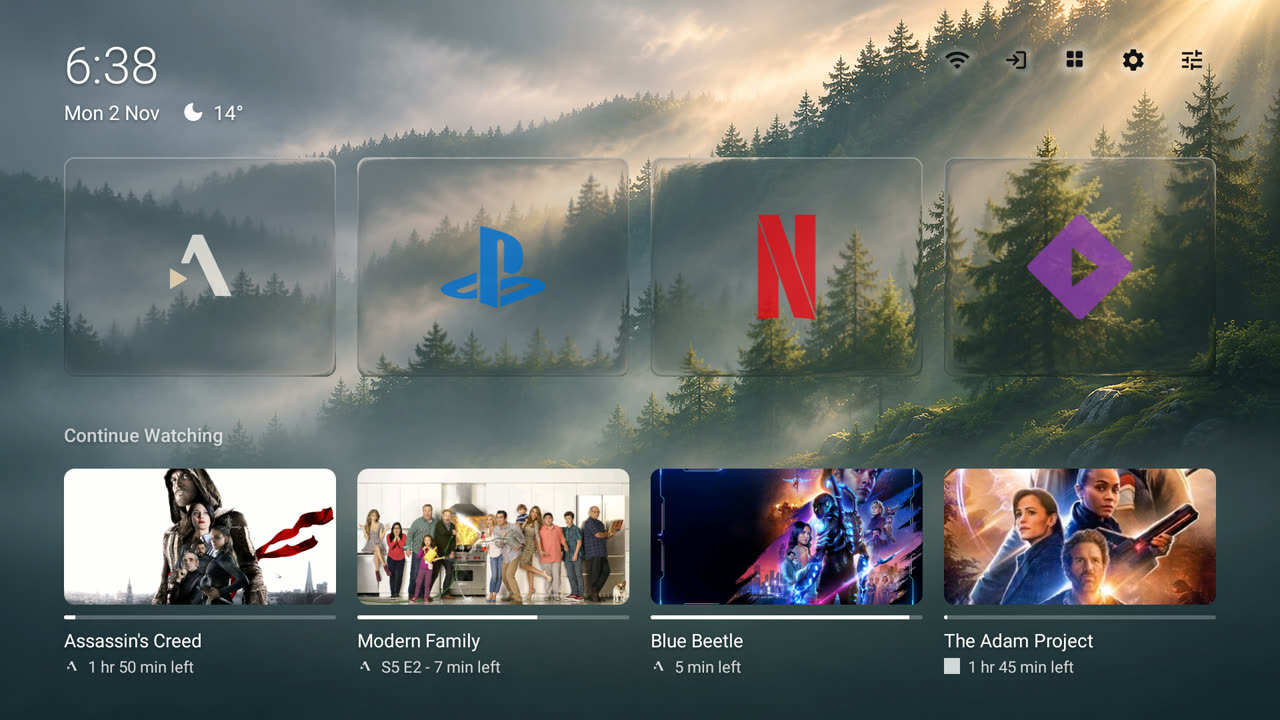
Largest app size
Remote keys can open an app or input, send a media key, or open Back, Recent apps, Notifications, Quick settings, the Power menu or Android settings. Back, OK, the arrows, Home, Power and volume can't be changed, so you can't lock yourself out. The PIN lock keeps the layout safe; it is not parental control.
Select Plume All apps or Plume recent apps as the Press or Hold action under Home & remote → Remote keys.
Recent apps shows up to 12 recently opened apps in a horizontal row. Hold OK on the All apps icon and select Recent apps. Press Left or Right to center an app window. Press OK to open it. On Android 11 or later, enable App window previews under Home & remote to capture the current screen when you press Home from an app. Windows use app banners or icons when a capture is unavailable. When the Home button service receives Home presses, press Home twice to open the list. A single press opens Home. If previews are on, Plume gives capture up to 220 ms before opening Home. Press Back to close the list and stay in Plume. This list switches apps; it does not show running tasks or close apps. The list includes apps opened from Plume and apps observed while the Home button service runs. Fire TV does not send Home presses to the service. Smooth volume can also turn Home key filtering off.
Wallpapers and screensavers
Live wallpapers: Plume settings → Style → Wallpaper → Live wallpapers. Browse Apple Aerial (139), Amazon Fire TV (112) and NASA (4) scenes, or Surprise me. Add your video from phone… takes an H.264 or HEVC MP4 up to 1080p and 350 MB. Videos play muted and stop when you leave Home.
Your photos: Add from phone… shows a QR code. Scan it on the same Wi-Fi and upload. Or pick Choose a folder on this TV… for a folder or USB drive that rotates on a timer. Or copy files over adb:
adb push my-wallpaper.jpg /sdcard/Android/data/dev.plume/files/wallpapers/Aerial Views screensaver: Plume settings → Screensaver → Screensaver → Aerial Views. It uses the scenes you downloaded for the wallpaper, so nothing downloads twice. Press ◀ or ▶ to skip.
Your shows: Choose Wallpaper → Your shows. Plume skips images below 1920 × 1080 after cropping and uses native 4K when the image and TV support it. To find more backdrops, open Wallpaper → TMDB artwork and add a TMDB API key (v3). Select Send key from phone to paste the key on your phone. Use trusted Wi-Fi, then select Done on the TV.
Gallery screensaver: public-domain landscape paintings (4.7 MB), downloaded only while you use it.
Plume shows every wallpaper as it is, with no dark fades on top.
Transfer settings
Open Plume settings → Backup → Save backup. Plume shows the file path after saving. Saving replaces the previous backup file. Copy the file off the TV before uninstalling Plume. Uninstall removes the app's backup folder.
The usual path is /sdcard/Android/media/dev.plume/backup/plume-settings.json:
adb pull /sdcard/Android/media/dev.plume/backup/plume-settings.json
On the destination TV, install and open Plume, then copy the file:
adb shell mkdir -p /sdcard/Android/media/dev.plume/backup
adb push plume-settings.json /sdcard/Android/media/dev.plume/backup/plume-settings.json
Select Plume settings → Backup → Restore backup and confirm. Plume reloads the home screen. The file transfers theme, glass, icon style, layout, clock, weather, app order, hidden apps, and photo timing. Custom app pictures stay on this TV. Settings backups do not include picture files. Missing supported settings return to their defaults. Unknown settings are ignored. An unsupported file version or invalid supported value stops the import before settings change.
The JSON envelope uses this format. String sets use JSON arrays.
{"format":"plume-settings","version":1,"settings":{"theme":"dark","row_hidden":["com.example.app"]}}
The PIN, setup state, wallpapers, photo folders, HDMI inputs, remote mappings, usage history, and system settings stay local. This includes Home permissions and screensaver timing. App order applies to apps installed on the destination TV. The file can contain the manual weather location. Keep the exported file private.
Privacy
Recent apps stores app package names and their last-opened times on the TV, in Plume's settings. It sends this history nowhere. If you enable App window previews, the Home accessibility service captures the screen when you press Home or the Recent apps shortcut. It keeps up to six previews in memory and clears them when you turn off previews or disable the service. Without the Home button service, the history includes only apps opened from Plume. Clearing Plume's data removes the history.
Plume has no analytics, no ads and no account. It only connects to the internet to:
- load poster images for your Continue Watching items
- check this repository's GitHub releases for a new version, once a day, and download it when you choose to update
- download the Gallery paintings from this repository, only if you choose that screensaver
- check this repository for wallpapers when you open Built-in. Plume updates photos you already downloaded. New photos download only when you select them.
- get the Bing picture of the day (about 300 KB), only if you choose it as your wallpaper. Plume sends a request to bing.com when the home screen opens: once a day, or once an hour until the picture has changed that day. Bing sees the TV's IP address and its language and country. Plume keeps one picture and deletes it when you choose another wallpaper.
- fetch game scores and team logos from ESPN when you browse Island games, pin a game, or follow a team. Plume polls your picks only while the Island is on and Home is open.
- fetch precipitation from Open-Meteo when you enable Island rain alerts. Plume uses your saved weather coordinates and stops requesting forecasts when the Island is off.
- find artwork through TMDB only if you add an API key and use Your shows. TMDB receives the key to authenticate requests and the show title when Plume needs a backdrop. Plume stores the key on the TV and excludes it from backups. The QR form sends it over unencrypted HTTP on your local network. Select Turn off TMDB and remove key to stop lookups.
- download one NASA Earth video from svs.gsfc.nasa.gov, only when you select that scene. NASA sees the TV's IP address.
- download an Apple Aerial video from sylvan.apple.com or an Amazon Fire TV video from Amazon's Fire TV CDN, only when you select that scene. The source sees the TV's IP address.
- fetch the weather, only if you turn it on. It looks up your approximate location from your IP address via ipwho.is, then gets the forecast from Open-Meteo. The Auto theme uses the same location for sunrise and sunset, with no extra request. Clearing Plume's data removes it.
Add from phone… and Change picture run an upload page on the TV. The page works only on your home network while its screen stays open. Photos and videos go straight from your phone to the TV and nowhere else.
Troubleshooting
The Home button still opens the old home screen
Check that Plume settings → Home & remote → Home opens Plume shows On. If the app was force-stopped, Android turns its accessibility service off; open Plume once (or grant the optional adb permission above) to restore it.
Continue Watching is empty
Make sure the TV listings permission is allowed (Settings → Apps → Plume → Permissions), and that the app you watch publishes to Android TV's Watch Next list. Check Plume settings → Shows row → From apps too.
The screensaver option says it needs an adb permission
Google TV hides third-party screensavers from its own settings, so Plume needs the one-time WRITE_SECURE_SETTINGS grant shown above to switch it for you.
Building from source
git clone https://github.com/aradhyas8/Plume_Launcher.git
cd Plume_Launcher
./gradlew assembleRelease
The APK is written to app/build/outputs/apk/release/. Without a keystore.properties file, release builds are signed with your local debug key, which is fine for installing your own build.
Contributing
Bug reports, design ideas, translations and pull requests are welcome. Plume stays small on purpose, so please read CONTRIBUTING.md first: it lists what's in and out of scope and how to send a change. Open an issue before starting on a feature.
Credits
- Screensaver paintings (public domain, scans via Wikimedia Commons; files in
screensaver/):- Frederic Edwin Church: The Heart of the Andes, The Icebergs, Chimborazo, Cotopaxi
- Ivan Shishkin: Rye
- Jasper Francis Cropsey: Autumn on the Hudson River
- Martin Johnson Heade: Thunder Storm on Narragansett Bay
- Wallpaper pack: ten 3840 × 2160 WebP images in
wallpapers/, available as an optional 14.9 MB download: Alpine Dawn, Forest Mist, Coastal Dusk, Autumn Canopy, Arctic Aurora, Sand Dunes, Aerial River, Ocean Reef, Cherry Blossom, and Moonlit Ridge. - Aerial Views: the Apple Aerial scene list comes from the Aerial Views project (GPL-3.0). Plume's Aerial Views screensaver is not part of that app. NASA scenes: NASA Goddard Space Flight Center Scientific Visualization Studio and Earth Observatory.
- App logos: Simple Icons (CC0). All trademarks belong to their respective owners.
- HDMI input and settings icons: Material Symbols by Google (Apache 2.0)
License
Copyright (C) 2026 aradhyas8
Plume Launcher is free software, released under the GNU General Public License v3.0. You may use, modify and redistribute it, but any distributed version, modified or not, must also be released under the GPL-3.0 with its full source code.