Dextop
Dextop


Dextop is an open-source Android app that creates a virtual display and provides a desktop-like workspace using only a smartphone. Dextop 1.5.0 and later include a built-in privileged access runtime, which works with Android system services to control app launching, window placement, touch input, orientation, and related desktop behavior.
Join the official Discord server: Join here
You can report bugs, submit device reports, and request features there.
Screenshots and demo
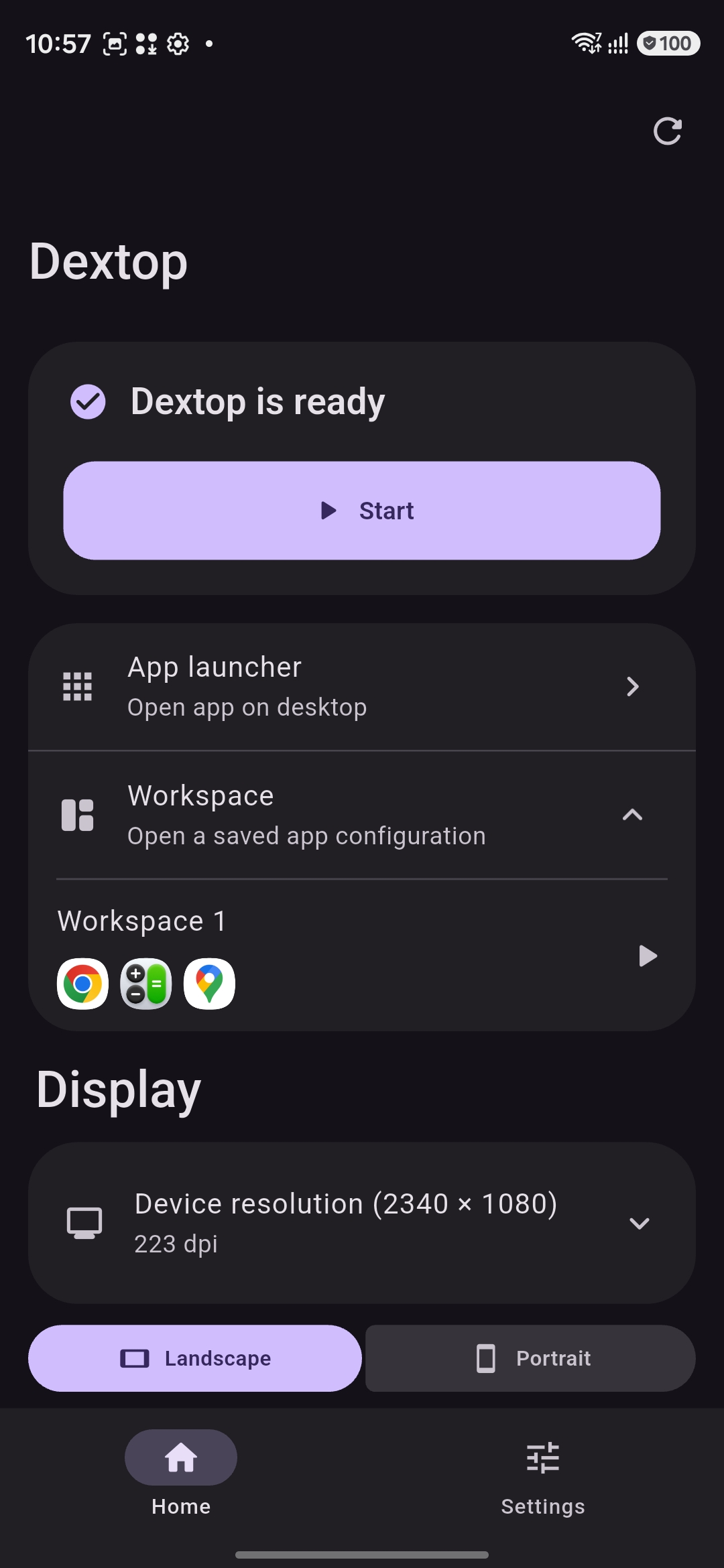 Home and workspaces |
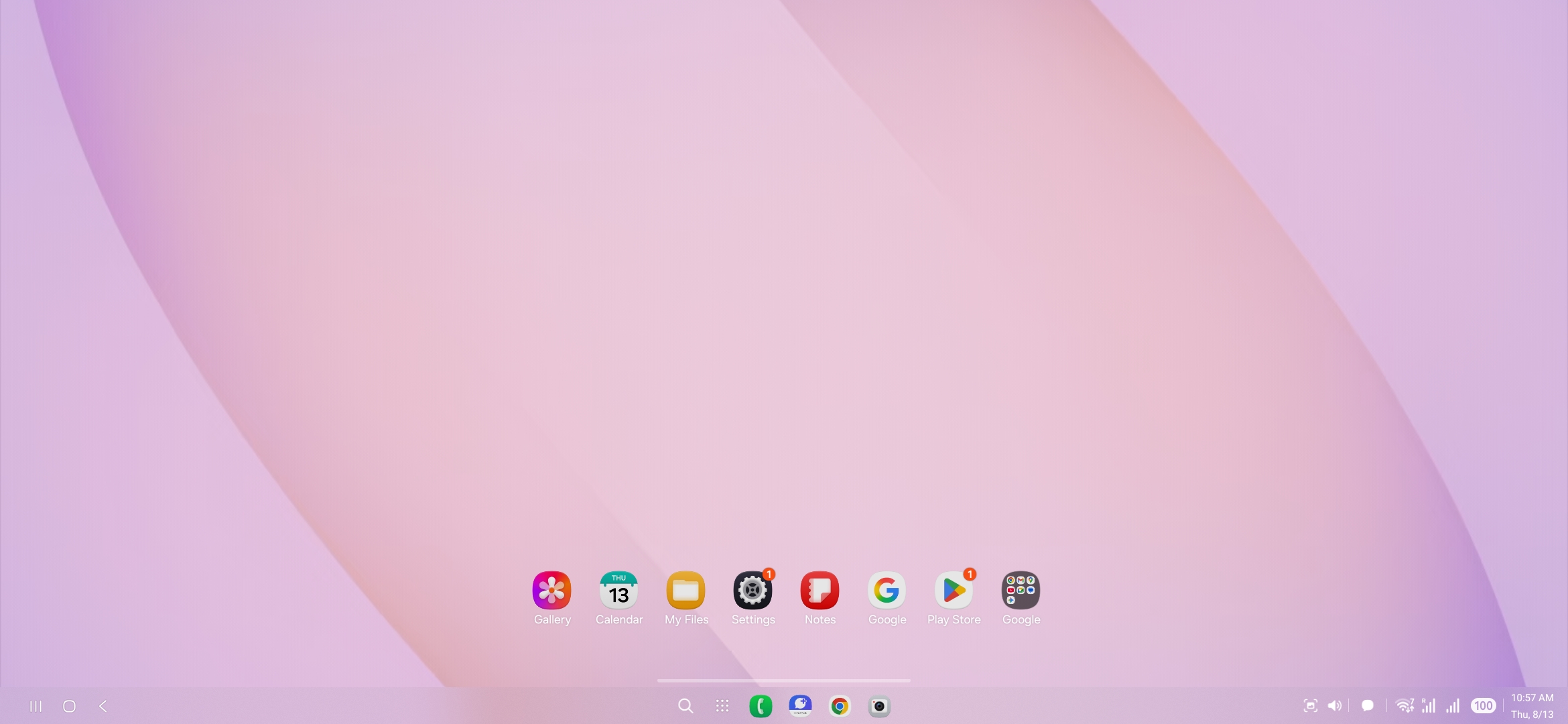 Desktop |
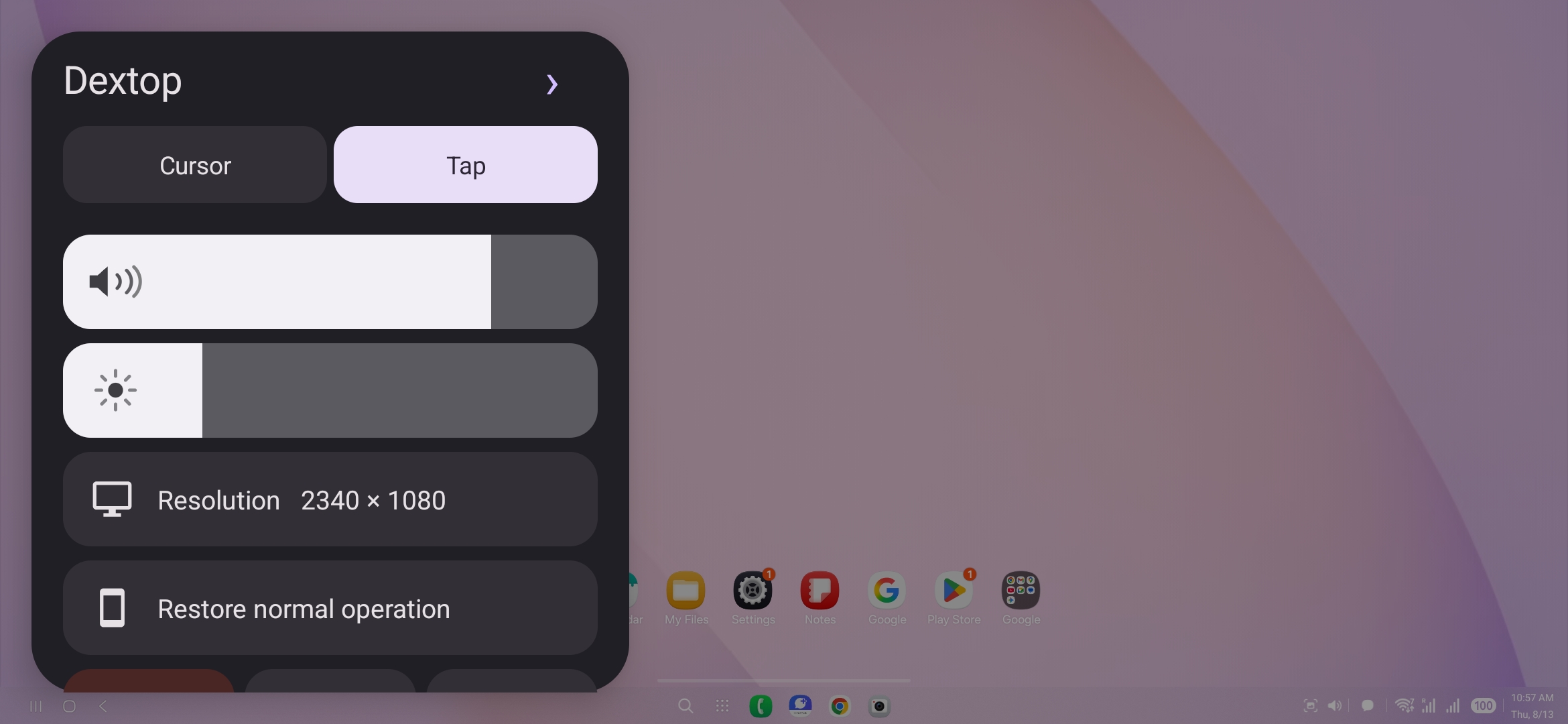 Control overlay |
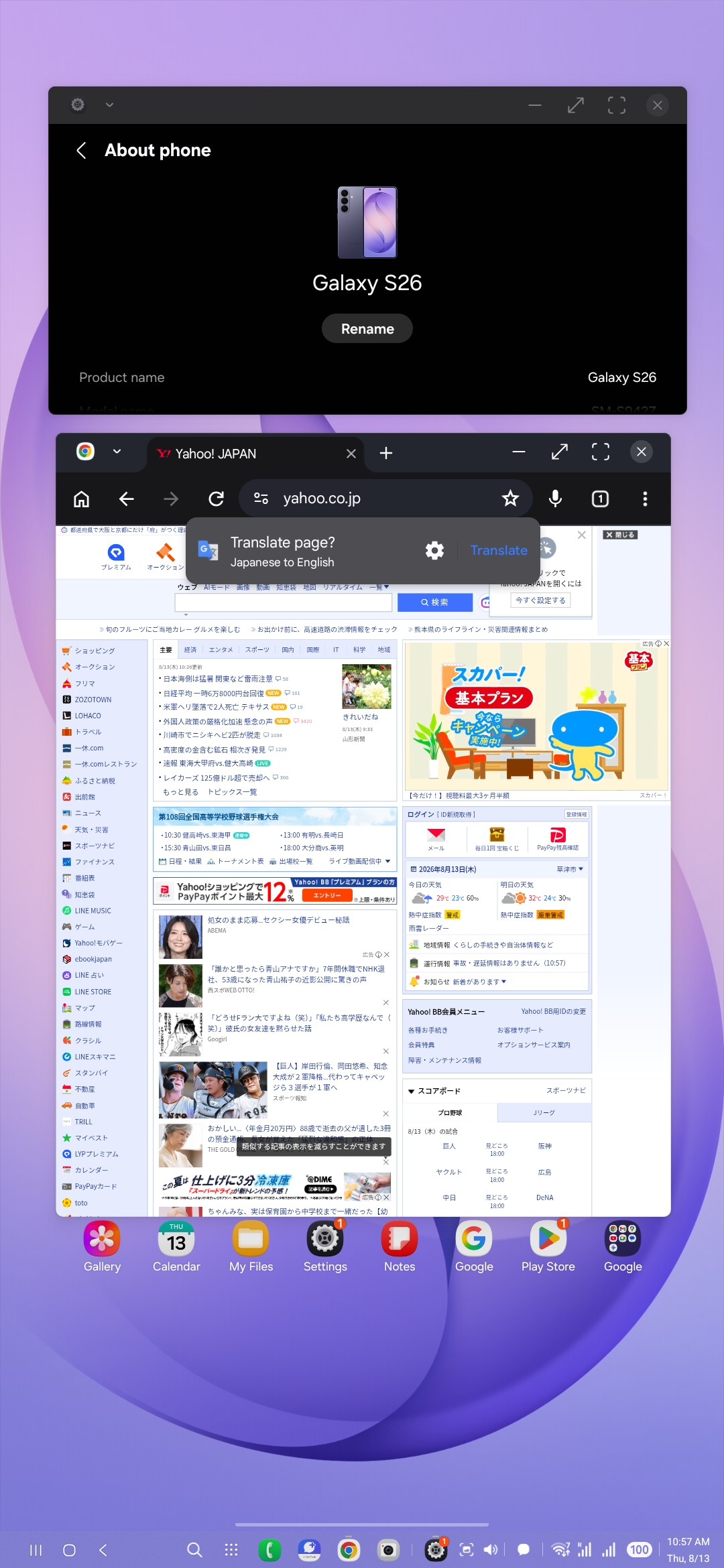 Multi-window workspace |
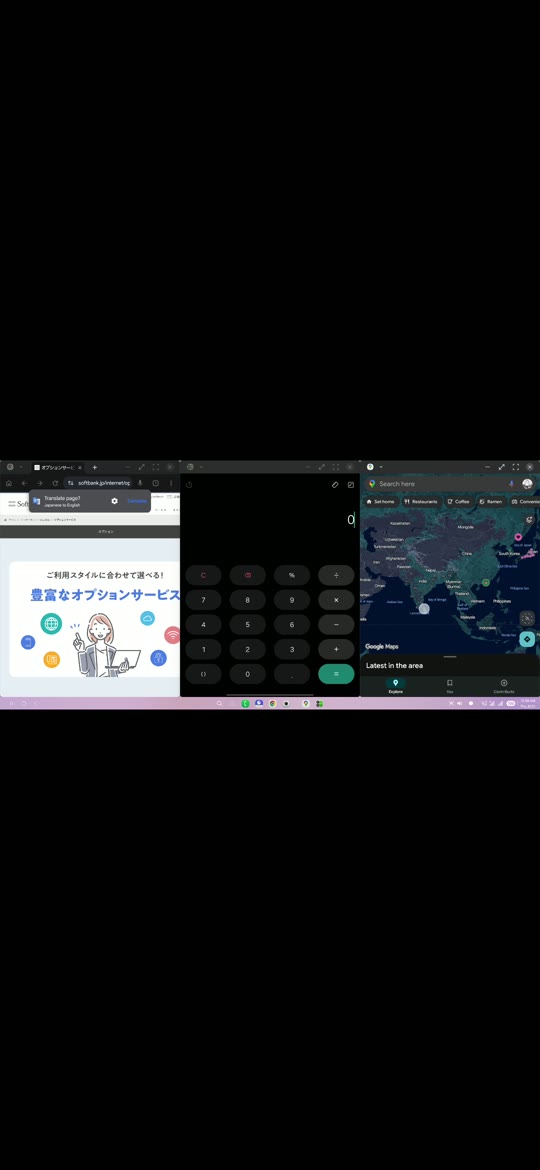 ▶ Demo video |
Features
- Virtual displays with configurable resolution, density, and portrait or landscape orientation
- Secure-display and Android system-decoration controls
- Desktop app launcher
- Workspaces that save and restore the placement of multiple apps
- Two-pane, three-pane, four-pane, and other window layouts
- Workspace import and export as JSON
- Cursor and direct-touch input modes
- Tap, long-press, drag, right-click, two-finger, and three-finger gestures
- Multi-touch input, including scrolling and pinch-to-zoom
- Physical mouse support
- Physical keyboard support
- Mouse and keyboard input routing between Dextop and the external display on supported devices
- Multi-display topology with saved monitor placement and cross-display pointer routing
- Automatic desktop taskbar hiding and optional built-in-display 120 Hz enforcement
- Foldable laptop mode with a US keyboard, trackpad, manual overlay control, and optional hinge-angle detection
- Switchable virtual gamepad from the Style menu with ABXY, L/R, triggers, sticks, D-pad, and Start/Select/Home controls
- Foldable main/cover-display switching
- Separate Android Auto Parking and Driving companions with automatic head-unit sizing, parked full-touch input, and phone-side driving controls
- Performance overlay for FPS, refresh rate, memory, battery, and estimated power usage
- Quick Settings tile launch
- Interrupted-session recovery and restoration of temporary Android settings
- Detailed diagnostic reports containing app logs, capability probes, fallback results, and device specifications
- Localized device compatibility reports with per-feature results and automatic email composition
- Japanese, English, Chinese, Korean, and Russian interfaces
Compatibility
| Environment | Status | Notes |
|---|---|---|
| Samsung DeX (One UI 8 or later) | Fully supported | Currently the most complete environment. Features managed by DeX use Samsung's platform implementation. |
| Samsung DeX (earlier than One UI 8) | Limited and likely incompatible | Older DeX implementations may not provide the display and window-management behavior required by Dextop. |
| Google Pixel | Limited and incomplete | Depends on Android's freeform/desktop implementation and hidden API availability. Some features may not work. |
| OPPO ColorOS desktop | Limited and incomplete | The desktop can be displayed, but platform components such as the taskbar may not appear. |
| Xiaomi devices running HyperOS or later | Disabled | MIUI and HyperOS are not supported. |
| Other Android devices | Experimental | Virtual-display, mirroring, and freeform support varies by manufacturer, model, and OS update. |
Android Auto support is exposed through a parked CAR_LAUNCHER activity and a separate Android for Cars App Library driving service on Android 15 and later. The Android Auto host decides whether each entry is shown and which input events it supplies.
Dextop probes device capabilities at runtime and tries compatible backends in order. It still depends on Android hidden APIs and OEM behavior, so results can differ between models and OS versions from the same manufacturer.
Supported devices
The status below applies only to firmware versions that were actually tested. Open a vendor to see its devices. For feature-by-feature results, see the Device compatibility wiki.
Samsung
| Device | Model | Tested software | Status |
|---|---|---|---|
| Galaxy S26 | SM-S942Z (m1q) |
Android 16 / One UI 8.5 / S942ZSCS1AZF2 |
✅ Confirmed working |
| Galaxy Z TriFold | SM-F968N (q7mq) |
Android 16 (API 36) / One UI 8.0 / F968NKSS6BZG3 |
✅ Confirmed working |
| Galaxy Z Fold8 | SM-F971Q (h8q) |
Android 17 (API 37) / One UI 9.0 / F971QOPU1AZGI |
✅ Confirmed working |
| Galaxy Z Fold7 | SM-F966Q (q7q) |
Android 16 (API 36) / One UI 8.0 / F966QOPU1BZF1 |
✅ Confirmed working |
| Galaxy Z Fold3 5G | SCG11 (SCG11) |
Android 15 (API 35) / One UI 7.0 / SCG11KDS1EZB8 |
❌ Not working at this time |
Community-submitted and reviewed device report
| Device | Model | Tested software | Status |
|---|---|---|---|
| Pixel 9a | Pixel 9a (tegu) |
Android 17 (API 37) / 15641320 |
🟡 Partial |
Community-submitted and reviewed device report
HONOR
| Device | Model | Tested software | Status |
|---|---|---|---|
| HONOR Magic 8 Pro | BKQ-AN10 (HNBKQ) |
Android 16 (API 36) / 10DLDLD170SP5C00E167 |
🧪 Experimental |
Community-submitted and reviewed device report
OPPO
ColorOS can display the desktop, but support is incomplete and the taskbar may not appear.
| Device | Model | Tested software | Status |
|---|---|---|---|
| Find X9 | OPG07 (OP5E8BL1) |
Android 16 (API 36) / ColorOS 16 / B.R4T3.1287153_118ce71_119cc78 |
🧪 Experimental |
Community-submitted and reviewed device report
Sony
| Device | Model | Tested software | Status |
|---|---|---|---|
| Xperia 1 III | XQ-BC42 (XQ-BC42) |
Android 13 (API 33) / 061002A0000472A1434898470 |
❌ Not working at this time |
Community-submitted and reviewed device report
Xiaomi
The desktop environment is disabled on Xiaomi devices running HyperOS or later. MIUI and HyperOS are not supported.
| Device | Model | Tested software | Status |
|---|---|---|---|
| POCO X7 Pro 5G | 2412DPC0AG (rodin) |
Android 16 (API 36) / HyperOS 3.0 / OS3.0.301.0.WOJMIXM |
❌ Not working at this time |
| POCO X7 Pro | 2412DPC0AG (rodin) |
Android 16 (API 36) / HyperOS 3.0 / OS3.0.301.0.WOJMIXM |
❌ Not working at this time |
Community-submitted and reviewed device report
System requirements
- Android 10 or later. Most devices require Android 14 or later for a usable desktop environment.
- Current release: Dextop 1.7.0
- Android Auto companions: Dextop・Parking 2.0.0 and Dextop・Driving 2.0.0
Dextop 1.5.0 and later include the access service needed for normal operation, so no external app or separate privileged service is required. Setup and first use can be completed with Dextop alone; Android may still show system permission or wireless-debugging pairing screens when required by the device.
Root, Stellar, Shizuku, and other compatible privileged services remain supported. If one is already available, Dextop detects the environment and automatically adapts to and uses it, so an existing setup does not need to be migrated or replaced.
Installation
Install Dextop from Google Play.
Alternatively, download the latest signed APK from GitHub Releases.
Nightly builds
The latest development build is available from GitHub Actions. Open the newest successful Debug APK workflow run and download its Nightly artifact to try changes that have not reached a stable release yet. The artifact contains matching Dextop and Dextop Car Companion debug APKs. Nightly builds are beta builds generated from the latest source and may contain unfinished features or regressions.
Android Auto quick start
Android Auto support is split into two companion apps: Dextop・Parking (moe.n4tsu.dextop.cardex) and Dextop・Driving (moe.n4tsu.dextop.cardex.driving). Install the companion you need alongside a compatible Dextop build. Dextop verifies each companion's package and signing certificate before enabling the relay.
Install Dextop・Driving through AAEnabler: download its APK from the matching Dextop release, open AAEnabler, select it with Select local APK, then tap Install app and complete Android's installation prompt. Dextop・Parking can be installed normally; if Parking does not appear in Android Auto, install or reinstall its APK through AAEnabler using the same steps. AAEnabler installs the original APK without modifying it or changing its signature.
Dextop provides two Android Auto entries with different platform requirements:
- Dextop・Parking uses the parked full-screen activity. While parked, the head unit provides full touch gestures directly to the Dextop desktop.
- Dextop・Driving uses the Android for Cars App Library surface. It can remain available in the driving-compatible host flow; head-unit input is limited by Android Auto, while the phone-side trackpad and keyboard provide full cursor, scrolling, swipe, and text input.
Dextop・Parking requires Android 15 (API 35) or later. Dextop・Driving supports Android 13 (API 33) or later because it uses the Android for Cars App Library rather than the Android 15 parked-app launcher.
- Install Dextop and Dextop・Parking normally, and install Dextop・Driving through AAEnabler as described above. If Parking does not appear in Android Auto, install it through AAEnabler as well.
- Complete Dextop's phone setup. On version 1.5.0 and later, Dextop configures its built-in access automatically; if root or a compatible privileged service such as Stellar or Shizuku is already available, Dextop detects and uses it automatically.
- Connect Android Auto and open the appropriate Dextop・Parking or Dextop・Driving entry from the car launcher.
- Select Start. Parking forwards full head-unit touch; Driving accepts Android Auto's allowed click input and uses the phone controller for trackpad gestures and keyboard input.
- In Parking, swipe right from the left edge of the car display to open the Auto controls for workspaces, video reconnection, and stopping the session. Driving exposes its controls through the Car App interface.
Android Auto controls whether a sideloaded parked app appears on a particular head unit. The default compatibility mode may show the Auto virtual-display overlay on the phone; an experimental hidden-display mode is available under Dextop → Settings → Auto. See the Android Auto wiki for installation details, display modes, gestures, controls, limitations, DHU testing, and troubleshooting.
Development
git clone https://github.com/NarYuki/Dextop.git
cd Dextop
flutter pub get
flutter analyze
flutter test
flutter build apk --debug
To contribute support for another device, read Adding support for a device. The Japanese guide is available here.
Diagnostics
Open Settings → App information → Operation log and device diagnostics to view, copy, or share device specifications, capability probes, fallback results, and Dextop operation logs. Remove any personal information you do not want to publish before attaching a report to an issue.
Device reports
Open Settings → Device report to report how Dextop works on a specific device and firmware. Choose Working, Not working, or Not tested for the overall result and every listed feature, add optional notes, then tap Send report by email. Dextop prepares a structured Markdown report and opens your email app with dextop-device@n4t.su as the recipient.
The report includes the device model, codename, Android/API version, firmware identifiers, security patch, Dextop version, detected capabilities, and the results you selected. Review the generated email before sending it. See Device reports for the complete field list and procedure.
This project is under active development. Available features and behavior may change with device firmware and Android updates.
License
Licensed under GPL-3.0-or-later. See LICENSE.