FreeFCC
Open-source FCC unlock for DJI smart controllers with a screen



A free and open-source Android app that unlocks FCC mode, sends 4G activation frames, and queries device info on DJI smart controllers with a screen (RC2, RC Pro 2, RC Plus). No server. No license. No tracking. Just raw DUML commands from JSON profile files.
Disclaimer
This software is provided for educational and research purposes only. Modifying radio transmission parameters may violate laws and regulations in your country or region. In most places, increasing radio power beyond what is legally permitted for your area requires authorization from the relevant regulatory authority.
You are solely responsible for ensuring that your use of this software complies with all applicable local, regional, and national laws. The author of this project accepts no liability for any damage, legal consequences, or regulatory action arising from the use of this tool.
Use only if you have proper authorization to operate in FCC mode in your jurisdiction. If you are unsure whether this is legal where you live, do not use it.
This project is not affiliated with, endorsed by, or sponsored by DJI. Using this tool may void your warranty and DJI Care Refresh coverage.
Features
| Feature | Description |
|---|---|
| FCC Unlock | Switches the radio from CE to FCC mode for higher power and more channels |
| 4G Activation | Sends 4G activation frames to the aircraft (serial read at runtime) — no status readback, experimental |
| LED Control | Turn aircraft arm LEDs on or off (requires DJI Fly running with aircraft connected) |
| Device Info | Queries the controller for hardware and firmware version |
| Auto-FCC | Toggle to automatically connect and apply FCC every time the app opens |
| Auto-Updater | Checks GitHub for new releases and lets you download/install from the app |
| Offline | Everything runs locally. No internet, no server, no tracking (except update check) |
| Open Profiles | Command frames are plain JSON files you can inspect and edit |
| No License | No activation, no trial, no tracking, no server contact |
Note on altitude/distance/NFZ unlock: This is not possible via DUML commands alone. The 120m CE altitude limit is enforced by the DJI Fly app via a C0 class runtime flag that overrides flight controller parameters on every connection. No FCC unlock app can bypass this — it requires modifying the DJI Fly app itself or flashing patched firmware. DUML parameter writes (cmd_set=3, cmd_id=0xF9) set the FC values, but the Fly app overrides them on every reconnect. There are three separate altitude layers (C0 class cap from the Fly app, no-GPS/ATTI ceiling from firmware, novice/beginner mode from firmware); only the firmware layers are DUML-addressable, and only the C0 class cap is the 120m limit users actually hit. There is no known way to bypass the C0 cap without modifying the DJI Fly app or flashing patched firmware.
Download
| Download | Link |
|---|---|
| FreeFCC App (APK) | GitHub Releases or freefcc.pages.dev |
| Helper Apps (zip) | freefcc.pages.dev/downloads/freefcc-helpers.zip |
You need both. The helper apps let you sideload FreeFCC onto the RC2.
Compatibility
Tested on DJI RC2 and RC Pro 2. The app installs directly on both controllers — no special launcher needed for FCC mode. The freefcc-launcher is only needed if you want 4G support on RC Pro 2 / RC Plus.
| Drone | Controller | FCC | 4G | LED | Status |
|---|---|---|---|---|---|
| DJI Mini 5 Pro | RC2 | Yes | No (no cellular module) | Yes | FCC + LED working |
| DJI Mini 4 Pro | RC2 | Yes | No (no cellular module) | Not tested | FCC working |
| DJI Mavic 4 Pro | RC Pro 2 | Yes | Yes (Cellular Dongle 2) | Not tested | FCC working |
| DJI Air 3S | RC2 | Yes | No (no cellular module) | Not tested | FCC working |
| DJI Neo 1 | RC2 | Yes | No (no cellular module) | Not tested | FCC working |
| DJI Neo 2 | RC2 | Yes | No (no cellular module) | Not tested | FCC working |
| DJI Avata 360 | RC2 | Yes | No (no cellular module) | Not tested | FCC working |
| DJI Matrice 350 | RC Plus | Yes | Yes (Cellular Dongle 2) | Not tested | FCC should work |
| DJI Inspire 3 | RC Plus | Yes | Yes (Cellular Dongle 2) | Not tested | FCC should work |
| Other RC2 aircraft | RC2 | Should work | Unknown | Unknown | FCC profile is universal |
| RC Pro 2 / RC Plus | All | Direct install | Use freefcc-launcher for 4G | - | FCC works without launcher |
4G activation is enterprise-only: it requires a DJI Cellular Dongle 2 physically connected to the aircraft. The Mini series does not have a cellular module and cannot accept 4G activation frames. FreeFCC checks the aircraft model code before sending 4G frames and refuses early if the model is not in the 4G-capable set (wa341 Mavic 4 Pro, wa233/wa234 Matrice 300/350, wm630 Inspire 3, wa140). 4G activation on the Mavic 4 Pro requires the freefcc-launcher on RC Pro 2 / RC Plus.
Tested on DJI RC 2 firmware v10.00.0700 and DJI RC Pro 2. Older firmware versions should also work, and future versions will likely continue to work unless DJI patches the DUML param write path.
If you test it on a model or firmware version not listed here, please open an issue and let me know.
Install Guide
Tested on Mini 5 Pro with RC2, latest firmware. No PC needed.
The full guide with screenshots is on freefcc.pages.dev. Here's the short version:
1. Prep the SD card
Format the microSD card in the RC2 first. Insert the card into the controller, then go to the RC2's storage settings and format it. If you skip this, the RC2 won't let you browse files on the card.
Download the helper apps zip and the FreeFCC APK. Extract the zip, drop the APK into the extracted folder, then move the whole thing onto the microSD card. Stick the card into your RC2.
The RC2 won't install apps from internal storage, only from the SD card. The card must be formatted in the controller itself before it can be browsed.
2. Install the helper apps
Swipe down from the top of the RC2 screen, tap the SD card notification, hit EXPLORE, and open your folder. Install these two without opening them:
01_PackageInstaller- tap it, CONTINUE, INSTALL, DONE02_FileManager- same thing
3. Restart
Hold the power button to shut down, then power back on. This registers the package installer.
4. Install the launcher
Back into your folder on the SD card. Install 03_ATVLauncher but don't open it yet.
5. Set up Edge Gestures
Install 04_Edge Gestures and this time tap OPEN. Follow the prompts and grant the Accessibility service permission. Then:
- Disable the left gesture, keep only the right side
- Scroll down to "Swipe to the left", tap it
- Pick Application, then choose ATV Launcher
Now swiping right-to-left on the screen opens the launcher.
6. Install FreeFCC
Swipe from the right edge to open ATV Launcher. Open the Files app, find your folder, tap FREEFCC.apk, and install it.
How to Use
- Power on the drone and link it to the controller
- Open FreeFCC and tap Connect
- Tap Enable FCC Mode and wait for the green checkmark
- For 4G: tap Send 4G Activation Frames (the drone needs to be connected so the app can read its serial number). The app only confirms all frames were written successfully — it cannot confirm the aircraft activated 4G, since the socket doesn't respond. Check the DJI Fly app or the Cellular Dongle itself.
Note: 4G activation has not been tested on hardware yet. The frame format is based on the documented DUML protocol, but I have not confirmed it works in practice. If you try it, please open an issue with the result.
- To stop: tap Stop FCC Mode to restore CE
- For LED: tap LED ON or LED OFF (requires DJI Fly running with aircraft connected)
- The Info tab lets you query the controller's hardware and firmware version
How Do I Know If It Worked?
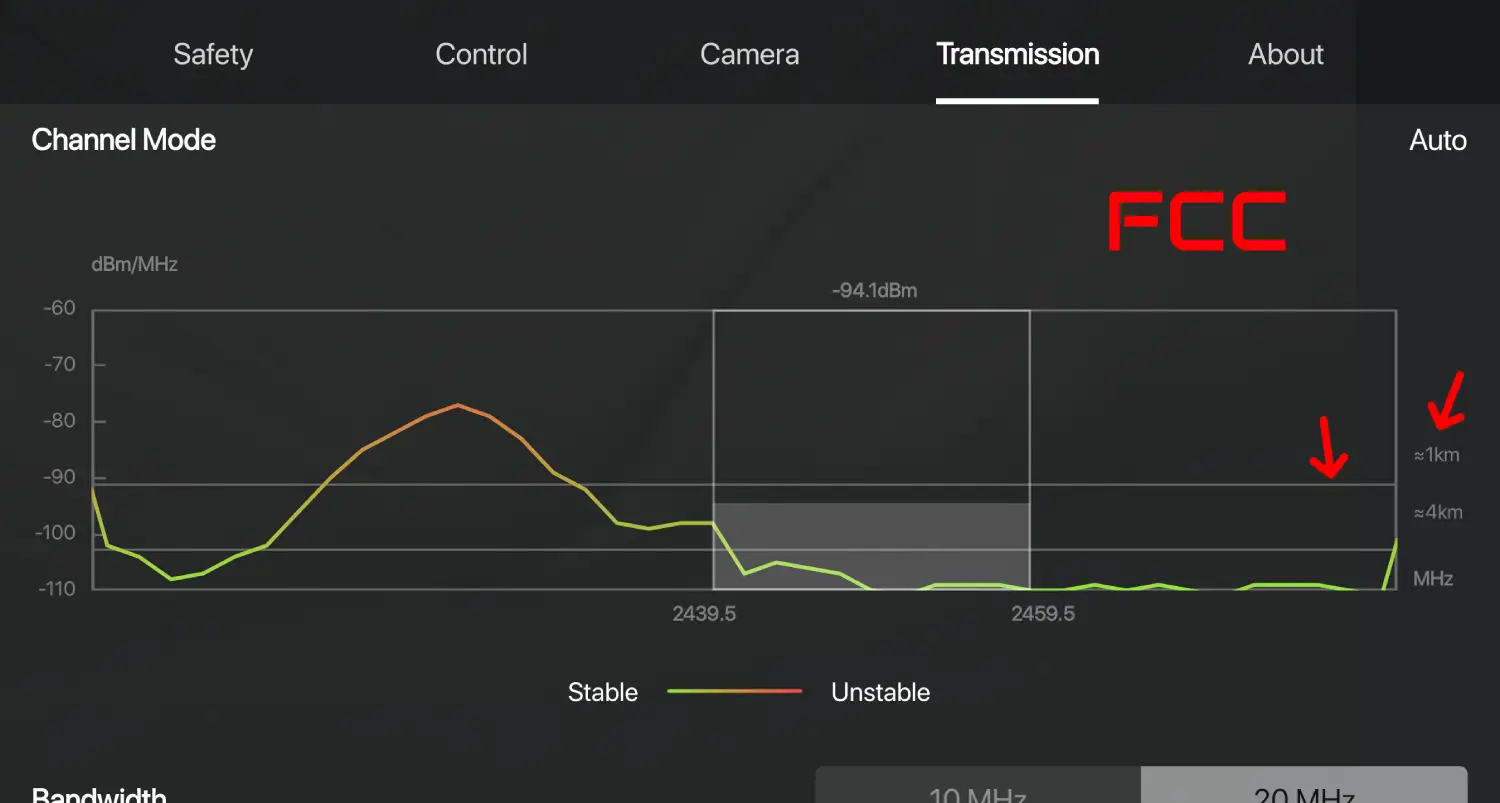
Open the DJI Fly app and go to the Transmission tab. Look at the horizontal bar around -90 dBm:
- If it lines up with the 1km mark, your drone is in CE mode
- If it falls below the 1km mark (extends further), your drone is in FCC mode
| FCC Mode | CE Mode |
 |
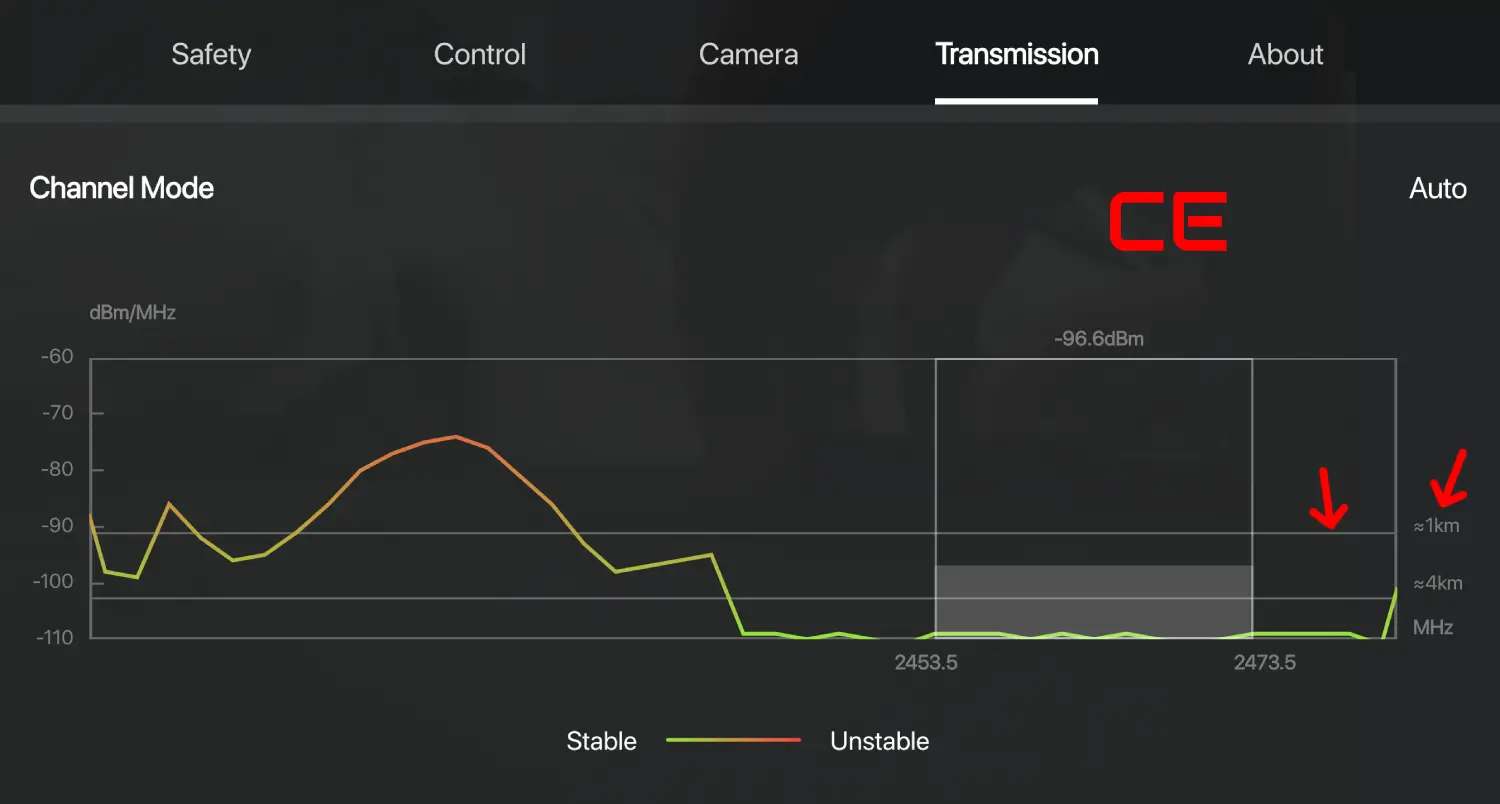 |
| Signal extends past 1km | Signal barely reaches 1km |
If the signal graph hasn't changed, power cycle the controller and try again. Make sure the drone is powered on and linked before enabling FCC.
Support
If FreeFCC helped you out, please consider starring the repo and buying me a coffee. It helps cover server costs and keeps development going.


Every contribution helps cover server costs and keeps development going. Thank you.
How It Works
The app sends DUML commands to the controller's local TCP proxy at 127.0.0.1:40009. DUML is DJI's internal command protocol, publicly documented in the dji-firmware-tools project.
Each command is a small binary packet with a magic byte (0x55), a header with sender and receiver info, a payload, and two CRC checksums. The app builds these packets from JSON profile files and sends them over TCP, one packet per connection.
FCC Profile
21 frames sent in 2 rounds with 10ms between each frame and 100ms between rounds. The sequence enters service mode, sets the radio region to FCC, writes channel groups and power limits, commits the change, and exits service mode. The same 21 frames work on every DJI aircraft model tested (Mini 5 Pro, Mini 4 Pro, Mavic 4 Pro, Air 3S, Neo, Avata 360). The frames are byte-for-byte identical to the universal sequence documented in the dji-firmware-tools project. The full 2-round apply completes in under 1 second on a healthy RC link.
4G Profile
128 frames sent in a single round with 10ms between each. Each frame carries the aircraft's serial number in its payload. The serial is read from the controller at runtime by listening for telemetry on the DUML socket.
4G is enterprise-only. Only aircraft that accept the DJI Cellular Dongle 2 support 4G activation: Mavic 4 Pro (wa341), Matrice 300/350 series (wa233/wa234), and Inspire 3 (wm630). The Mini series (wa150, wa140, wm16x) does not have a cellular module and will reject the frames. FreeFCC checks the aircraft model code before sending and refuses early if the model is not in the 4G-capable set.
How the 4G activation frames are sent:
Unlike FCC which goes through the standard DUML TCP proxy on port 40009, 4G frames are sent via a Unix domain socket at /duss/mb/0x205 (abstract namespace). This is a separate DJI internal command bus that talks directly to the cellular/4G module. The app opens a new LocalSocket connection for each frame, writes the frame bytes, flushes, and closes. No ACK is read back since the 4G module does not respond on this socket — the app can only confirm the frames were written, never that the aircraft actually activated 4G. Before sending, the app checks that the socket is connectable; if it is not, it tells the user to attach the Cellular Dongle 2 rather than failing 128 times.
The frame format is:
sender = 2(CAMERA)cmd_type = 0(Request, NO_ACK_NEEDED, no encryption)cmd_set = 81(0x51, 4G command set)cmd_id = 0..127(sequential, one per frame)dst = 238(0xEE, OFDM_GROUND index 7)payload = 000000 + ASCII(aircraft_serial)
The aircraft serial is probed by listening on TCP port 40009 for telemetry data. The serial format is typically 1581XXXXXXXXXXX (16-20 uppercase alphanumeric characters — the factory serial printed on the airframe). If the full serial is not found within the listen window, the app falls back to the shorter model code pattern W[AM]xxx (e.g. WA341, WM630). The captured 4G profile uses the short model-code form (WA341TEST), so the fallback is sufficient for 4G. The serial is cached in SharedPreferences across sessions so the user does not have to re-probe every launch.
4G activation requires a DJI Cellular Dongle 2 to be physically connected to the aircraft. Without the dongle, the Unix socket /duss/mb/0x205 will not exist and the frames will fail to send. FreeFCC detects this with a fast pre-check before sending any frames.
Profile Format
Profiles are JSON files in app/src/main/assets/profiles/. Each frame looks like this:
{ "s": 16, "i": 88, "d": 18, "p": "030100", "note": "Enter service mode" }
| Field | Meaning |
|---|---|
s |
Command set (16 = service mode, 6 = radio, 3 = flight controller) |
i |
Command ID within the set |
d |
Destination device |
p |
Payload as hex string (sent as raw bytes, no transformation) |
note |
Plain English description of what the frame does |
You can open these files in any text editor, read every byte that gets sent, and modify them if you want.
How the Frames Were Obtained
The DUML proxy on DJI controllers listens on 127.0.0.1:40009 and accepts plain unencrypted TCP connections. The command frames were identified by capturing loopback traffic on the controller while the radio was active, then extracting the 0x55-prefixed DUML packets from the capture:
tcpdump -i lo -w /sdcard/capture.pcap port 40009
The frames are plaintext on the local socket with no encryption. Once captured, the payloads were decoded using the publicly documented command set and device type enums from the dji-firmware-tools project (GPL-3.0). This project's DumlBuilder class implements the same CRC-8 (polynomial 0x8C reflected, init 0x77) and CRC-16 (polynomial 0x8408 reflected of 0x1021, init 0x3692) as the reference implementation to build valid frames from the decoded command definitions. The wire layout is: [0]=0x55 magic, [1-2]=length, [3]=CRC-8, [4]=sender, [5]=cmdType, [6-7]=seq, [8]=dst, [9]=cmdSet, [10]=cmdId, [11..N]=payload, [N+1..N+2]=CRC-16.
Project Structure
app/src/main/
  assets/profiles/
    fcc.json          21 frames, FCC unlock
    ce_restore.json    1 frame, reset to factory region
    4g.json           128 frames, 4G activation
    device_info.json   1 frame, version inquiry
    led_on.json        1 frame, LED on (port 40007)
    led_off.json       1 frame, LED off (port 40007)
  java/com/freefcc/app/
    DumlTransport.kt  Frame builder (CRC-8/16) + TCP socket I/O
    Profiles.kt        JSON profile loader
    FccViewModel.kt    State management + business logic
    MainActivity.kt    Compose UI with animations
  res/
    drawable/          Launcher icon (vector)
    values/            Theme
    xml/               Network security config
Building
Requirements: Java 17+, Android SDK 35.
Windows
$env:JAVA_HOME = "C:\Program Files\Eclipse Adoptium\jdk-17.0.18.8-hotspot"
$env:PATH = "$env:JAVA_HOME\bin;$env:PATH"

cd C:\projects\fcc_opensource
java -classpath gradle\wrapper\gradle-wrapper.jar org.gradle.wrapper.GradleWrapperMain assembleRelease --no-daemon
macOS/Linux
export JAVA_HOME=/path/to/jdk-17
export PATH="$JAVA_HOME/bin:$PATH"

cd /path/to/FreeFCC
./gradlew assembleRelease --no-daemon
Run the unit tests with ./gradlew testDebugUnitTest.
Release signing
Release builds are unsigned by default. To produce a signed release APK, create a keystore and a local keystore.properties file (gitignored) pointing at it:
- Generate a keystore (one-time):
keytool -genkey -v -keystore release.jks -keyalg RSA -keysize 2048 -validity 10000 -alias release - Copy
keystore.properties.exampletokeystore.propertiesand fill in your keystore path and passwords. - Run
./gradlew assembleRelease— the build picks upkeystore.propertiesautomatically and signs the APK.
CI builds can sign via repository secrets instead of the local file: set SIGNING_STORE_FILE, SIGNING_STORE_PASSWORD, SIGNING_KEY_ALIAS, SIGNING_KEY_PASSWORD (and SIGNING_KEYSTORE_B64 as a base64-encoded keystore) in GitHub Actions.
Important: Previous releases (v1.4.01 and earlier) were signed with Android's shared debug certificate. This has been fixed — release builds no longer fall back to the debug key. If you installed an older debug-signed APK, you will need to uninstall it before installing an APK signed with a new key.
License
AGPL-3.0. See LICENSE.
The DUML protocol implementation is based on the publicly documented dji-firmware-tools project (GPL-3.0).
Contact
Questions, issues, or feedback? Reach out:
- Email: freefccidothings@gmail.com
- GitHub Issues: github.com/doesthings/FreeFCC/issues
- Ko-fi: ko-fi.com/freefcc