intellij-foldable-project-view




Foldable Project View declutters the Project View of the IntelliJ-based IDEs: files and directories matching your rules – READMEs, CI configs, build scripts, dotfiles, VCS-ignored files – are folded into named, colored groups or hidden altogether, so the code you work on is the first thing you see.
Available features:
- Multiple named folding rules with gitignore-like patterns, applied to the module roots or to all nested directories
- Group the matched elements or hide them from the Project View, per rule
- Theme-aware palette of group colors (Blue, Green, Orange, Rose, Violet, Yellow, Gray) or custom colors
- Built-in
Ignored filesrule folding the VCS-ignored files – rename, color, reorder, hide, or disable it like any other rule - Negation (
!pattern), directory-only matching (dir/), quoted names with spaces, and case-insensitive matching - Rules reading their patterns from ignore-like files in the repository, like
.foldignoreor.dockerignore - Rule set files:
.foldableprojectview.yamlversioned with the project,~/.config/foldableprojectview/rules.yamlapplied to all your projects, and presets – built-in or your own – reusable viaextends - Rule presets (Documentation, CI/CD, Build, Configuration, Dotfiles, Gradle, Maven, Node.js, Python, Docker, IDE) and a live count of the elements matched by the edited rule
- Enable or disable rules without removing them, optionally fold directories, hide empty groups
- Enable/disable folding via Settings or the Project View options menu
- Search scopes based on the folding rules, e.g., in
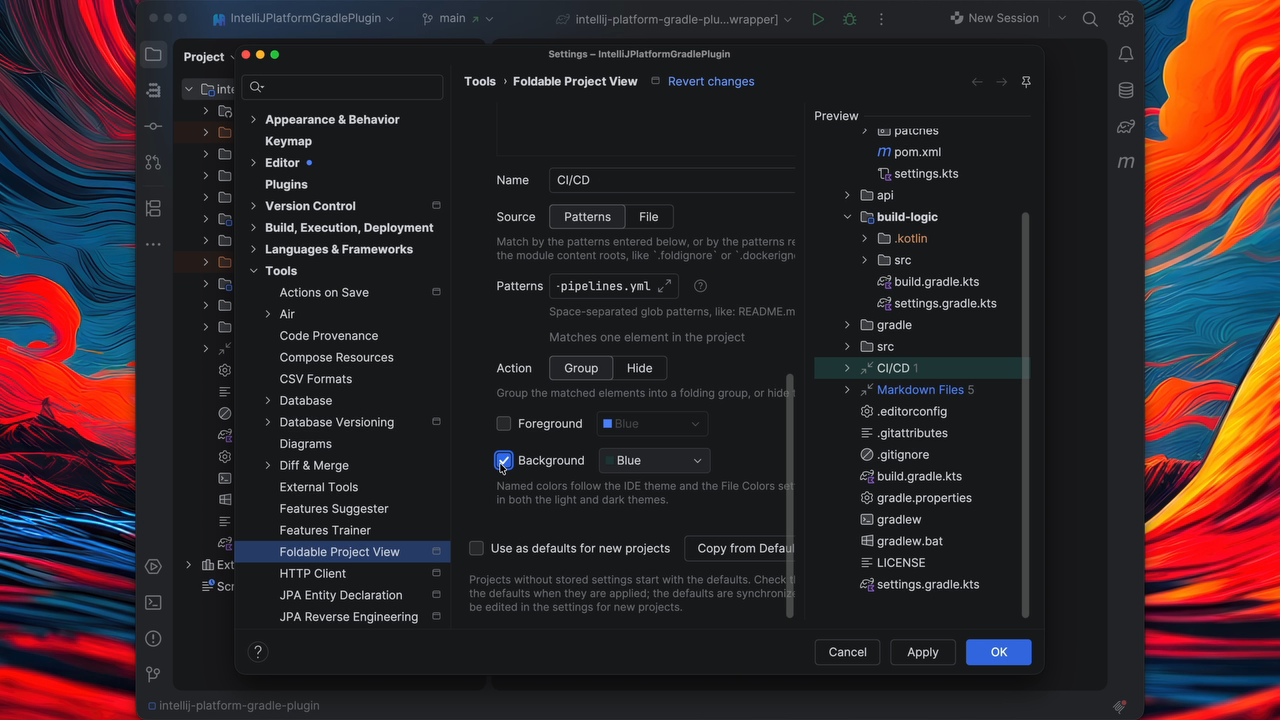
Find in Files - Live Project View preview in the settings
- Defaults for new projects, synchronized by Settings Sync
Works in all IntelliJ-based IDEs (IntelliJ IDEA, PyCharm, WebStorm, Rider, GoLand, …) on IntelliJ Platform 2025.3+. See the documentation for the details.
Free and sponsor-supported. If the plugin saves you time, consider sponsoring it via GitHub Sponsors, Ko-fi, or PayPal. You can also find my other projects on GitHub.
Demo
Compatibility
- IntelliJ Platform 2025.3 and newer
- All IntelliJ-based IDEs: IntelliJ IDEA, PyCharm, WebStorm, PhpStorm, Rider, GoLand, CLion, RubyMine, DataGrip, Android Studio, …
Usage
Open Settings > Tools > Foldable Project View and define the folding rules. Each rule has a name, which is used as the group label in the Project View, and a list of space-separated gitignore-like glob patterns in the Patterns field, e.g.:
README.md *.yml !docker-compose.yml gradle* .github/ "My Notes.md"
The Preview next to the settings is a live, read-only Project View reflecting the unsaved settings: selecting a rule in the table highlights its folding group in the preview, and selecting a group in the preview selects its rule. Folding as a whole is switched with Enable folding on the settings page or Enable Folding in the Project View options menu (⋮ in the Project tool window header).
Rules and patterns
Patterns are matched against paths relative to the module content root:
*matches any characters except/,?matches a single character,**matches any number of directories,[abc]/[a-z]/[!abc]are character classes, and\escapes the next character,- patterns without a slash match on any level, patterns containing a slash are anchored to the root (
/README.md,src/*.md), - a trailing slash matches directories only (
build/), if Also fold directories is enabled, - a leading
!negates the pattern:*.yml !docker-compose.ymlmatches all YAML files exceptdocker-compose.yml; as in gitignore, the last matching pattern decides, - names containing spaces are wrapped in double quotes (
"My Notes.md") or have the spaces escaped (My\ Notes.md), - matching is case-insensitive unless Case-sensitive is enabled.
The + button of the rules table adds an empty rule or one of the presets (Documentation, CI/CD, Build, Configuration, Dotfiles, Gradle, Maven, Node.js, Python, Docker, IDE, plus your own – see Rule set files) that can be adjusted afterward. While editing, the rule editor shows how many elements of the project the rule matches with the current options – hover the counter to see the first matched paths – and the ? icon next to the Patterns field recaps the pattern syntax.
Rules are applied in order – the first matching rule takes precedence. Rules with no name are labeled Unnamed rule,
rules with no patterns are kept but not applied, and both are reported with a warning. Invalid patterns (e.g., [z-a])
are skipped; the settings page reports them with a warning next to the pattern field and in the rules table.
Group or hide
Each rule either groups the matched elements into a folding group (the default) or hides them from the Project View entirely – pick the Action in the rule editor. Hidden elements can still be found with Search Everywhere or the rule's search scope.
Rules can be disabled with the checkbox in the first column of the table – disabled rules are kept, but neither applied nor exposed as search scopes. By default, a module root shows the group of every rule, even an empty one, so the rules are visible at a glance; Hide empty groups removes the groups whose rules match nothing (nested directories never show empty groups).
Folding rules are also available as search scopes (e.g., in Find in Files), named after the rules.
Ignored files
The built-in Ignored files rule folds the files and folders ignored by the VCS. It cannot be removed, but it can be
disabled (also with the Fold Ignored Files toggle in the Project View options menu), renamed, colored, moved
to change its precedence, or switched to the Hide action.
Colors
The foreground and background of a folding group are picked from a palette of named colors (Blue, Green, Orange, Rose, Violet, Yellow, Gray) that follow the IDE theme – the backgrounds are the platform File Colors, so the groups look like the scope-colored files around them, also when a theme overrides them. Choose Custom… to pick any other color; such a color is used as is in both the light and dark themes.
Directories, nested directories, and scope panes
By default, folding is applied to the module roots only, and only files are folded. Enable Also fold directories
to fold the matching directories as well, and Fold in nested directories to apply the rules to the content of
all directories – anchored patterns like /README.md still match root elements only, and VCS-ignored files are folded
in the module roots only.
Folding works in the Project pane as well as in the scope-based panes (Project Files, custom scopes). The scope-based panes pass only files to the plugin, so directories are not folded there, even with Also fold directories enabled.
Patterns from ignore-like files
Instead of entering the patterns in the IDE, a rule can read them from files kept in the repository: switch the rule's
Source to File and list the space-separated paths of the files, relative to the module content root,
e.g. .foldignore or .foldignore .dockerignore. Every line of such a file is a single gitignore-like pattern with the
syntax described above (spaces are a part of the pattern), blank lines and lines starting with # are skipped:
# Documentation
*.md
!CHANGELOG.md
LICENSE*
The files are looked up in the content root of every module, so each module can have its own .foldignore. The Project
View is refreshed whenever the files change, and the settings page warns about files that do not exist in any module root.
Such a file carries the patterns of a single rule; to version whole rules – names, colors, actions – use a rule set file.
Rule set files
Rules do not have to live in the IDE settings. A rule set is a YAML file with the options and the rules, which can be versioned with the project, kept in your home directory for all your projects, or shared as a preset:
# .foldableprojectview.yaml
name: Kotlin Gradle project
extends: [builtin:docs, builtin:ci]     # include presets (built-in or from your user directory) by id
options:                                # optional; only the keys present are applied
  foldNestedDirectories: true
rules:
  - id: gradle                          # stable identity, derived from the name when missing
    name: Gradle
    patterns: ["gradle/", "gradlew*", "*.gradle.kts", "gradle.properties"]
    background: Green                   # palette name or #RRGGBB
    action: group                       # group (default) | hide
  - id: local
    name: Local
    patternsFiles: [.foldignore]        # a rule reading its patterns from ignore-like files
  - id: docs                            # override a rule of an included preset by id
    enabled: false
The rule sets are discovered in layers; a later layer adds rules or overrides the earlier ones by id:
- Built-in presets shipped with the plugin (
src/main/resources/presets) – never applied on their own, only offered by the + button or included viaextends: [builtin:<name>]. Contributions are welcome: a preset is a single YAML file, see the README there. - User directory –
~/.config/foldableprojectviewby default, configurable on the settings page:rules.yamlis applied to every project you open, and the YAML files of thepresetssubdirectory are offered as presets next to the built-in ones and reachable asextends: [user:<name>]. Dotfiles-friendly. - Project files –
.foldableprojectview.yamlin the project root and in the module content roots, versioned with the project, so a team shares the rules without committing.idea. - IDE settings –
.idea/FoldableProjectView.xml, the rules edited on the settings page. A settings rule with theidof a file rule replaces it.
On the settings page, the rules of the files are listed with their origin (Project file, User file) and are read-only – Edit File opens the file – except for the Enabled checkbox, which is stored per project. The options set by a file disable the corresponding checkboxes, and the page lists the files in effect and the files that could not be read. The Project View is refreshed whenever a rule set file changes.
To get started from the rules you already have, use the toolbar of the rules table: Export Rules to File… writes
the options and the rules of the settings to a .foldableprojectview.yaml (and opens it), Save as User Defaults
writes them to ~/.config/foldableprojectview/rules.yaml. A JSON schema is attached to the files, so the IDE offers
completion and validation while they are edited (with the bundled JSON and YAML plugins).
Defaults for new projects
Settings are stored per project in .idea/FoldableProjectView.xml. Projects without stored settings start with the
defaults, which are kept at the IDE level and synchronized by Settings Sync (prefer the user rules.yaml described above
when the rules should apply to the existing projects too, or live in your dotfiles). The defaults change only when you ask for it:
- check Use as defaults for new projects in the project settings to store the settings as the defaults when they are applied – like any other change on the page, the request is discarded by Cancel,
- Copy from Defaults replaces the settings of the current project with the defaults (until applied),
- both controls are disabled, and the page says so, while the settings being edited equal the defaults,
- the same page under the settings for new projects (File > New Projects Setup > Settings for New Projects…) edits the defaults directly.
Installation
Using the IDE built-in plugin system:
Settings > Plugins > Marketplace > Search for "Foldable Project View" > Install Plugin
Manually:
Download the latest release and install it manually using Settings > Plugins > ⚙️ > Install plugin from disk...
Development
./gradlew buildPlugin   # build the plugin distribution into build/distributions
./gradlew test          # run tests
./gradlew runIde        # run a sandboxed IDE with the plugin installed
./gradlew verifyPlugin  # run the IntelliJ Plugin Verifier
The plugin description shown on the JetBrains Marketplace is generated from the section of this file between the
<!-- Plugin description --> and <!-- Plugin description end --> markers; the What's New notes come from
CHANGELOG.md.
Changelog
See CHANGELOG.md for the release history.
Plugin based on the IntelliJ Platform Plugin Template.