Shizuku-Next
An Android app that allows other apps to use system-level APIs that require ADB/root privileges.
Shizuku Next is a fork of thedjchi's Shizuku, which is itself a fork of RikkaApps' Shizuku. Shizuku the server, the API, the shell and everything that makes this possible is RikkaW's work, and the fork this is built on is thedjchi's. Their credit is given in full below; please support them.
Note from thedjchi, whose fork this continues: "I'm pausing maintenance for the time being, I simply haven't had time to work on this and it was a side project." This fork picks up where his left off.
⚠️ This build is signed with this fork's own key, so it will not install over the official Shizuku or over
thedjchi's fork Android refuses to replace an app signed with a different key. Uninstall that one first, and
note that a Shizuku server it started may still be running until you stop it or reboot. Nothing else changes: the
package name (moe.shizuku.privileged.api), the interfaces and the API are untouched, so apps that use Shizuku
keep working.
⚠️ Disclaimer
This is a FORK of Shizuku. If you are looking for the original version, please visit the RikkaApps/Shizuku repository.
⬇️ Download
Releases of this fork are on the releases page, with the latest on top the badges above track this repository. Building it yourself is covered under Building the App.
The fork this is based on publishes its own releases on his repository. Because the two are signed with different keys, neither can replace the other: uninstall the one you have before installing the other.
✨ Added Features
Everything below is either inherited from the fork this is based on or added here. The two are kept apart on purpose, because the second list is the only part this project is responsible for.
🍴 From thedjchi's fork his work, carried over
Shizuku Next started from his fork of Shizuku, so these are his features. A couple have been extended here since the transport split inside TCP mode, for instance and where that is so, the extra behaviour also appears under this fork's own list below.
More robust "start on boot"
waits for a Wi-Fi connection before starting the Shizuku service
TCP mode
keep the classic ADB port open (i.e. the adb tcpip command) so the USB start and the watchdog can restart Shizuku without Wi-Fi or pairing. With it off, an open port is closed whenever Shizuku starts over wireless
Watchdog service
automatically restarts Shizuku if it stops unexpectedly, and can alert you of crashes/potential fixes
Start/stop intents
toggle Shizuku on-demand using automation apps (e.g., Tasker, MacroDroid, Automate)
[BETA] Stealth mode
hide Shizuku from other apps that don't work when Shizuku is installed
[BETA] In-app updates
option to automatically check for new updates, and can automatically download/install the latest version from GitHub. A check that could not run says so (no connection, GitHub rate limit) instead of answering that you already have the latest version
Android/Google TV and VR headset support
UI is now compatible with D-Pad remotes, all TVs are supported (including Android 14+ TVs that require pairing), and the multi-window pairing dialog is toggleable in settings for VR headsets
MediaTek support
fixes a critical bug in the original v13.6.0 which prevented Shizuku from working on MediaTek devices
- And more!
🦊 Added by Shizuku Next (this fork)
The interface work, the start-method handling and the reliability fixes below are ours, built on top of his fork, which is built on RikkaApps' Shizuku.
Automated setup
the separate "Pair" button has been removed: pressing "Start" detects when wireless debugging still needs to be paired and launches the pairing flow automatically
Pair without typing
Shizuku reads the pairing code and port straight out of the system's "Pair with device" dialog, pairs, and starts itself so the code never has to be typed, and can't expire while you switch apps. On Android 17 that dialog prints the device's mDNS hostname and folds the addresses away behind "Additional device addresses", so the code is the only thing it still says out loud: the port is asked for over mDNS in that case, the same way the notification flow finds it, and the dialog is read for a few seconds after the screen it opens from is touched rather than once, because Android 17's dialog sends no event of its own and the code appears in the window just after the tap that asked for it. Manual pairing (notification + typed code) stays one tap away as a fallback: the Manual button beside Automated in the same dialog, and both labels are single words so they fit on one button row instead of stacking
Wireless debugging auto-disable (optional)
restore the old behaviour of turning wireless debugging off once Shizuku has started over it, instead of leaving it on so Shizuku can restart itself
Wireless debugging stays enabled
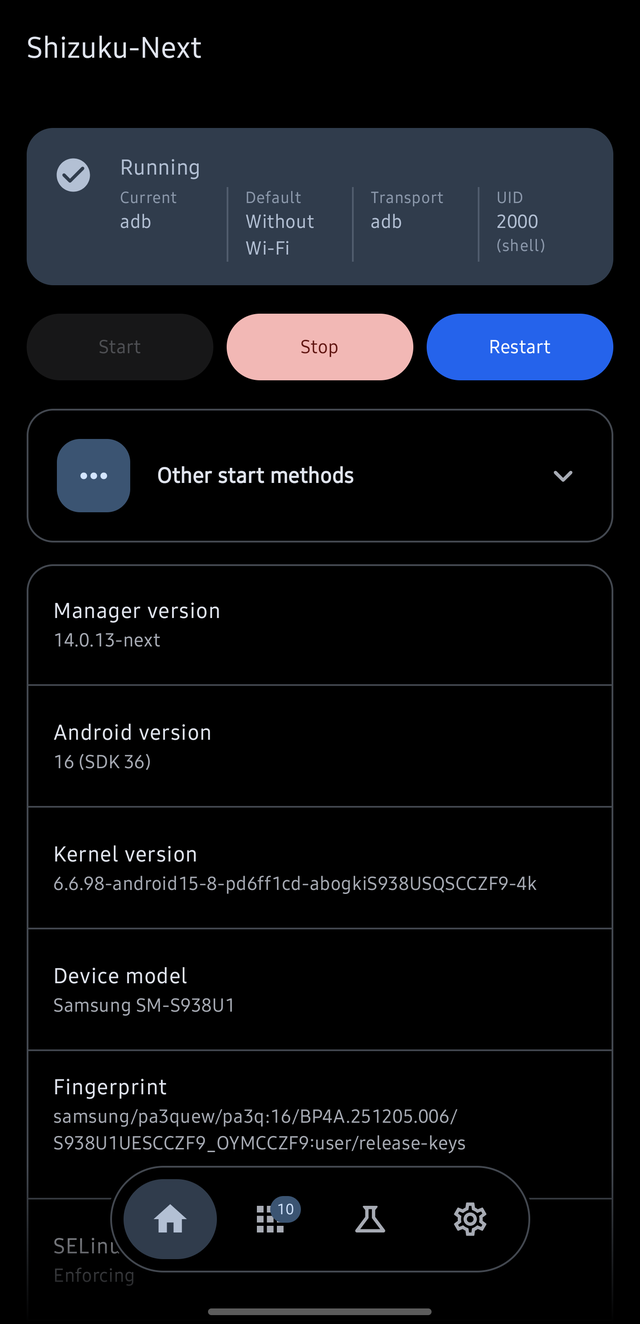
starting Shizuku no longer turns off wireless debugging, so it can restart with USB debugging off and no Wi-Fi connection; the status card shows whether it runs over wireless or USB debugging
Accurate status label
the home status card shows the server's real UID as the number, with what that uid is called underneath it (2000, then (shell)) instead of always assuming adb, plus three facts that can't be confused with each other: the transport it actually runs on, the method this launch used (Current) and the method the next Start will use (Default) so wireless, USB, system and root stay apart. The four read as one row across the card, label above value, with a hairline rule between each pair so the whole state is legible without reading left to right. Every status notification names the method too ("USB debugging · Waiting to retry")
Fewer cryptic failure cards
a pairing request that the device rejects is reported as a pairing failure instead of being retried until the dead socket reports "Socket closed"
One-tap battery-optimization bypass
"fix" whitelists Shizuku directly through Shizuku/root (deviceidle whitelist, appops) instead of only opening the system dialog
Duplicate server cleanup
the starter detects stale Shizuku server processes via multiple /proc vectors and terminates them cleanly (with a short yield) before starting a new one. It also waits for the manager's provider to appear instead of failing on the first look, because the app and the starter are started by the same broadcast and the provider is not always published by the time the starter looks for it (upstream RikkaApps/Shizuku pull 1220)
Clearer auto-start progress
the wireless/boot start notification now shows more states: waiting for Wi-Fi, waiting for unlock, and connecting
Auto wake-up
when an app requests the Shizuku binder while the server is down, the manager tries to start it in the background (if start on boot is enabled and you did not deliberately stop it)
A start no longer needs the device unlocked
the notification a locked-device start posts belongs to a foreground service, and Android 14 and later make WorkManager pass on the type it was handed. Asking for one with no type made the platform refuse it and kill the manager, so a start made while the device was locked, which is what every boot start is, took the app down with it and only appeared to work once somebody unlocked the phone. The type is now given to the call as well as declared in the manifest, and the waiting-for-unlock notification is what it was always meant to be
Shell, in the app
a terminal on the Labs tab, which runs commands as the uid Shizuku runs as (2000 over adb, 0 with root, 1000 with the exploit) with the working directory and anything you export carried from command to command, so cd and export behave the way a session does even though every command is its own process. A second backend runs through the root shell for when Shizuku is stopped, and asks for root on the spot rather than assuming it, saying so when it is refused. Output streams in as it arrives, stderr in red, non-zero exits marked, with copy and clear in the header, and a row of quick commands above the input for the jobs the manager already does itself: battery, storage, device and your apps run on a tap because they only read, while grant, revoke, app op and force stop ask for the app first from a searchable list of what is installed, then write the command into the input, so what runs is what you can read. Typing turns that row into suggestions: the commands that start with what you have typed, the apps whose names do, and once the token has a dot in it the package or permission it could be picking one replaces the token and leaves the space for the next, so a permission can be granted in three taps. Commands worth keeping are saved by name from the header and listed from the Saved chip, which leads that row in both of its modes; the sheet sorts them by newest or by name, a tap fills the input and the play button beside it runs it, and deleting offers to undo in the sheet itself, where a snackbar could not be seen. A Library chip opens 108 commands with a description and tags each, searchable by any of them: "battery" finds the standby-bucket commands as well as dumpsys battery. Picking one puts it in the input, and one with placeholders asks for them first: a field per variable, with the app list a tap away for the ones that name an app, and the finished command handed back to read before it runs. The output can be searched, with the matches marked where they are rather than filtered down to and a count and a step through them; the tools can be hidden so the log has the screen, and the whole buffer can be written out through the system file picker, so it lands where you chose and needs no permission to get there. It is selectable too, for copying one line instead of all of them. An adb shell prefix, typed out of habit from a computer, is dropped with a line saying so, and three commands are answered on this side rather than by the shell: clear empties the transcript (a shell with no terminal would repaint a screen it does not have and return the escape codes for it), exit says there is no shell to leave because every command is its own, and a bare su says root comes from the Root backend here instead of waiting at a permission prompt nothing can show. There is no tty to be had from an app, so a program that needs one (nano, an ssh prompt) belongs in the rish export instead
Fade behind the navigation bar
the bar's band carries a gradient from transparent to the page colour, so a list scrolling under the floating bar fades out instead of arriving at it at full contrast. It is drawn on the bar's own band rather than by the pages, so it leaves with the bar and is already there before a page has scrolled; a gradient rather than a blur, because blurring a scrolling page means drawing it into an offscreen layer and re-blurring it every frame
Reliable TCP-port rebinding
after switching adbd to the configured TCP/IP port, Shizuku waits until the new port is actually listening before connecting (custom ports avoid the 5555 conflict)
Batch permission management
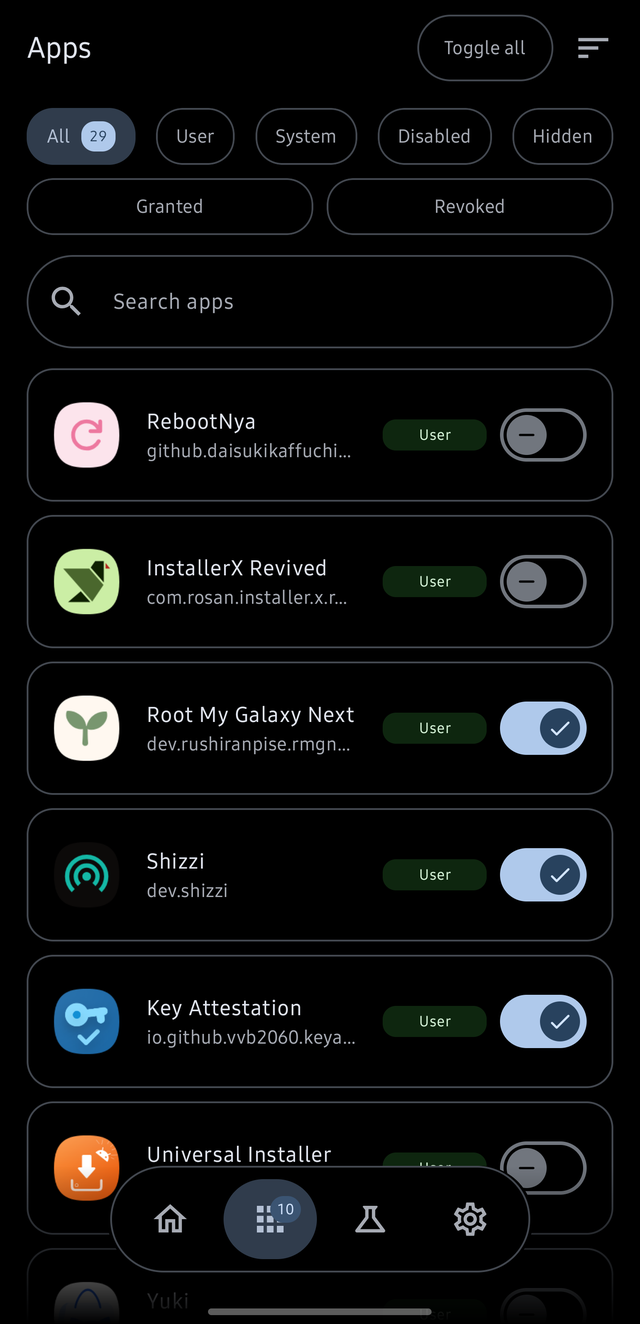
long-press an app to enter multi-select, then grant or revoke permission for many apps at once, with select-all and a confirmation, plus a Toggle all action that flips every listed app in one tap (narrow the list with the search first, it only touches what is listed), and the snackbar that follows offers to put a batch back, because flipping every listed app is a lot of permission to change by accident
Device info card
the home screen describes the device the way KernelSU's manager does: manager version, kernel version, device model, fingerprint, SELinux status and seccomp status (SELinux is read through the server when one is running, and otherwise inferred the way KernelSU's manager does, where getenforce being denied means the policy is enforcing)
New Material 3 interface
the manager UI is rebuilt in Jetpack Compose with a KernelSU-style layout a bottom tab bar (Home · Apps · Labs · Settings) that is icons with the selected one in a filled pill, and switches to a tab rather than scrolling through the ones in between, and slides out of the way when a list is scrolled. Labs is where the screens that are gone to rather than lived in have been gathered: App ops, Shell, Firewall and Autostart, the first two of which had tabs of their own before, which is a fifth of the bar each for screens that are mostly empty when you arrive. Firewall blocks an app's traffic with the platform's own chain, no VPN involved, and Autostart denies the background-execution op, which takes an app's boot receivers with it. Both are the same list the Apps tab is, asking a different question: one switch per app, the blocked count beside the title, a search box, and two rows of filters - what kind of app it is (All / User / System / Disabled / Hidden, the same five the app-ops list uses, in a row that scrolls like that one does) and whether it is blocked (Allowed / Blocked on a row of their own, where letting go of both shows everything rather than filtering). The two rows are separate filters and they combine, so a system app that is blocked is a question with an answer. The two differ in where their state comes from, and it is worth knowing which: an app op can be listed for every app in a single command, while the firewall's bit cannot - the command takes one package name - so that list keeps its own record of what it blocked and says so on the screen, and the app's own page is where its network state is read back from the platform. They sit in a grid of tiles, each an icon and its name and nothing else - a feature, not a decision, so a name that needs a sentence under it is a name to change - and a width per tile rather than a count, so a phone shows two and a tablet as many as fit. The next one to earn a place costs a line rather than a fifth of the bar. A tab's reading is also kept off the swipe: the two app lists used to begin reading every installed package the moment their page was dragged into view, which is what made swiping towards the shell stutter, since that swipe passes through both of them. The Apps list reads once shortly after launch instead, while nobody is touching anything, so a swipe stays cheap and the tab is already full when it is opened - and because every page stays composed, that holds for a revisit too. The app-ops list is read when its tile is opened, with placeholder rows standing in while it is, since a screen you deliberately went to can spend a moment arriving — all the way, rather than part of it hanging at the bottom. Pulling either list down asks it again, for the times something changed outside the app (a grant made from a computer, an app installed since), and the pull reads behind the rows already on screen rather than blanking the page, every busy state drawn as Material 3's morphing loading indicator rather than a ring, the loader inside the start button included, and the pure-black progress bar a wavy line, and a list that has not been read yet standing in for its own rows with placeholder cards built from the same card and the same row the entries use, so the two agree about how tall a row is and nothing jumps when the content arrives, every settings row leading with an icon, with the icon and the switch kept level with the row rather than with its first line when a summary wraps onto three, the selected tab marked by one pill that travels between the tabs on a spring instead of a container colour that appears on the new tab and leaves the old one, with the icon crossfading from outlined to filled as the pill arrives, tonal status cards with dynamic color, hairline outlines on pure-black OLED themes, and one rounded card per app in the Apps tab so a long list reads as separate entries instead of a flat column
Start as system (UID 1000)
a "Start (system)" card launches Shizuku under the system UID through the device's own exploit, which is Samsung only: it abuses that vendor's FOTA agent (com.sdet.fotaagent), a system-signed component that declares android.uid.system, and Android only lets an app into a shared uid whose signature matches, so no other firmware can host it. The start method setting names that vendor for the same reason. It needs the app in the foreground, so a boot or watchdog start cannot use it. Its start method setting picks between that exploit and a custom command: with the custom one the app attempts nothing itself, shows a command that resolves the executable it ships at run time (pm path for the installed package, the device's own ABI directory, and only the base APK, because an App Bundle install makes pm path print a line per split), so an update that moves it cannot break the command and it names the installed package, which is what stealth mode needs. A second form is printed under it: the absolute path to the same executable, because a shell that may not ask the package manager is refused the first one. The lookup is the one copied to the clipboard, since it is the one an update cannot invalidate, copies it to the clipboard and waits for the binder, which is what a device whose escalation is something else entirely needs. The server it starts is moved out of every control group it inherited from the app the payload borrowed, including the ones a root process sits in, because the payload's last step stops that app and the framework takes everything it left behind with it: a server left there was handed to the manager and killed moments later, which read as a start that reported success and then did nothing. The starter also reports on the screen, stage by stage, how far the payload got, and leaves its own account in the manager's external files directory, shown when a start times out
A failed system start explains itself, and says when it cannot
the binary a device exploit runs is started by another app, so its output is not ours to read and a start that went wrong showed only "waiting for service" and then a timeout. It writes its own account of the attempt every step, every warning, the errno behind a failed exec, and the cgroup it was moved into to this app's external files directory, falling back to the app's media directory (Android/media/<package>, which exists to be reachable from outside the app and is what survives a write from another app's process) and then /data/local/tmp. The app prints that account when a start times out, and when there is no account it names the files it looked in, so a start that produced nothing says so rather than staying silent
Start method setting
pick how Shizuku starts Wireless debugging, USB debugging, System (UID 1000) or Root, and the Start button, start on boot, the watchdog and the start intents all follow it instead of guessing from the last method that happened to work. Root is only offered where the device can actually grant it, and a device that loses root (an OTA, root switched off in the manager) has a stored Root rewritten to Wireless debugging with a line in settings explaining the change rather than every start pointing at a method that can't run
Separate USB start
home now has "Start via USB debugging" next to the wireless one, and the two never cross over in transport: a wireless start always goes over the wireless port (so it can't come back reporting USB), and never enables USB debugging or pairing; a USB start uses the classic ADB port, where the connection authenticates itself and Android asks you to allow USB debugging once
The USB start reopens its port by itself
Android clears the classic ADB port on every reboot and it isn't persistent, so a USB start borrows the wireless connection to reopen it whenever Wi-Fi is available, then starts over the port as usual. With nothing to borrow it says exactly what to do: connect to Wi-Fi, run adb tcpip 5555 from a computer, or choose Start without Wi-Fi as the start method and go over wireless debugging instead. It never slides over to another transport on its own, because a method is a promise about which transport carries the start
Restart timing
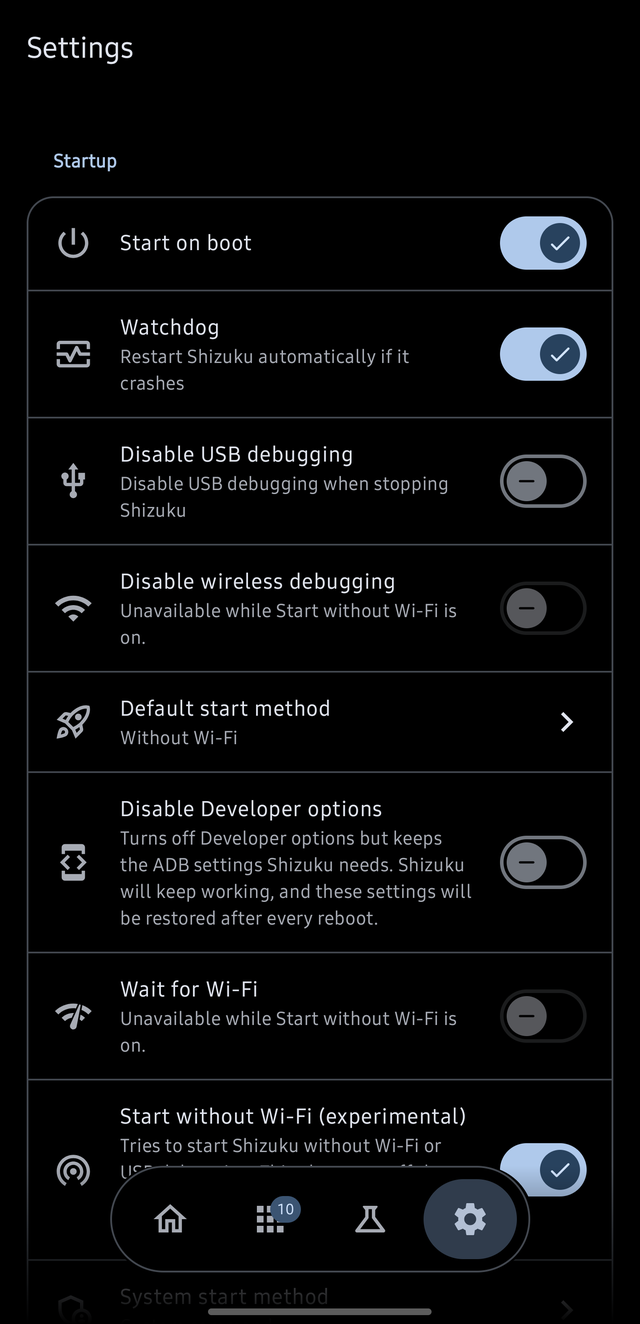
choose whether unattended restarts wait for an unmetered Wi-Fi connection (starts you trigger yourself never wait, and neither does anything when TCP mode has a port to reuse, because waiting for a network a start does not need is how it ends up waiting forever); an unattended start that fails retries with backoff rather than giving up on the first try
One start at a time
while Shizuku is running, every start row on the home screen (wireless, USB, system, root and the "Start using computer" ADB command) is dimmed and inert, so a tap can't silently do nothing; Restart is how you relaunch it
ADB without Developer options
a startup switch that turns the Developer options flag off and puts back the two ADB settings it would otherwise take with it, so Shizuku still starts and restarts on a device that looks clean to apps which refuse to run when Developer options is on. It is re-applied after every reboot, and switching it off puts the flag back
Asks for the minimum, and only once
WRITE_SECURE_SETTINGS is needed to switch wireless debugging on, nothing else, so a USB start, or a wireless start with that toggle already on, works on a fresh install without it, and no start is aborted by a setting the app isn't allowed to write. Only ADB can hand that permission out, so Shizuku grants it to itself as soon as a server is running (which is also what lets it enable its own accessibility service for pairing instead of asking you to). A brand-new install still needs either one adb shell pm grant … or the manual pairing fallback before the first server exists
One-tap ADB port fix
a USB start that finds the classic ADB port closed offers to open it and start in one tap, instead of only explaining adb tcpip
Clearer apps list
the Apps tab now says what is happening a spinner while it loads, "Shizuku is not running" with a Start button, no apps matching the search, or no app having asked for permission yet instead of a blank page
Search and sort authorized apps
filter the apps list by name and by two rows of chips - what kind of app it is (All / User / System / Disabled / Hidden) and whether Shizuku may use it (Granted / Revoked), the count shown on the chip in force - and sort it alphabetically, by most recently updated or by most recently installed, and every row carries the same chips about its app - System or User, which nothing else in the list says, and then one thing worth knowing where it applies: gone from this user, suspended, disabled or with no launcher icon. They are stacked rather than set side by side, because two chips in a row take the width the app's name needs and squeeze it into one letter per line; a taller row is the better trade. The chips are worked out in one place and drawn by every app list - the Apps tab, the app-ops list and the Firewall and Autostart lists - so an app says the same things about itself wherever it is listed. The kind row is the same one the app-ops list and the Labs lists carry, in the same words: the same apps asked about in three places should not come with three different sets of filters, and "hidden" should not mean one thing here and another there
Per-app system permissions (Manage tab)
a tab listing every installed app, and behind each one the things that normally need a computer grant or revoke its system and runtime permissions, and each row says which permission it is by name and what the platform's protection for it is. The split comes from the platform's own protection levels rather than a list of ours, and one adb is not allowed to change keeps its switch off and says why, instead of failing when tapped. Handing an app a privileged permission asks first, and the app's page in system settings is one tap away in the header
App ops
the switches the platform itself consults run in background, run in the background at all, foreground services, keep awake, notifications, clipboard, draw over other apps, installing other apps, toasts, capturing the screen, recording audio, the camera, the vibrator, faking a location and picture in picture, each as Default / Allow / Ignore / Deny. The camera and the microphone are there although the permission section above already covers both, and the difference is the point: revoking a permission is visible to the app and has it asking again, where denying the op underneath leaves the permission granted and makes the data come back empty - the switch for an app that will not take no for an answer. Every one of them was measured changing through adb before it was listed, because a row that does nothing is worse than a row that is missing. The second of those is the one autostart managers reach for: denying it stops an app running in the background whether or not it is on screen, which takes its boot receivers with it, and unlike the "disable this app" switch further down the page it leaves the app usable when you open it yourself. An autostart manager that works by switching off the individual boot receivers instead, with pm disable <package>/<receiver>, cannot be made to work here: the platform refuses that from the shell user outright - SecurityException: Shell cannot change component state - for any package, measured against four of them, including this app's own receiver. It answers to a root server, and a switch that only works on rooted devices is not one worth showing. Every change is read back before it is reported, because the platform answers a refused op with success, so "it worked" has to mean the op actually changed. Capabilities that are special access in system settings rather than app ops (all files access, usage access, exact alarms, modifying system settings) are deliberately absent, because no app can change them, and the section says so
Per-app actions and battery
force stop, suspend (greys an app out and stops it running while keeping its data), disable, clear data, uninstall for this user, restore a removed system app, plus the app standby bucket from Unrestricted down to Never, the battery-optimisation exemption, and blocking an app's network altogether. That last one is the platform's own firewall rather than a VPN: the deny bit in Android's firewall chain, turned on by cmd connectivity set-chain3-enabled and set per package by set-package-networking-enabled, which is what apps that block traffic without a VPN do under the hood. The bit belongs to the platform, so the switch asks for it rather than remembering what it asked for, and it reads back before reporting success; the chain itself is switched on when needed and deliberately left on, because switching it off would let every app that anything else had blocked through it. Buckets only the system can assign are reported rather than offered, so no switch promises a change the platform will not make
App facts
version, UID, target and minimum SDK, ABI, data directory, signature, install source, install and update dates, debuggable, backup allowed and whether the app has a launcher entry. All of it is read from the local package manager, so the tab opens and lists apps with Shizuku stopped; only the rows that change something need it, and they are dimmed until it is running
Permissions page (Settings, Tools)
one page listing what the app needs: notifications, nearby devices, write secure settings, the accessibility service and battery optimisation, with what each is for, whether it is granted, and a row that opens the right system screen (or App info, when a permission has been denied for good and asking again would do nothing)
More resilient watchdog
self-heals a dead server on screen unlock (even if the manager wasn't running when it died) and never fights a deliberate Stop. It also knows which deaths are its own doing: a forced start marks the server's death as expected, so a Restart is not answered with a crash notification and a second start racing the one that was asked for, while the mark carries a deadline and is spent on the first death, so a real crash cannot hide behind it. A death it did not expect is reported and restarted, and the restart is checked rather than trusted: if the server is not back shortly after, the retry stays armed for the next unlock, and if it is, the crash notification is replaced by one saying the server is running again. Restarts are also rate-limited, so an outage that is being retried hard cannot turn into a start every few seconds
Watchdog control intents
enable/disable the watchdog via moe.shizuku.privileged.api.WATCHDOG_ON, ...WATCHDOG_OFF, or ...WATCHDOG_TOGGLE
Status broadcasts
automation apps can react to moe.shizuku.privileged.api.SHIZUKU_CHANGED and ...WATCHDOG_CHANGED, each carrying a status extra (1 = on, 0 = off), and can ask for one with ...WATCHDOG_STATUS
Intents screen
the ready-made commands to copy for automation: start, stop, the watchdog toggles, the ADB command and the pairing token. Start and stop are authenticated with that token, which the screen shows and can regenerate, so a random app cannot start your server. That requirement has a switch of its own beside the token, because the token is generated per install and the same Tasker or MacroDroid task therefore has to be edited for every device: with it off the intents run for whoever sends them, which the row says plainly, and the watchdog intents have always worked that way
Android 17 (SDK 37), where the platform hides its own switches
Android 17 QPR1 stopped third-party apps from reading whether USB debugging and Developer options are on, so adb_enabled and development_settings_enabled both return 0 whatever the device is set to. Believing them made Shizuku announce that USB debugging was disabled on a device where it was on, refuse the TCP-mode path with "ADB is not enabled", and, whenever a start failed for a reason of its own, put "Developer options is off because ADB without Developer options is enabled" on the home card and offer to turn off a setting nobody had switched on. Reads go through helpers that treat a 0 there as unknown: USB debugging is assumed on, which is what the redaction asks apps to do, and Developer options are reported hidden only when this app's own setting is what hid them
Stability on some Chinese devices (Xiaomi/OPPO/Lenovo)
background starts no longer force USB debugging on, so Shizuku no longer dies when the USB mode is File Transfer and the screen is off
Starting with no Wi-Fi at all
the wireless port is found over mDNS, which needs a network interface, so a reboot with nothing to associate with used to leave Shizuku down until a network turned up. Two things cover it now. When discovery finds nothing and TCP mode has kept the classic ADB port open, the start falls back to that port instead of failing a transport that needs no network at all, which is what the mode is for, and the home screen still reports honestly that the classic port carried it. And an experimental setting, off by default, asks for wireless debugging over and over the way the Settings toggle cannot be asked while offline, bringing up a local-only hotspot when asking alone is not enough. Turning it on also turns off waiting for Wi-Fi and auto-disabling wireless debugging, because both of those fight it: the first would hold back the start it exists to make possible, and the second would undo the state it keeps. Both rows say so and stay switched off and unswitchable while the feature is on, rather than letting the two be set against each other, and a stop will not disable wireless debugging even if the setting was left on from before. That setting leans on a platform bug (see thedjchi/Shizuku issue 165): it can stop working after a system update, it works on some devices and not others, and it can leave wireless debugging on where a managed device would normally refuse it. Nothing depends on it, so a start that cannot use it behaves exactly as it did before. It is a start method of its own as well as a setting: while the experiment is enabled, Start without Wi-Fi appears in the start method list, choosing it pins this path whatever the setting says since, and switching the experiment on makes it the default while switching it off takes the default back to wireless debugging. Everything that follows the default follows it, which is the Start button, start on boot, the watchdog and the start intents, and no other method hands over to it: a USB start with no port says what it needs rather than becoming a wireless one
A port that survives a reboot
the one thing none of the above fixes is the first start after a reboot, because service.adb.tcp.port the port adb tcpip opens is cleared by every boot and wireless debugging needs a network and a hotspot before it can be asked for. adbd also reads persist.adb.tcp.port, which does survive, so a port written there is simply listening when the device comes back and a start is a connection to 127.0.0.1 with no network, no hotspot and no race. The catch is who may write it: the property belongs to adbd's own security context, so the shell uid is refused it (the log says so in the platform's words: Failed to set property, exit 1), while root and the system uid are not. The setting writes it through whichever server is running, reports whether it took, and only stays on when the property reads back as the port you asked for, so it cannot claim something the device refused. It needs a server running as root or the system UID, which on a Samsung means the System UID start, and while it is set the port answers anything that can reach the device on the network. Because only those can write it, the row is shown only where it can work: root is the chosen start method, or the server running is root or the system uid, or the device carries the agent a system start goes through. It stays visible while it is on, so it can always be turned off
The fork's own name and icon the fox in docs/logo.png are this project's. Everything
underneath is the work credited below.
📝 User Guide
Please read the wiki for setup, info, and troubleshooting steps it belongs to the fork this one is based on, and documents the same behaviour, because the features and the server come from there.
☑️ Requirements
Minimum Version: Android 7+
- Root mode: Requires a rooted device
- Wireless Debugging mode: Works on Android 11+ and all Android TVs
- PC mode: Works on all devices
- Start on boot: Available only when using Wireless Debugging or Root mode
🔒 Privacy
Shizuku takes user privacy very seriously.
- No tracking or analytics
- No telemetry
- No proprietary libraries
- No Google Play Services
- Open-source codebase
- Reproducible builds
- Internet access is only used for wireless debugging connections and to fetch updates from GitHub
- Only required permissions are declared
Permissions
- INTERNET: required for the wireless debugging start mode to work. Also used to fetch updates from GitHub
- NEARBY_WIFI_DEVICES, ACCESS_LOCAL_NETWORK, USE_LOOPBACK_INTERFACE, CHANGE_WIFI_MULTICAST_STATE: Android 16 and 17 gate local-network access behind these, and the wireless start finds the debugging port over mDNS. The nearby-devices one is declared so that it is never used for location
- FOREGROUND_SERVICE_SPECIAL_USE: the watchdog's foreground service has to declare a type from Android 14 on
- CHANGE_WIFI_STATE: used to bring up a local-only hotspot, which the experimental no-Wi-Fi start needs as the interface mDNS can resolve over. It is not used to enable, disable or join anything
- ACCESS_NETWORK_STATE: used to determine when Wi-Fi is available for background start via wireless debugging
- POST_NOTIFICATIONS: required for pairing notification and other alerts
- RECEIVE_BOOT_COMPLETED: required for start on boot
- FOREGROUND_SERVICE: prevents watchdog from being killed
- REQUEST_IGNORE_BATTERY_OPTIMIZATIONS: prevents start on boot and watchdog services from being killed
- WRITE_SECURE_SETTINGS: used to toggle USB and wireless debugging in the background when starting/stopping Shizuku
- REQUEST_DELETE_PACKAGES: used to request uninstall for Shizuku/stub when using stealth mode
- REQUEST_INSTALL_PACKAGES: used to request install for app updates, as well as Shizuku stub when using stealth mode
🌎 Translations
Contribute translations through the Crowdin project.
Only strings that have actually been translated are shipped, so the language list follows Crowdin rather than promising languages that would read as English: 35 languages are translated today, from Russian and Japanese, which carry hundreds of strings each, to the ten that arrived with the project's open-source licence - Arabic, German, Greek, Spanish, French, Italian, Dutch, Serbian, Swedish and Turkish - which carry about 118 each and not one of them the English text. A new language appears with the next sync once it has translations, and shipping one is a decision somebody makes, because the check that guards each translation pull request refuses any file whose folder the app has not already got. How that works, which languages ship and how to read progress from the API without using the web interface is in docs/translations.md.
🎁 Donations
This fork and all of its features are free, and there will never be ads. It has no donation setup of its own.
If you want to support the work it is built on, support the people who made it: thedjchi, whose fork most of these features come from, and RikkaW / RikkaApps, who wrote Shizuku itself.
📱 Developer Guide
API & Demo Project
The API guide and a demo project are available in the Shizuku-API repository
Notes
- Shizuku has different permissions in root and ADB mode. You can see permissions granted to ADB here.
If your app requires root permission, use
ShizukuService#getUidto check if Shizuku is running as root or ADB, or useShizukuService#checkPermissionto check if the server has sufficient permissions. - On devices running Android 8 or lower, if you need to use Shizuku in a Service or Broadcast Receiver that might not be started by an Activity, please trigger the send binder by starting a transparent activity.
- Please prefer using
ShizukuBinderWrapperinstead of directly usingtransactRemotewhen possible, as API calls can change across Android versions.
🤝 Contritbuting
Building the App
- Clone with
git clone --recurse-submodules - Run gradle task
:manager:assembleDebugor:manager:assembleRelease
The :manager:assembleDebug task generates a debuggable server. You can attach a debugger to shizuku_server to debug the server. In Android Studio, ensure Run/Debug configurations > Always install with package manager is checked, so that the server will use the latest code.
Submitting Changes
- Fork the repository
- Create a feature branch (
git checkout -b branch-name) - Make your changes
- Commit your changes (
git commit -m 'Commit message') - Push to the branch (
git push origin branch-name) - Open a Pull Request
🙏 Credits
- RikkaW / RikkaApps the original Shizuku: the server, the API, the shell, and the foundation all of this is built on.
- thedjchi the fork this project is based on. Everything under From thedjchi's fork above is his.
- Everyone who contributed upstream, and the translators on Crowdin.
📃 License
All code files in this project are licensed under Apache 2.0