baoyu-design
Run Claude Design on your own local agent — Cursor, Claude Code, Claude Desktop, or any file‑capable coding agent.



baoyu-design packages Claude Design — the design engine behind claude.ai/design — as a portable Agent Skill. Drop it into a local agent and you get most of what the website does, right inside your editor: polished UI mockups, interactive prototypes, wireframes, landing pages, dashboards, mobile apps, and slide decks — all produced as self‑contained HTML.
No website, no separate subscription, no upload step. The agent already on your machine does the work, and every artifact stays in your repo.
Screenshots
The same Reader Mac App prompt was used in Cursor, Codex, Claude, and Claude Design.
| Cursor | Codex | Claude | Claude Design |
|---|---|---|---|
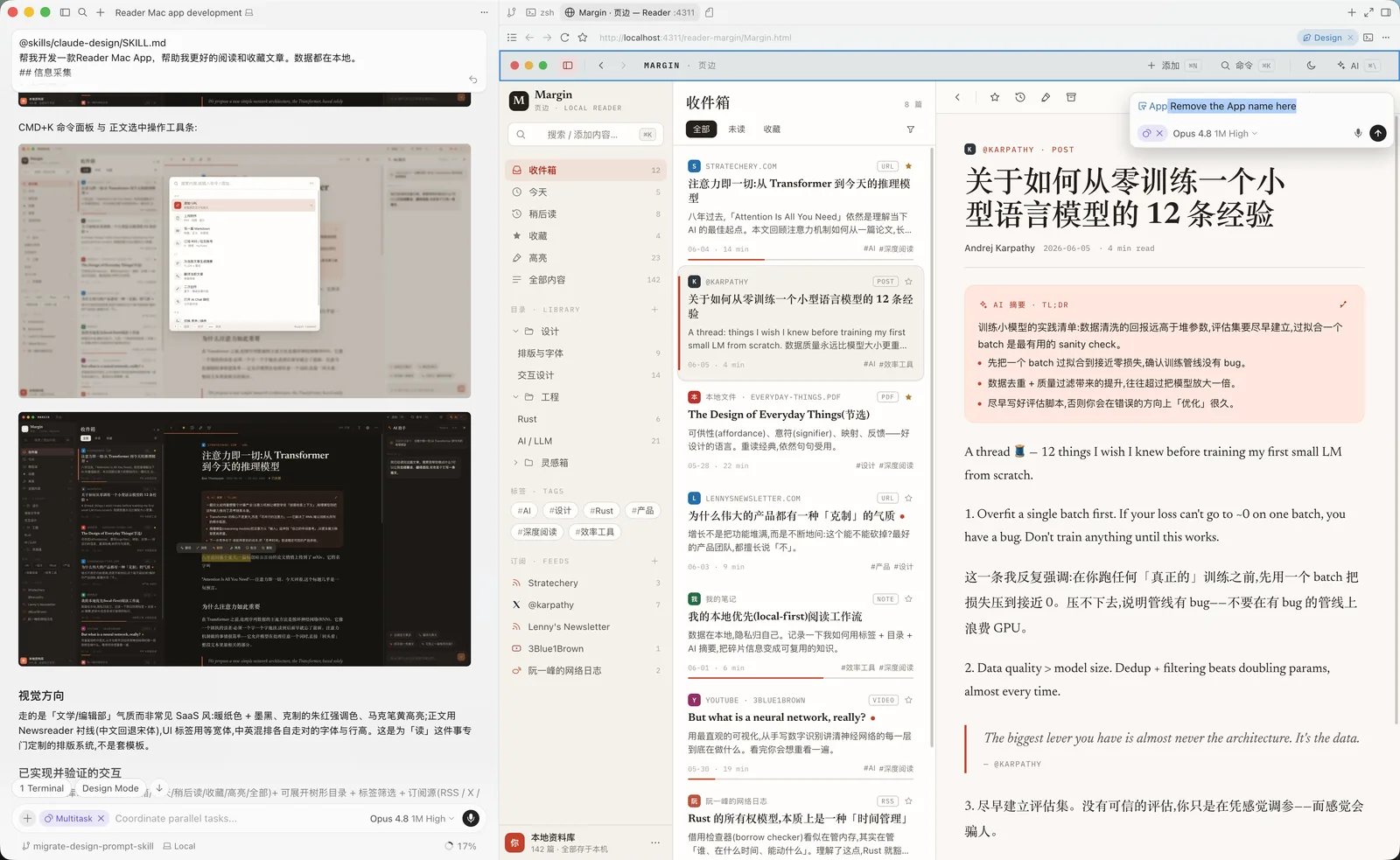 |
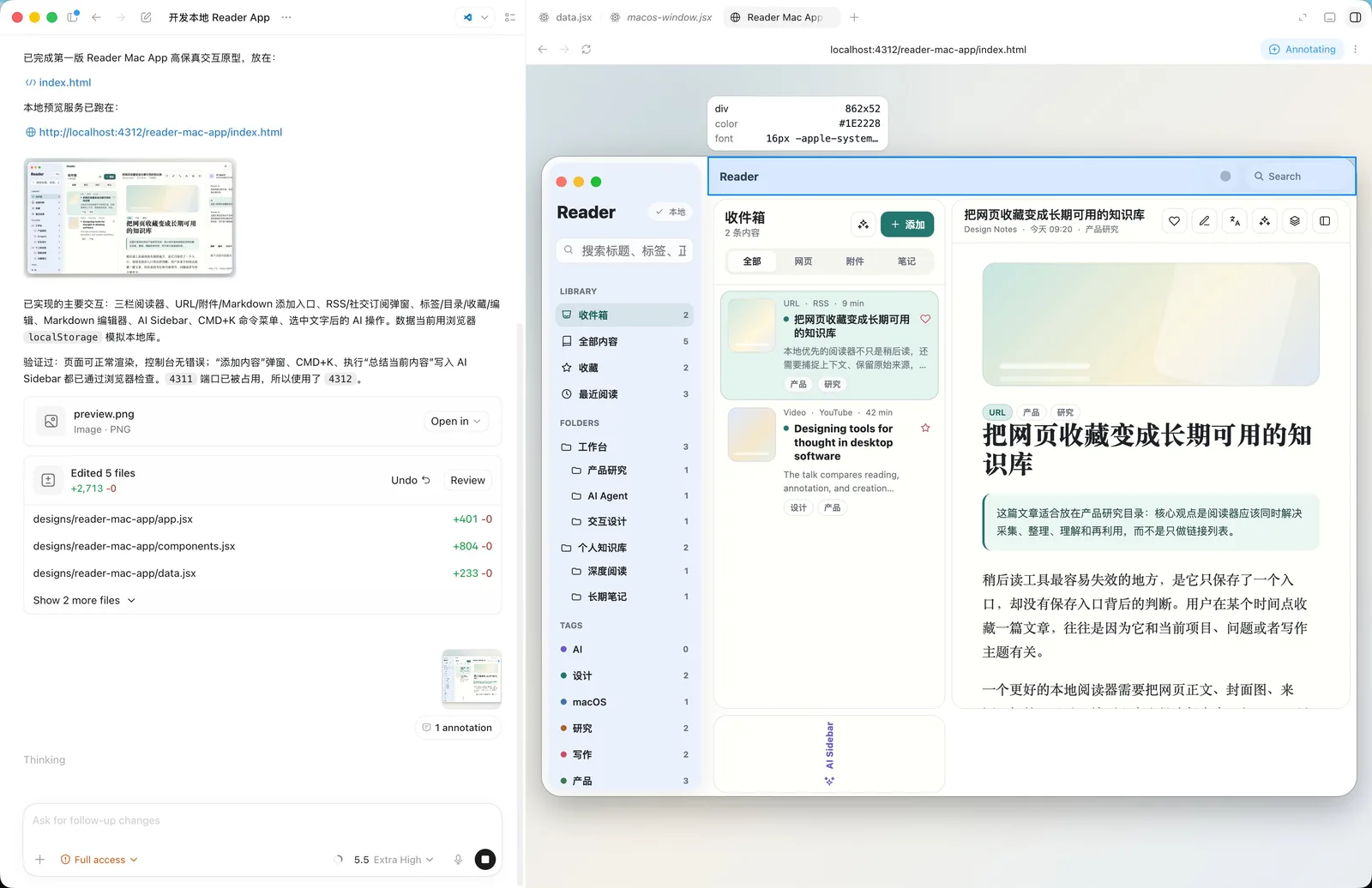 |
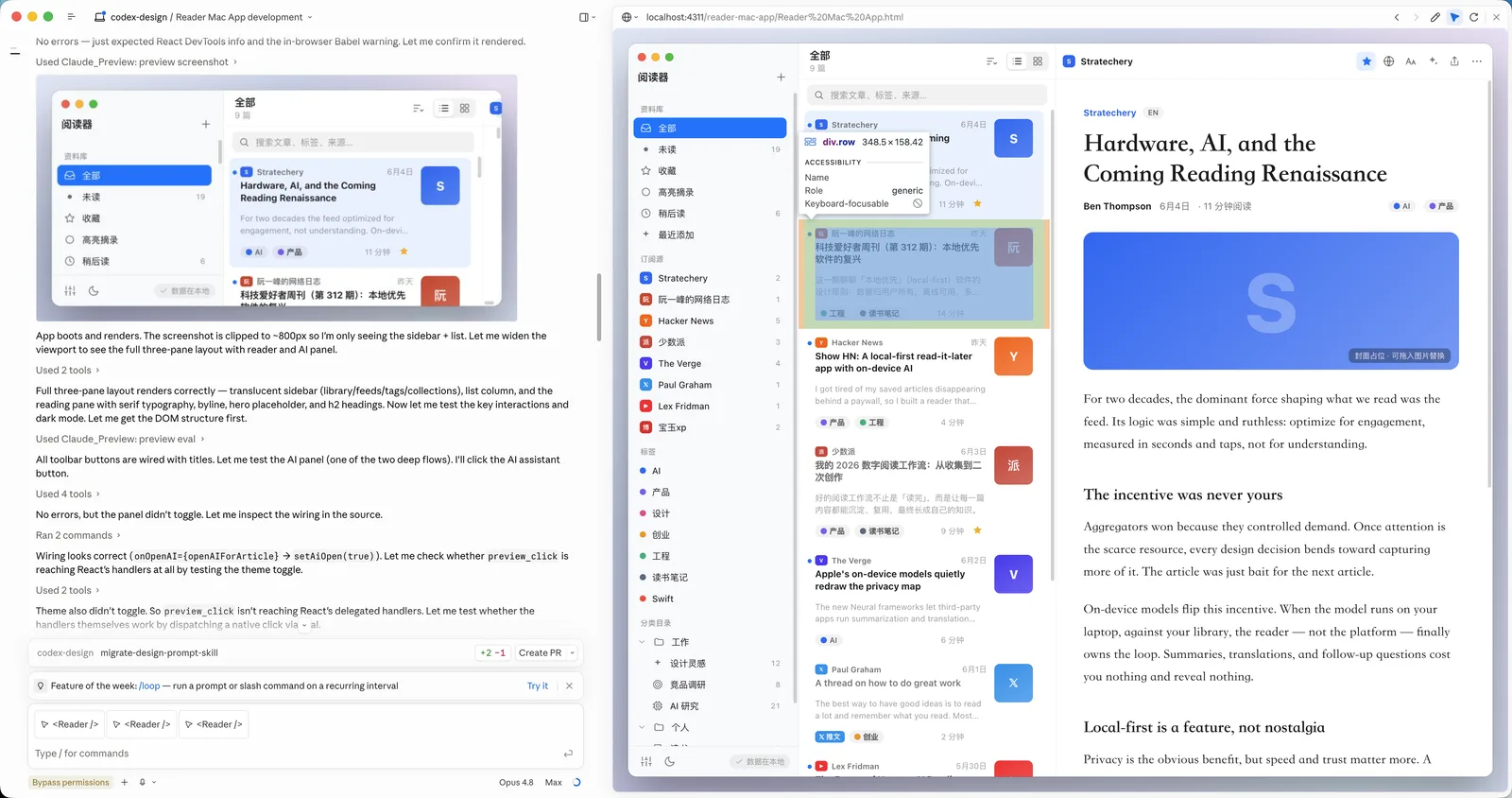 |
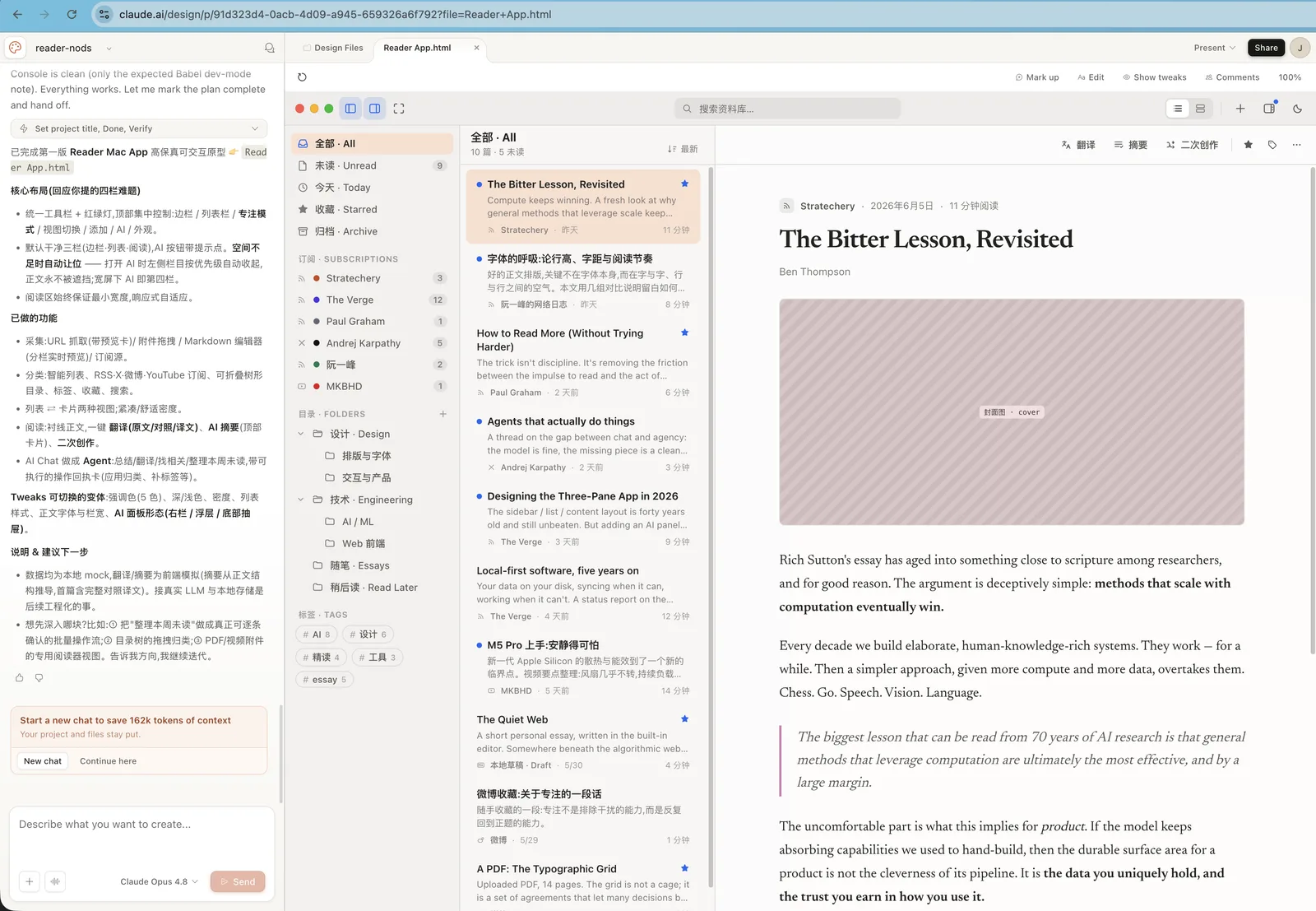 |
Prompt used for all screenshots
Build a Reader Mac app that helps me read and save articles better. All data is stored locally.

## Information collection

1. Manual adding
Support manually adding different types of information:
- URL: enter a URL and automatically fetch content and images
- Attachments: upload PDFs, videos, and images
- Markdown editing: like publishing a blog post, enter the title, body, and cover image
- Other

2. Automatic subscriptions
- RSS feeds
- Social media accounts: X, Weibo, YouTube
- Other

## Editing and organization

1. Tags
Every item can have tags.

2. Categories and folders
Create tree-structured folders and place content in different categories.

3. Favorites
Users can click to favorite an item.

4. Editing
Every item can be edited with a built-in Markdown editor.

## AI assistance

1. Automatic translation
Support translation across different languages.

2. Summaries and abstracts
Generate summaries for captured content.

3. Derivative creation
Create new work based on one or more pieces of content.

4. Integrated AI Chat
Use AI Chat to call AI Agents that help process content.
Why run it locally
- Free yourself from the website. You get the vast majority of
claude.ai/design's capabilities without ever leaving your editor — same methodology, same craft standards, same output format. - Best with Opus 4.8. The skill is a long, demanding design brief; the stronger the model, the better the result. Pair it with Claude Opus 4.8 for the best output, and it still works well on other capable models.
- Iterate by pointing, not describing. Because the deliverable is plain HTML served on
localhost, you can lean on your agent's built‑in browser preview and element‑annotation tools (Cursor Browser / DevTools, Claude Preview, or Codex Browser). Point at a button in the live preview, say what you want changed, and the agent edits the underlying source — a tight, visual second‑pass editing loop that's hard to get on a website. - Everything is yours. Output lands in
designs/<project>/as self‑contained HTML you can version, fork, export, or ship.
What it can make
The skill drives a full design process — clarifying questions → gathering design context → producing one or more HTML deliverables → previewing and verifying. It ships a deep bench of built‑in skills and a set of ready‑made component scaffolds.
| Area | Built‑in skills |
|---|---|
| Core design | Hi‑fi design · Interactive prototype · Wireframe · Frontend aesthetic direction |
| Decks | Make a deck · Speaker notes |
| Mobile & motion | Mobile prototype · Animated video · Sound effects |
| Web & campaigns | Website & landing page · Social media content · HTML email · Flier · Trifold brochure |
| Data & research | Web research · Data science · Data visualization · Maps & geography · Experiment workflow |
| Documents, 3D & illustration | Make a doc · 3D object · Watercolor illustration |
| Design systems | Create design system · Use design system · Design system preview · Design Components (.dc.html) · Make tweakable |
| Import sources | Figma .fig (offline decode) · GitHub repo · Existing HTML/CSS |
| Export & handoff | Standalone HTML · PDF · PPTX (editable) · PPTX (screenshots) · Video (MP4) · Send to Figma · Send to Canva · Handoff to Claude Code |
| AI assets & integration | Gemini image generation · Call Claude from prototypes · Read PDF |
Starter components (in starter-components/) save the agent from hand‑rolling the basics: device, browser, and social-media shells; a pan‑zoom design canvas; slide, animation, chart, document, file, and 3D stages; a tweaks panel; a fillable image slot; and a watercolor painting runtime that replays a painting stroke by stroke.
How it works
The skill is plain Markdown plus a few JSX/JS scaffolds — no build step, no runtime.
skills/baoyu-design/
├── SKILL.md              # Entry point — orchestrates the whole flow
├── system-prompt.md      # The design methodology & craft standards (source of truth)
├── references/
│   ├── claude.md         # Tool map for Claude Code
│   ├── cursor.md         # Tool map for Cursor
│   └── codex.md          # Tool map for Codex Agent
├── built-in-skills/      # Specialized prompts (decks, mobile, import, export, …)
└── starter-components/   # Device/social shells, deck, chart, document, 3D, animation, …
When you ask for a design, the agent reads SKILL.md, loads the core methodology from system-prompt.md, detects whether it's running in Cursor, Claude Code, Codex Agent, or a generic file‑capable harness, and reads the matching reference doc when one exists. It then pulls in only the built‑in skill(s) the task needs. The split keeps craft rules harness‑independent while each environment resolves its own tools for asking questions, previewing, screenshotting, and verifying.
Quick start
Prerequisites
- A local agent — Cursor, Claude Code, Codex, or any of the 70+ agents the installer supports (Cline, Roo Code, GitHub Copilot…). Cursor, Claude Code, and Codex have first‑class tool references inside the skill.
- Claude Opus 4.8 selected as the model, for best results.
- Node.js (to run the
npxinstaller below). Python 3 is also handy for the local preview server.
Install
Recommended — the skills CLI. npx skills (from Vercel Labs) reads this repo, finds skills/baoyu-design/, and drops it into the right folder for whatever agent it detects:
# Install into the current project (auto‑detects your agent)
npx skills add JimLiu/baoyu-design

# …or install globally, for every project
npx skills add JimLiu/baoyu-design -g

# Target a specific agent explicitly
npx skills add JimLiu/baoyu-design --agent claude-code
npx skills add JimLiu/baoyu-design --agent cursor
npx skills add JimLiu/baoyu-design --agent codex

# Just list what's in the repo first
npx skills add JimLiu/baoyu-design --list
It installs to .claude/skills/ for Claude Code and .agents/skills/ for Cursor/Codex-style agents (add -g for the ~/‑level user install).
Update
If you installed baoyu-design with the skills CLI, update it from the terminal:
# Update and let the CLI prompt for the install scope
npx skills update baoyu-design

# Update the project-level install
npx skills update baoyu-design -p -y

# Update the global install
npx skills update baoyu-design -g -y
upgrade is also supported as an alias:
npx skills upgrade baoyu-design
You can also run npx skills update to update all installed skills. After updating, restart Claude Code (or start a new agent session) so the refreshed skill files are loaded.
Alternative — hand the repo URL to your agent. Don't want to install anything? Paste the URL into chat and let the agent fetch the skill itself:
Read https://github.com/JimLiu/baoyu-design and follow its
skills/baoyu-design/SKILL.mdto design a settings screen for a meditation app.
The agent clones or fetches the repo, loads SKILL.md, and proceeds — perfect for a one‑off.
Use it
Once the skill is installed (or fetched), just describe a design task in plain language — it auto‑activates from its description:
Design 3 hi‑fi variations of a settings screen for a meditation app.
In Claude Code you can also trigger it explicitly with /baoyu-design; in Codex, mention $baoyu-design when skills are available. The agent asks a few clarifying questions, builds the HTML under designs/, and previews it over localhost. Point at any element in the live preview and say what to change — the agent edits the underlying source for a fast, visual second pass.
Preview server
Deliverables are previewed over HTTP (multi‑file prototypes won't load from file://). The agent normally starts this for you; to run it by hand:
python3 -m http.server 4311 --directory designs
# then open http://localhost:4311/<project>/<file>.html
Design systems
Beyond one‑off mockups, the skill can hold a whole project to a design system — a versioned bundle of a brand's tokens, fonts, components, and full UI kits. Systems live next to your projects under designs/: author one with the Create design system built‑in skill, drop in a pre‑built one, or import one from a Figma .fig file (see the next section). Once a system exists, two flows let any project consume it.
Import an existing design system
When you start a design, the agent asks where to save it and which design system(s) to use — it discovers every system under designs/ and lists them, so you can pick none (free design), one, or several. Name one up front and it skips the menu:
Design a settings screen using the Fluent 2 design system.
For each system you choose, the agent syncs a self‑contained, version‑pinned copy into your project at _ds/<slug>/, wires its CSS and component bundle into the page, and records the binding in the project's _d_meta.json. That local copy is what keeps the project portable and reproducible — nothing reaches outside the folder, and re‑running the import is how you pull updates later. Choose several systems and one becomes primary — it owns the overall look and wins any token collision, while the others lend specific components.
Use an imported design system
Once a system is bound it acts as a binding visual contract, not a loose suggestion: every screen is built from the system's real tokens, type, spacing, and components, and the agent won't invent off‑system colors or styles. If the system ships starting points — ready‑made screens or components — you can seed a new design from one instead of starting blank.
The binding travels with the project. Reopen it later and the agent reads _d_meta.json, reloads the system, and keeps designing in‑style — no need to re‑pick. From there you can refresh a system to pull updates, add another, swap which one is primary, or remove one entirely.
Import design sources
Real context beats description. Three built‑in import skills turn material you already have into design ground truth the agent works from directly:
- Figma
.figfiles — decoded fully offline. Export any Figma file as.fig(or grab a community kit), point the agent at it, and a vendored decoder reads it right on your machine — no Figma account, API token, or MCP server. The agent inventories pages, components, and variables, confirms scope with you, then either cherry‑picks components as React code or emits the whole kit as a design system: components regrouped semantically, curated token CSS, real SVG/PNG assets extracted from the file (copied, never redrawn), guideline cards, and a brand‑guide README. - GitHub repos. Hand it a repo URL as a design source. The agent browses the tree with
gh apibefore cloning anything, sparse‑checkouts only the paths it needs into a scratch dir outside your project, and records the repo URL as provenance. - Existing HTML/CSS. Saved pages or a local codebase work as a design reference: the agent reads the real stylesheets instead of squinting at screenshots, lifts exact values (colors, type, spacing, radii, shadows, interaction states) into your project's own custom properties, and copies referenced assets out.
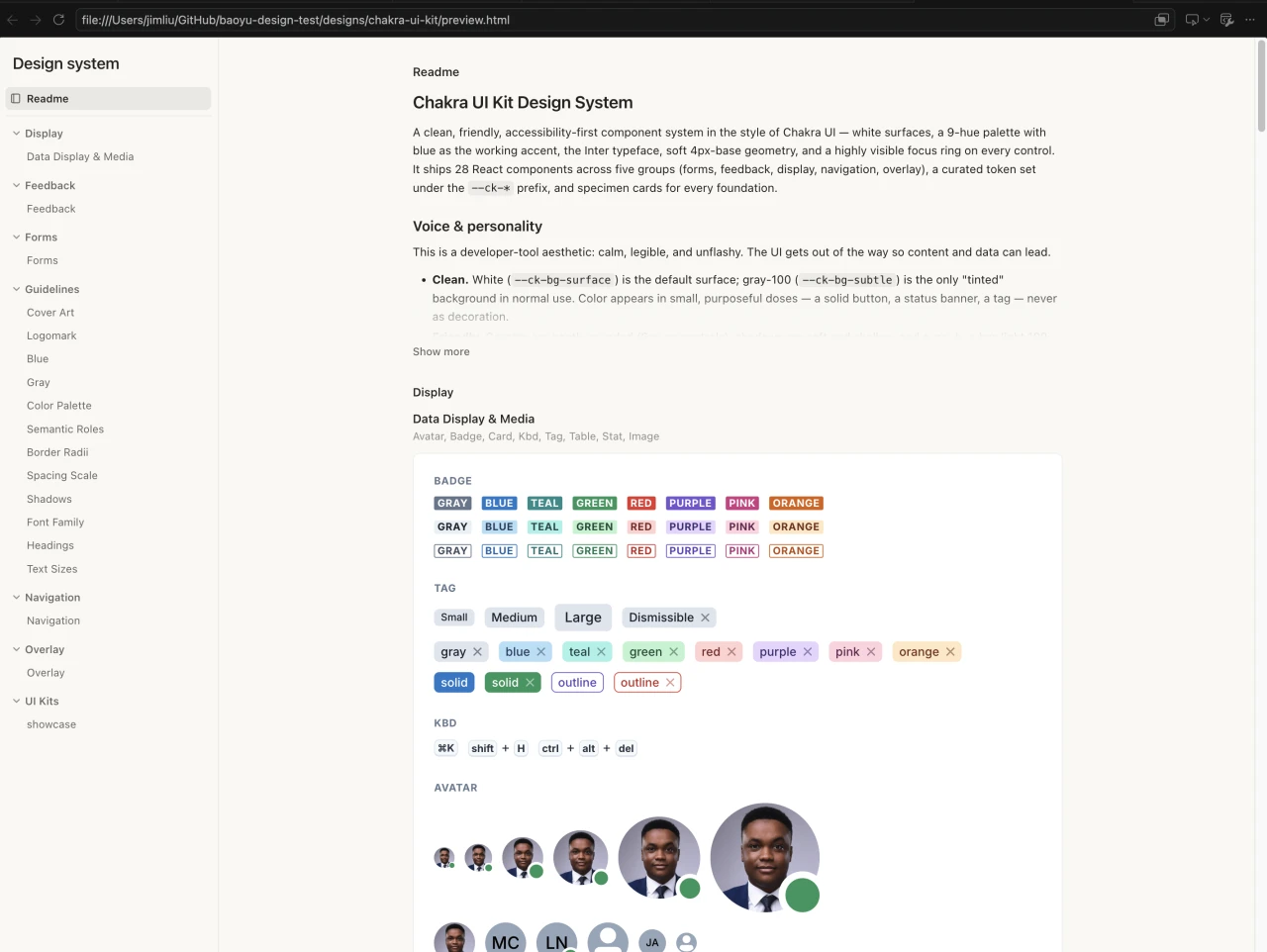
Anything imported as a design system compiles into a single self‑contained, interactive preview.html. This is the community Chakra UI Figma Kit .fig after one import conversation — 28 components in semantic groups, 400+ curated tokens, guideline cards, and a self‑authored showcase, all browsable in one file:
Decks & PPTX export
Ask for a slide deck and the skill builds it the same way it builds everything else — as a self‑contained HTML page, using the deck-stage component and the Make a deck built‑in skill. Because the deck is just a web page, the whole editing loop stays where you already are:
- Preview and tweak by pointing. Open the deck in your agent's browser preview (Cursor Browser, Codex Browser, or Claude Preview), point at a headline or a chart and say what to change — or just ask in chat — and the agent edits that slide's source.
- Present full‑screen. Press
F(or click the fullscreen button in the deck toolbar) to present the deck full‑screen, with the thumbnail rail hidden.Cmd/Ctrl+Fis left untouched, so the browser's Find still works.
Slide animations
Decks can carry per‑element build animations that survive export. Just ask — "build the list point by point", "fly the chart in on click", "move the ball along an arc" — and the agent authors the slide in its final layout, then marks the elements that should build with data-anim attributes:
<li data-anim="fade-in" data-anim-trigger="click">First point</li>
<li data-anim="fly-in" data-anim-dir="right" data-anim-trigger="click">Second point</li>
<img data-anim="zoom-in" data-anim-trigger="with" src="chart.png">
<div class="ball" data-anim="path" data-anim-path="C 100 -200 300 -200 400 0"></div>
- Effects: entrances & exits —
appear/disappear,fade,fly(four directions),wipe(four directions),float,split,bounce,zoom,wheel,random-bars,blinds,checkerboard,dissolve,box,circle,diamond,plus,strips(four corners),wedge(each as-in/-out); emphasis —spin,grow/shrink,pulse,teeter; andpath— custom motion paths built from line and cubic‑Bézier segments. - Sequencing:
data-anim-trigger="click|with|after"maps 1:1 onto PowerPoint's On Click / With Previous / After Previous (defaultafter, so a lonedata-anim="fade-in"autoplays when the slide appears);data-anim-delay,data-anim-duration, anddata-anim-orderfine‑tune the timeline;data-anim-repeatanddata-anim-auto-reverse(spin/grow/shrink/path) loop a spin or run a motion path out‑and‑back. - In the browser, the
deck-stagecomponent plays the builds live — →/Space step through click‑gated builds before advancing to the next slide, and arriving backward shows a slide fully built. Print, thumbnails, and PDF export always show the finished layout. - On editable PPTX export, the same attributes are detected automatically (nothing to configure) and written as native PowerPoint animations — open the Animation Pane and every build is there to inspect, re‑order, or re‑time. Screenshot export flattens slides, so animations are skipped there.
The full attribute reference lives in make-a-deck.md (→ Animations).
When the deck is ready, export it to PowerPoint by saying so in the same conversation — "export this to PPTX", "export to PowerPoint", or "做个 PPT" all route to the export flow (it only exports decks this skill builds, not arbitrary HTML). Two modes:
- Editable — native PowerPoint text, shapes, and images you can keep editing in PowerPoint or Keynote, laid out to closely match the web deck — including any
data-animbuilds, exported as native PowerPoint animations. - Screenshots — one full‑bleed PNG per slide: pixel‑perfect, but flat.
Running locally: on
claude.ai/design, PPTX export is a built‑ingen_pptxtool — and that tool isn't there when you run the skill on your own agent. So the skill ships its own: a local CLI (agents/gen-pptx/) that drives headless Chromium via Playwright and writes the.pptxwith a vendored PptxGenJS. In Claude Code it runs after a one‑time build (cd skills/baoyu-design/agents/gen-pptx && npm install && npx playwright install chromium && npm run build); from then on the agent serves the deck and invokes the CLI for you.
How gen_pptx works
The core idea: don't parse HTML — render it in a real browser, then translate the result into PowerPoint.
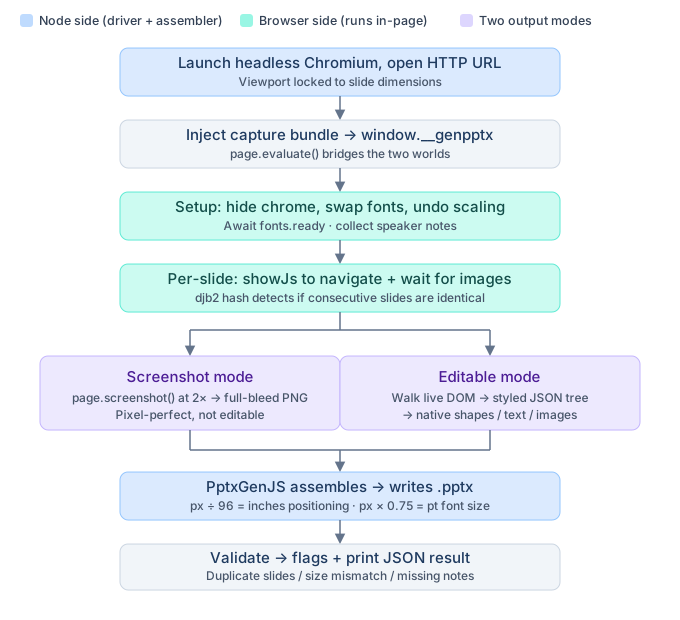
The CLI launches a headless Chromium via Playwright and loads the deck as a live web page (which is why it needs an http:// URL, not file://). A capture bundle is injected into the page and exposed as window.__genpptx; the Node driver talks to it through page.evaluate() — everything that needs the real browser (layout, computed styles, font metrics, image decoding) runs in‑page and returns pure data to Node.
Before any slides are captured, setup() hides UI chrome, applies font substitutions (injecting @font-face rules or fetching from Google Fonts), undoes transform: scale() wrappers so measurements reflect authored dimensions, waits for document.fonts.ready, and collects speaker notes.
Then slides are processed one by one — showJs navigates to each slide, a delay lets transitions settle, and images are .decode()'d. From here the two modes diverge:
- Screenshot mode simply calls
page.screenshot()at 2× device scale and drops each PNG as a full‑bleed slide image. Pixel‑perfect, but flat. - Editable mode recursively walks the live DOM, serializing every element into a
{ tag, rect, style, children }JSON tree with pixel‑precise bounding boxes (text usesRange.getBoundingClientRect()). Back in Node,renderNodeToPptxtranslates each node into native PptxGenJS objects: backgrounds and borders becomeaddShape, text becomesaddTextwith the exact font/size/color from computed styles, images (including rasterized SVGs and canvas snapshots) becomeaddImage. Coordinates convert atpx ÷ 96 = inches, font sizes atpx × 0.75 = points. Elements carryingdata-animget every shape they emit tagged during rendering, and a native<p:timing>animation tree is written into each slide's XML — so builds arrive in PowerPoint as real animations, not baked pixels.
Finally, a validation pass compares captures against the input — djb2‑hashing consecutive slides to flag navigation failures, checking slide dimensions, and verifying speaker‑note counts — and the result is printed as a single JSON line for the agent to read.
Example prompts
- "Design 3 hi‑fi variations of a pricing page using the brand in this screenshot."
- "Prototype a working onboarding flow — real state, transitions, form validation."
- "Make a 10‑slide deck from this PRD for an engineering all‑hands."
- "Build the key‑metrics slide point by point on click, then export the deck to PPTX with the animations."
- "Wireframe a few layout ideas for a mobile expense‑tracker home screen."
- "Recreate the composer UI from this codebase, then export it as standalone HTML."
- "Turn this UI kit
.figinto a design system, then build a dashboard with it." - "Build a dashboard using our design system, starting from its analytics screen."
For best results, give it design context — a screenshot, a UI kit, a Figma .fig export, or a codebase. Starting from real context is the single biggest lever on quality; the skill will ask for it if you don't provide it.
Credits & license
This project repackages Claude Design, the design skill by Anthropic that powers claude.ai/design, so it can run on local agents. It is an independent, community effort and is not affiliated with or endorsed by Anthropic.
Repackaged and maintained by Jim Liu 宝玉. Released under the MIT License.