cleanmytv
A free Mac and Windows app that cleans up your Android TV over Wi-Fi. It switches off the preinstalled
bloat and puts in CleanMyTV Home, an ad-free home screen you set up from your computer. You don't need
Python, Java, Android Studio or adb.
The per-TV cleanup lists come from cleanyourtv by @gathint. Thanks, Gathin.
New to this? The user guide walks every step at TV-owner pace, including rollback and troubleshooting, and the known-devices table shows what the bundled lists cover per model. This README is the technical overview.
Questions, help and home-screen setups: join the CleanMyTV Discord. Bugs and feature requests go to GitHub issues.
New in 0.7.2
- Fireplace on every TV. The fireplace now goes onto the TV through CleanMyTV Home itself, instead of the folder that Fire TV, Xiaomi boxes and some TCL TVs refused (#70).
- Fire TV: CleanMyTV Home comes back in front when Fire OS opens its own launcher, as long as remote buttons are on. Thanks Sean Warren.
- USB drives and YouTube ads: Clean up no longer ticks Media Player, its gallery and video player, Android's storage apps, or the TV's web viewers by default (#71, #55).
- Mac: when macOS never shows the Local Network switch, the Connect screen gives a Terminal command that starts the app with Terminal's network access (#65).
- Phone apps in an Other apps folder: apps with no TV picture can move out of the dock and grid into one folder (#3).
New in 0.7.1
- Install an app. A new step in the sidebar. Drop an .apk on it, see the app's name, version and whether the TV has it already, then install it. A warning about apps from outside the Play Store stays on top, and if Android refuses the app, the app says why in plain words.
- Back on the home screen stays on Home instead of closing it (#69).
- The theme picker on the TV shows the picture of the theme you're on (#68).
- Now playing goes away when the music or video stops, or after 10 minutes paused (#66).
- Clean & launch leaves the Google screensaver, phone remote, casting and voice on, like Clean up does. Thanks nasd223.
- Copy for a bug report shows your home folder as ~, so it doesn't paste your computer's user name. Thanks nasd223.
- The restart check no longer mistakes Settings' fallback screen for a working home screen. Thanks nasd223.
New in 0.7.0
- Fireplace. A real log fire with its crackle, looping without a seam. Show it full screen from an icon or a remote button, make it the screensaver, or put it behind Home. The app downloads it once (about 11 MB) and sends it to the TV. Set it to turn off after 30 minutes, 1 or 2 hours, and the fire fades before the TV sleeps.
- Live TV in Inputs. The TV's own tuner is first in the Inputs menu and opens your channels (#63).
- Slideshow. Up to 12 of your pictures, or the current theme's three, change every 5 to 60 minutes (#56).
- Make your own theme. Start from a built-in theme, pick the accent, a second colour, the background and the picture style, and see it before it goes on the TV.
- Google screensaver. TV extras switches Google's Ambient screensaver apps back on and makes it the screensaver again (#57).
- Clean up after a firmware update. It lists packages you switched off that came back on, with one button to switch them off again.
- Help when Connect fails. The app names the likely cause: macOS blocking local network access, another network, a VPN, or the pairing port typed into Connect.
- Folders and your name in the greeting take the theme's accent.
https://github.com/user-attachments/assets/4e3eb18a-d196-4a51-8d0e-93ce98e11913
Download and install
Get the latest version from Releases:
| Computer | File |
|---|---|
| Mac with Apple silicon (M1 and later) | CleanMyTV-<version>-arm64.dmg |
| Mac with Intel | CleanMyTV-<version>.dmg |
| Windows 10 or 11 | CleanMyTV-Setup-<version>.exe |
Macs need macOS 13 Ventura or newer. The app asks GitHub for a newer version at most twice a day and links to it in the sidebar; it never downloads anything by itself.
The installers are not signed with a paid developer certificate, so your computer warns you the first time:
Mac: open the dmg and drag CleanMyTV to Applications, then open it. When macOS says it can't verify the developer, choose Done, go to System Settings → Privacy & Security and press Open Anyway next to CleanMyTV (on macOS 14 and earlier, right-click the app and choose Open instead). macOS asks whether CleanMyTV may find devices on your local network: choose Allow, or it cannot reach the TV.
If macOS says CleanMyTV is damaged and can't be opened, you have v0.1.0, whose Mac build was not signed correctly. Run this in Terminal, then open the app again:
xattr -cr /Applications/CleanMyTV.app
codesign --force --deep --sign - /Applications/CleanMyTV.app
Windows: your browser may call the download uncommon, or even dangerous, because the installer is new and not signed. Keep it: in Chrome, open the downloads list and choose Keep. When SmartScreen says it protected your PC, choose More info, then Run anyway.
Before you start: on the TV
- Settings → Device Preferences → About (on some Google TVs: Settings → System → About).
- Press OK on Build (or Android TV OS build) seven times, until the TV says you are a developer.
- Back one screen → Developer options → turn on USB debugging. If you also see Network debugging or ADB debugging, turn that on too.
- Keep the TV on and on the same Wi-Fi as your computer.
Open CleanMyTV, find the TV and choose Allow when the TV asks. Tick Always allow from this computer to skip the question next time.
What it does
| Step | What happens |
|---|---|
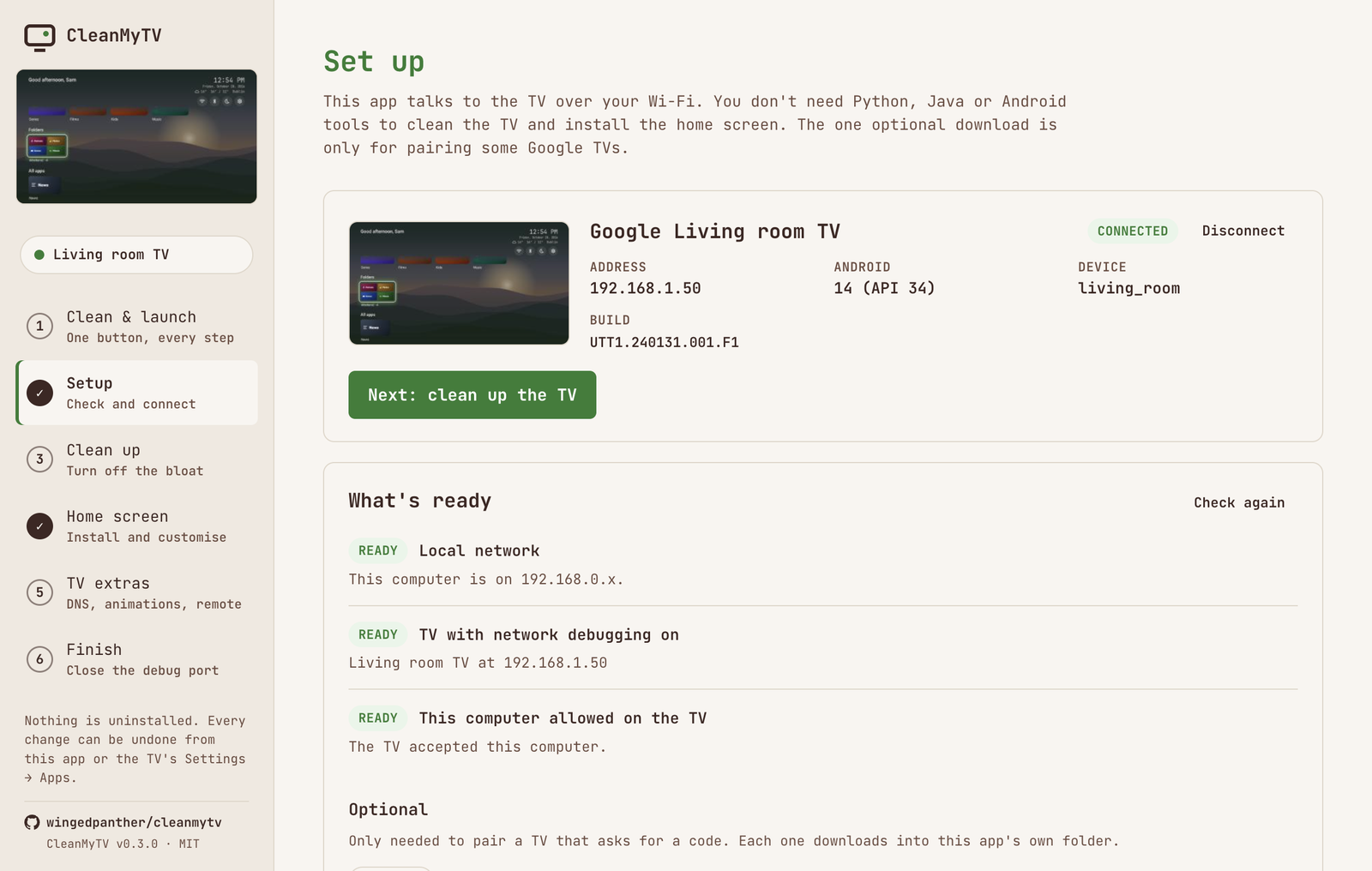
| Clean & launch | The guided path: applies the list that best matches your TV, then installs CleanMyTV Home. |
| Setup | Checks the network, lists the TVs on your Wi-Fi by name (a phone with Wireless debugging on can show up too, and a scan finds older TVs with port 5555 open), connects, and waits while you press Allow on the TV. Google TVs that only offer Wireless debugging get a pairing form that fills in the ports when the TV's pairing screen opens, so you only type the code. With more than one known TV, it shows them with snapshot thumbnails to pick from. |
| Clean up | Picks the upstream list that matches your TV's model, from 371 TVs and 100 brands. Every package shows its live state on the TV, and you choose what to disable. If your TV isn't listed, lists from its brand come first, and it offers the packages other TVs disable. You can add any package on the TV by name. |
| Home screen | Installs or updates CleanMyTV Home and hands Home over. If Home doesn't land on it, it rolls back. If the app can't tell which app is the TV's own launcher, it asks. Tabs for layout, apps, rows and folders, look and wallpaper, widgets, music bars and remote buttons. See below. |
| TV extras | Ad-blocking Private DNS, animation speed, an on-screen remote, reboot. |
| Finish | Restarts the TV and checks the home screen comes back; if it doesn't, puts the stock launcher back. Then walks through switching debugging off, and checks that port 5555 is closed. |
 |
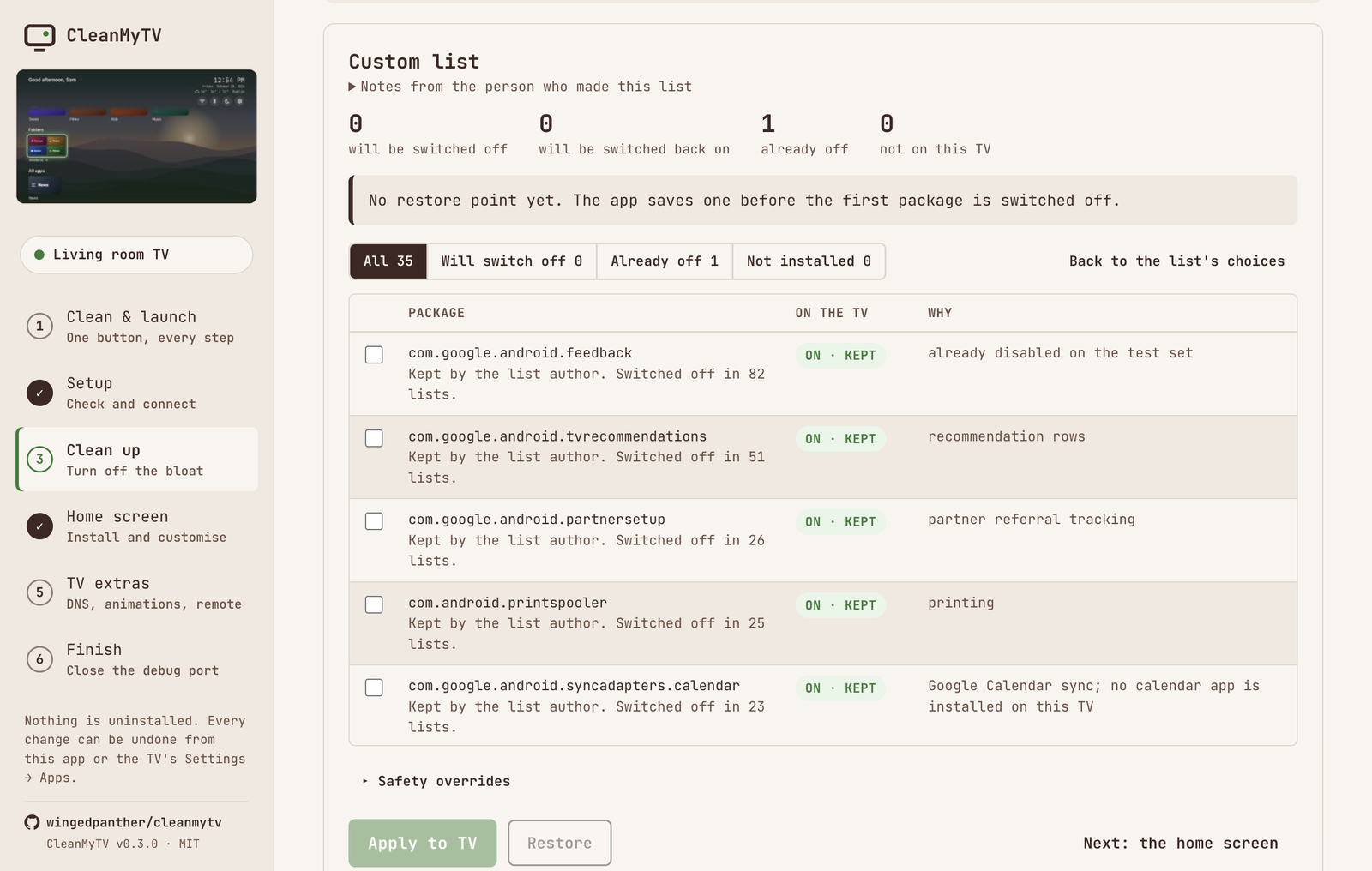 |
Nothing is uninstalled. Packages are switched off for your user, and Restore puts every package back the way it was before the first cleanup.
CleanMyTV Home
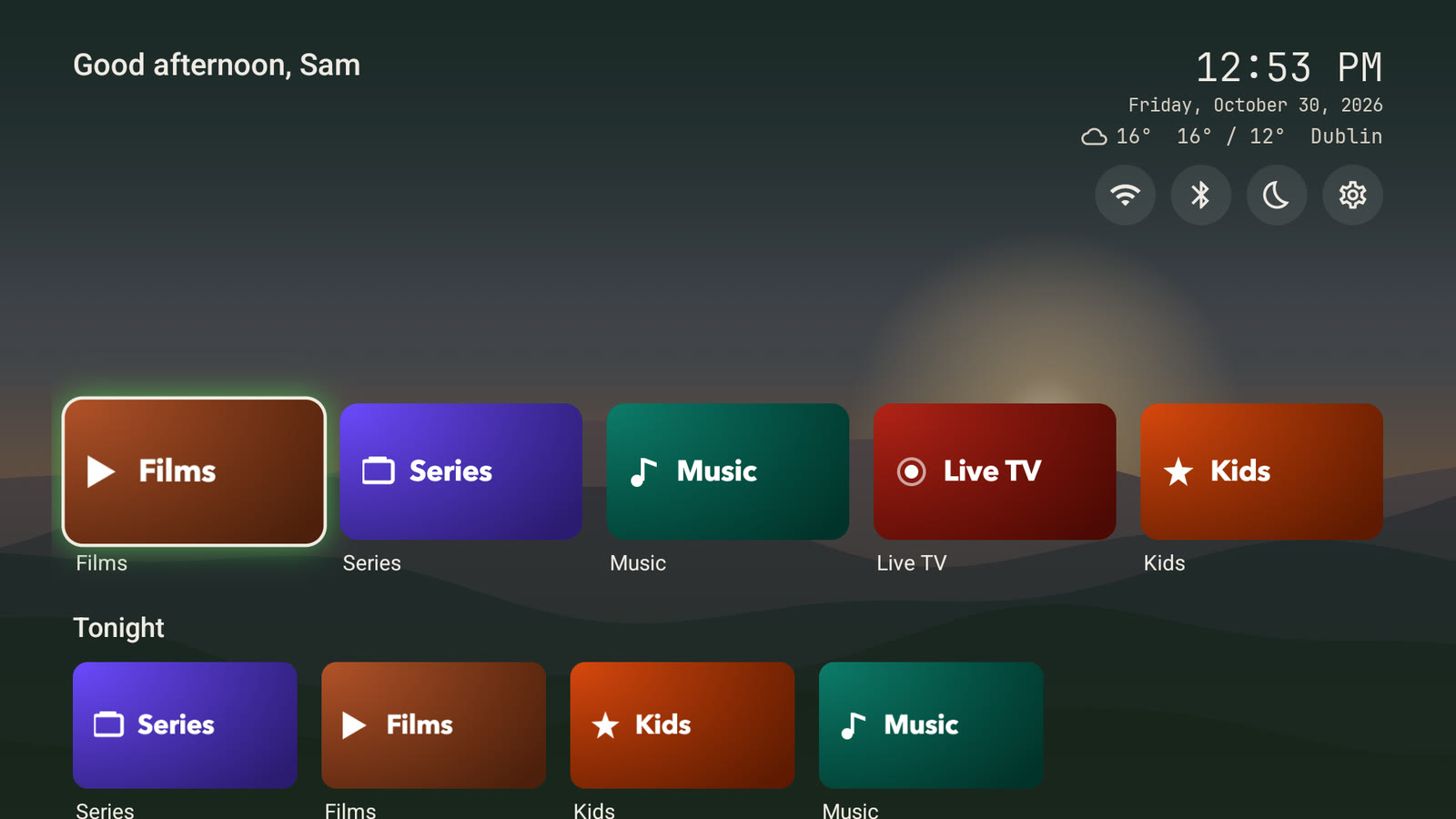
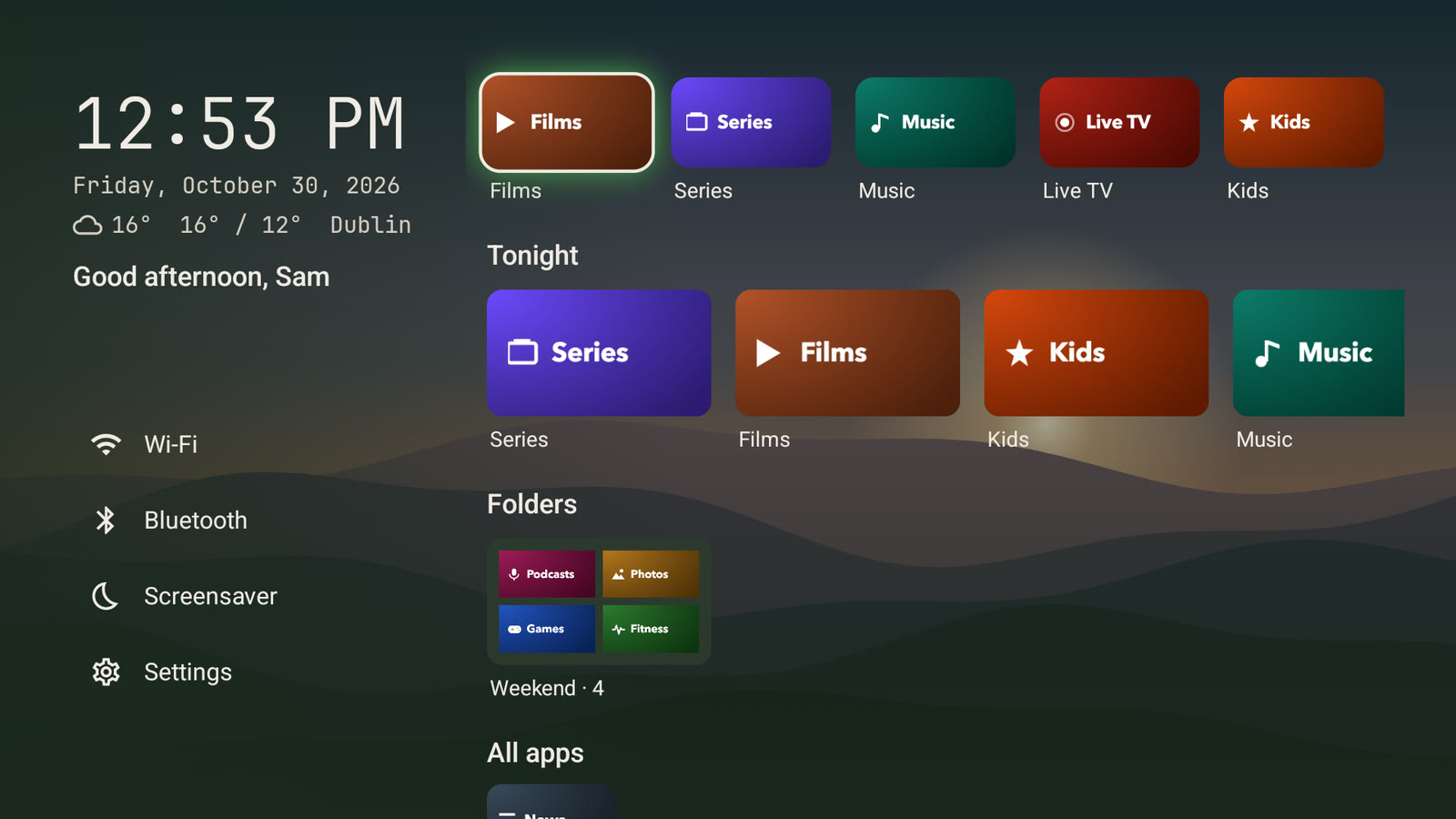
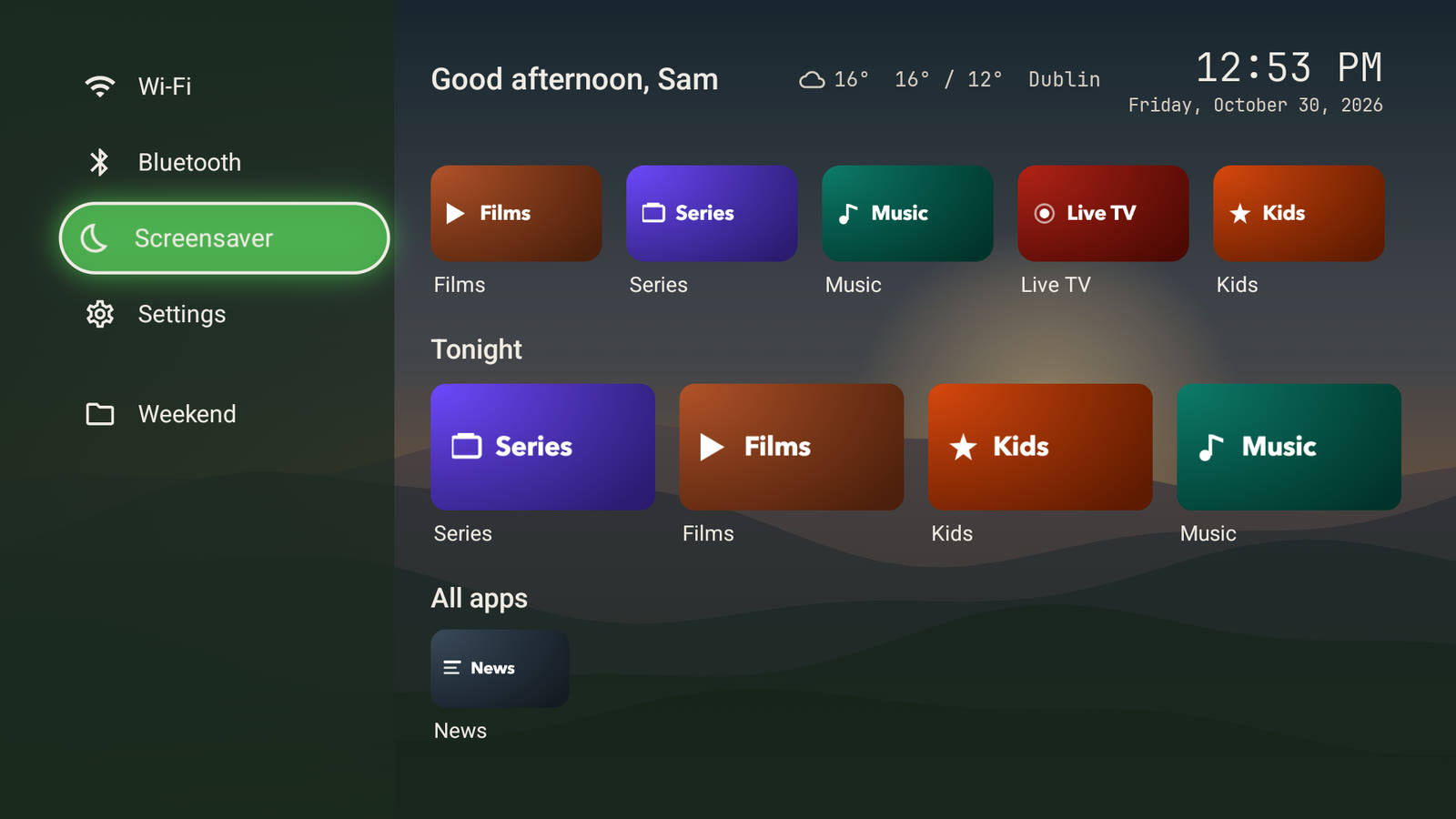
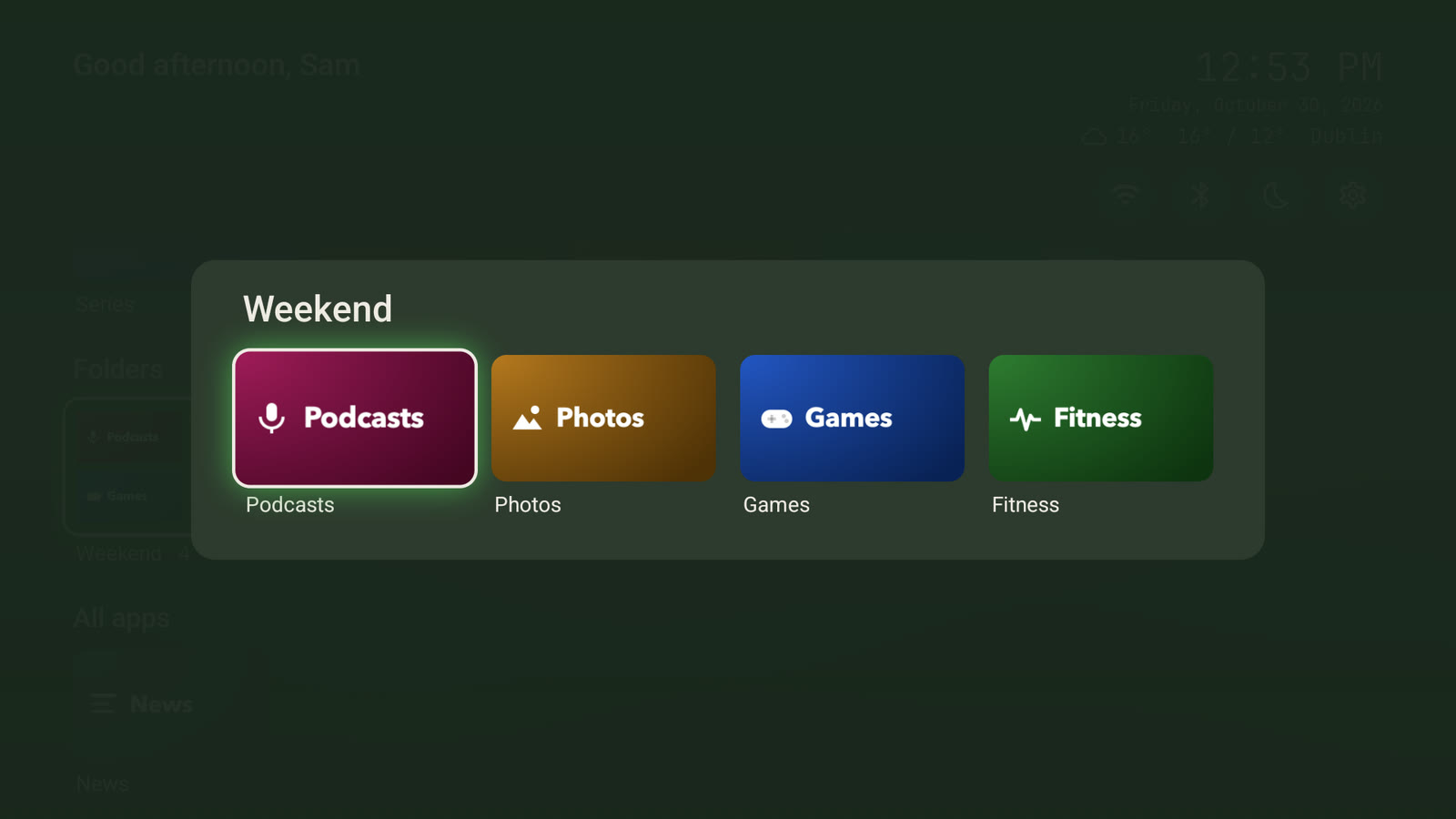
No ads. Your apps, your layout, the weather and what's playing. You change everything from your computer, and the TV shows it as you click.
 |
 |
| Shelf, the default | Split |
 |
 |
| Rail, opened | A folder |
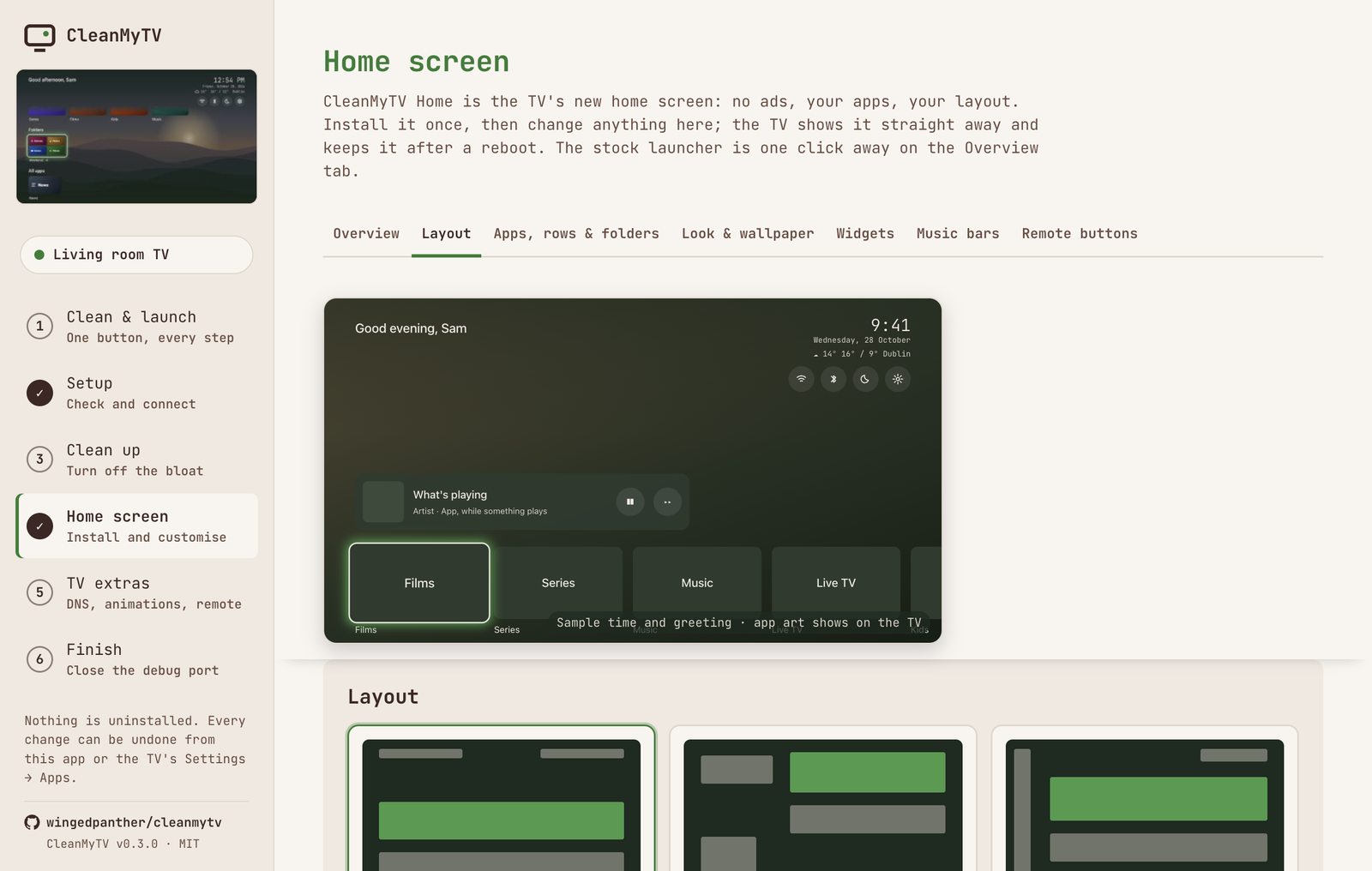
The Home screen step has eight tabs. Every change shows on the TV straight away. The Layout and Apps tabs have a live preview of the TV screen at the top.
| Tab | What you set |
|---|---|
| Overview | Install or update Home, and how to use it. Give Home back to the stock launcher. Remove the old CleanYourTV launcher in one click if it's still on the TV. Take a snapshot of the TV screen. |
| Layout | Three layouts: Shelf (the default), Split and Rail. Space above the apps. The now playing, dock, rows, folders and all apps sections, in any order, each one can be hidden. Quick-settings icons: Inputs, Wi-Fi, Bluetooth, Picture & sound, Apps, Screensaver, Search, Music bars, Quick settings, Themes, Fireplace and Settings. Icons the TV can't open are marked "not on this TV". Up to 6 apps as round icons in the same row, like a VPN. Dock and row tile sizes, apps per row, app names (always, focused app only, or off), clock and greeting. An idle screen: after a set time with no button pressed, only the wallpaper and a large clock show. |
| Apps, rows & folders | Dock size, drag to reorder, hide apps, named rows and folders. |
| Look & wallpaper | Themes: 28 looks with their own wallpaper art, three pictures each, saved to and loaded from .cmtvtheme files, and Put it back to undo them. Put the themes on the TV to switch them with the remote. App icons: banners, or every logo redrawn in Colour, Mono or Duotone, on wide, square, squircle or round tiles. Accent colour. Focus style (lift, glow, outline or none), with options to lean the tile toward the move, keep it in place while the row slides, and tint the background in the focused app's colour. Your own picture or Bing's picture of the day, darken, background colour, and the sunrise when it changes. A slideshow of up to 12 pictures. Make your own theme from a built-in one. The fireplace: put it on the TV, show it, make it the screensaver or put it behind Home, with its crackle and a turn-off timer. |
| Widgets | Now playing: what any music or video app plays, with play, pause and next. Weather next to the clock for a town you pick, in °C or °F. |
| Music bars | On or off; bars, mirrored or wave; accent, rainbow or white; peak dots, number of bars, height, opacity and sensitivity. |
| Remote buttons | Find what a remote button sends, then give it a job in every app: open Settings, Inputs, an app, Home, Back, Quick settings, Themes, the fireplace, the theme's next picture, and more. Off until you turn it on. Only the buttons you map are touched. Power, volume and the mic button are usually handled before Android sees them. On Xiaomi TVs, one click makes the Mi button go Home. |
| App lock | A 4 to 6 digit PIN, kept hashed on the TV, and the apps it locks. Optionally Settings, the Play Store and Quick settings too. An unlock lasts until the TV sleeps, 15 minutes, or until another app opens. Locked apps show a small lock on Home, or stay hidden. One switch turns it all off; the PIN and the list stay. |
Your settings and wallpaper stay through updates and reboots. The app also keeps a copy on your computer: if CleanMyTV Home ever starts empty (after an uninstall or a factory reset), installing it puts the copy back. The wallpaper is also kept on the TV, so another computer can save the look with it. What the launcher can access is under Security and privacy.
CleanMyTV Home needs Android 9 (API 28) or newer.
Coming back to customise
Turn USB debugging on again and open the app. With one known TV, it reconnects to it. When CleanMyTV Home is already Home it opens the Home screen step, loaded with what is on the TV now. Switch debugging off again when you're done. If you didn't revoke the authorisations, there's no Allow prompt.
The app remembers each TV it has connected to. With more than one, it doesn't connect by itself: Setup shows the TVs with snapshot thumbnails, and you pick one. The sidebar shows the connected TV's thumbnail.
If the router gave the TV a new address, or another device now answers at the old one, the app says so and scans the network. You pick the TV from the list; the app does not log in to devices it found by itself.
Security and privacy
What it talks to. The TV address you choose, over ADB on port 5555 of your local network. On Setup, it also asks your local network which Android TVs are there (mDNS) and checks whether their debugging ports accept a connection, without logging in. Over HTTPS, and nothing else:
- api.github.com, at most twice a day, to see if a newer CleanMyTV is out. It downloads nothing.
- dl.google.com for Google's platform-tools, only when you click it (Wireless debugging pairing).
- www.bing.com, only when you choose Bing's picture of the day as the wallpaper.
- geocoding-api.open-meteo.com, only when you search for a town for the weather.
- github.com, once, when you press Put the fireplace on the TV. It downloads the video and sound from
this project's
fireplace-1release and checks them against a fixed SHA-256.
No analytics, no accounts, no server of its own.
What CleanMyTV Home can access.
- Its settings and wallpaper live in its own private storage. The app sends them over ADB through a
ContentProvider (
content call) that only the shell user and root may call. This is also what fixed the "Permission denied" onAndroid/data(#20, #27, #28) and the reset after a reboot (#21). - The music bars read the TV's sound output: the app grants
RECORD_AUDIOover ADB at install. The bars only move while music or video plays. - Now playing reads other apps' media sessions. Android only allows that for a notification listener, so the app switches one on over ADB while the section is on, and off without it. It reads no notifications.
- Remote buttons and the app lock use an accessibility service. It sees key presses and which app is in front, and can't read what's on screen. It is off until you turn on either, only acts on the buttons you map, and only covers the apps you lock.
- The app lock's PIN is stored on the TV salted and hashed (PBKDF2), in Home's private storage. The app can set it but never read it back. It's a family lock: anyone with ADB access or a factory reset gets past it.
- The Quick settings panel changes screensaver, sleep, Private DNS, animation and clock settings. The
app grants
WRITE_SECURE_SETTINGSandWRITE_SETTINGSover ADB at install for that. A TV that refuses them still works: those rows open the TV's own settings instead. - The fireplace video and sound sit in Home's folder on the TV's shared storage
(
Android/data/io.github.wingedpanther.cleanmytv.home/files/fireplace). ADB can write there, and Home reads them without a storage permission. - The only thing it fetches from the internet is the weather, from api.open-meteo.com, every 30 minutes while the place is set.
- Its settings and wallpaper live in its own private storage. The app sends them over ADB through a
ContentProvider (
Your keys. The app makes its own ADB key in its data folder and signs only with that. It never uses
~/.android/adbkey, which your phones may also trust, and it only logs in to an address you picked. Network ADB is plaintext by design, so use it on a network you trust.Pinned upstream. The debloat lists come from one upstream commit pinned in
upstream.jsonwith a content hash. A build refuses anything that doesn't match, so a change upstream reaches this app only after someone reviews it and moves the pin.The launcher signing key ships inside the app, on purpose.
resources/signing/cleanmytv.jks(passwordcleanyourtv) signs CleanMyTV Home, so every build installs over the others. It gives no access to a TV: installing anything still needs ADB access the owner allowed.Close debugging when you're done. Some TVs (
ro.adb.secure=0) accept any device on the network without the Allow prompt; the app warns you if yours is one. The Finish step checks that port 5555 is closed. The launcher keeps working without debugging.Window lockdown. The app window is sandboxed, cannot navigate away from its own page, and only that page may call into the part that talks to the TV.
Found a security problem? Please report it privately through the repository's Security → Report a vulnerability page rather than in a public issue.
Credits and upstream
The per-TV cleanup lists are cleanyourtv's, by
@gathint, shipped unchanged. CleanMyTV is an independent project, not part of
cleanyourtv. Versions 0.1.x installed the CleanYourTV launcher (com.gathin.tvhome); since 0.2.0 the
launcher is CleanMyTV Home, built from home/ in this repository, and the app can remove the old one.
The debloat side is a TypeScript port of upstream's tools/, and the launcher handover follows
launcher/build-and-install.sh:
src/main/adb/is an ADB-over-TCP client, the twin oftools/tv.py.src/main/debloat.tshas the same guards asdisable.sh: it won't disable the app that owns Home while nothing else can take it, and it won't disable setupwraith while it owns the Wi-Fi network. It writes the same recovery record to~/.cleanyourtv/, plus the TV's device name so the record follows the TV to a new address.tests/engine.test.tschecks that the record names and the restore batch match upstreamrecovery.pyexactly, sotools/restore.sh ~/.cleanyourtv/lists/<tv>.txtcan also undo what the app did.src/main/launcher.tsfollows the handover order ofbuild-and-install.sh: install, start, switch off Google's launcher, set Home, check, roll back. Vendor launchers stay on, as upstream'sSTOCK_LAUNCHER=nonedoes: lists say to keep them. If setupwraith takes Home once the Google launcher is off, as on Google TV 14 MediaTek boards, the install switches it off too, after the same Wi-Fi check, and Undo turns it back on. The app knows the stock launchers the lists name, and remembers each TV's for Undo. It also removes the CleanYourTV launcher that 0.1.x installed.src/main/home.tsreads and writes CleanMyTV Home's settings through its ContentProvider.
Upstream's themes aren't bundled. They are for upstream's launcher.
The "From Omarchy" home screen themes use the colours of the dark themes in
Omarchy by David Heinemeier Hansson (MIT). Only
the colours are used; the wallpapers are drawn by the app. Its licence ships in resources/licenses/.
The drawn app icons come from Simple Icons (CC0). Brand marks belong to their owners; Home only shows them to open the app they belong to.
The undo toast, the Apply button that changes as it works, the PIN boxes, the step bar, the loading rows and
the ⌘K search follow components from EasyUI by Suraj Maurya (MIT),
rewritten in plain CSS. Its licence ships in resources/licenses/.
The fireplace video and its crackle come from Pixabay under the Pixabay Content
License, looped and re-encoded for the TV. They're downloaded from the fireplace-1 release when you
put the fireplace on a TV, and aren't part of this repository.
The launcher APK
CleanMyTV Home lives in home/: Kotlin and Jetpack Compose for TV, package
io.github.wingedpanther.cleanmytv.home. npm run home builds it into resources/home.apk, and
resources/home.json records its version. The script uses JAVA_HOME and ANDROID_HOME if they are
set. Otherwise it downloads JDK 17 and the Android SDK into .cytv-build/. Every build is signed with
resources/signing/cleanmytv.jks, so each one installs over the others.
Develop
npm install
npm run sync                 # lists from the pinned upstream commit
npm run home                 # resources/home.apk (without JAVA_HOME/ANDROID_HOME, first run downloads the build tools)
npm run dev                  # the app, with hot reload
npx tsx scripts/fake-tv.ts   # a pretend TV on 127.0.0.1:5556 to try the app without one
UPSTREAM_DIR=<clone at the pinned commit> npm test
npm run dist:mac             # dist/*.dmg   (on a Mac)
npm run dist:win             # dist/*.exe   (on Windows, a Mac, or in CI)
To move to a newer upstream: review its changes, then node scripts/pin-upstream.mjs <commit sha>,
npm run sync, and test on a TV. UPSTREAM_UNPINNED=1 lets sync use other content for a local
trial.
.github/workflows/build.yml builds the APK on Linux and runs the tests on every push and pull request.
Pushes to main and version tags also build the macOS and Windows installers; download them from the
run's Artifacts. It runs with read-only repository permissions and actions pinned to commits.
Releasing
- Set the new
versioninpackage.jsonand commit it. - Tag and push:
git tag v0.3.0 && git push origin main v0.3.0. - The workflow builds both installers and opens a draft release with them attached. Check it, then press Publish release.
The tag has to match the version in package.json, or the release step stops.
Help and community
- Chat and how-to questions: the CleanMyTV Discord. Share your
home screen in
#show-your-setup. - Bugs and feature requests: open a GitHub issue with your TV model, Android version and what happened. Issues are where fixes get tracked, so please don't report bugs only in Discord.
Known limits
- Tested on a Xiaomi Mi Box S from Windows, and on a TV emulator from macOS.
- Macs need macOS 13 Ventura or newer. CleanMyTV Home needs Android 9 or newer; Clean up works on older TVs.
- Wireless debugging pairing uses Google's
adb, downloaded on demand. On macOS, Local Network privacy can block that binary. If pairing fails there, pair from a Windows PC or runadb pairin Terminal once.
Licence
MIT, see LICENSE. The bundled debloat lists are from
cleanyourtv by Gathin23, also MIT; its licence ships in
resources/upstream/LICENSE. The Omarchy theme colours are MIT too; see resources/licenses/omarchy-LICENSE.txt.